
You enlarged your logo for a poster and the edges turned jagged. You only have a PNG of your logo, but the printer is asking for an SVG or vector file. Converting the image to SVG (a vector format) can often solve the problem.
This guide shows how to turn logos and icons into SVG with the free Image to SVG Converter. Your image is converted in your browser and never uploaded.
An old logo of mine only survived as a PNG, which was a problem whenever I needed it large. So I built a way to vectorize images in the browser, with no special software.
What is SVG?
Image formats fall into two broad types:
- Raster images (PNG, JPEG and others): made of tiny dots (pixels). Enlarge them and the dots show, so edges get jagged
- Vector images (SVG and others): store lines and shapes as math. However far you zoom, the edges stay smooth
With SVG, the same file looks sharp on a business card and on a billboard. It’s also widely used for website logos and icons.
What this tool does
- Converts PNG, JPEG and other images to SVG
- Offers styles: Default, Fewer colors (poster look), Smoother curves, Crisper edges and More detail
- Lets you adjust the number of colors
- Shows the original and the SVG side by side
- Converts inside your browser without sending the image to a server
How to use it
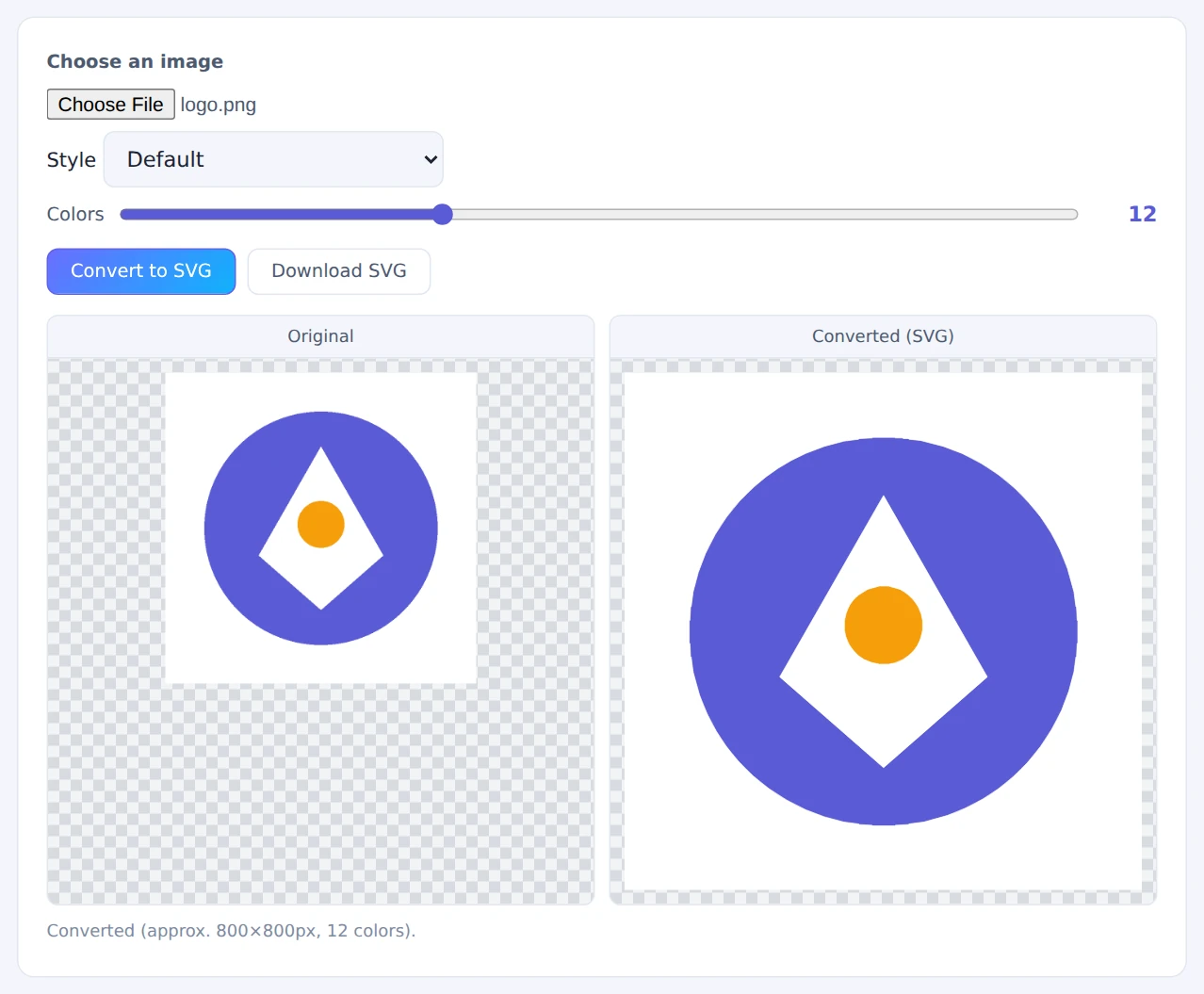
STEP 1. Choose an image
Open the Image to SVG Converter and choose the image to vectorize. Logos and icons with clean edges work best.
STEP 2. Pick a style and colors
Choose a Style and the number of Colors. If you’re not sure, start with Default.
STEP 3. Convert and compare
Press Convert to SVG to see the original and the SVG side by side. If needed, change the style or colors and convert again.
STEP 4. Save
Press Download SVG to save the file.
For near-single-color logos, try “Fewer colors (poster look)”. For rounded logos, “Smoother curves” tends to give the cleanest result.
When it comes in handy
- Enlarging a logo: use a PNG-only logo on posters and signs
- Website icons: get icons that stay crisp at any screen size
- Cutting, embroidery and laser machines: prepare shapes for machines that need outline data
- Hand-drawn artwork: scan line art and turn it into clean vector lines
FAQ
Can I convert photos to SVG?
You can, but it’s not recommended. Photos are full of gradual color changes and gradients, so they turn into a tangle of tiny outlines and large files. SVG conversion works best on images with few colors and clear edges.
The result looks rough. How do I improve it?
Small or blurry source images are hard to trace. Use the largest, sharpest version you have. Then try “Crisper edges” or fewer colors.
Is this the same as Image Trace in Illustrator?
The idea is the same, but this tool offers far fewer controls. Use it for quick vectorizing, and fine-tune in professional software if you need a polished result.
Things to keep in mind
- It won’t match the original exactly: outlines are re-traced, so fine details and lettering can change slightly. For official logo files, ask whoever created the logo
- Small text tends to break up: tiny lettering in a logo may lose its shape
- Remove the background first: a white background is traced as a color too. To make it transparent, use the Solid-Color Background Remover first
- Need the logo’s colors? The Color Palette Extractor shows them as HEX codes
Summary
Turning a logo or icon into SVG means it stays sharp at any size. The Image to SVG Converter vectorizes images right in your browser, no special software needed.
If you have a logo that only exists as a PNG, give it a try.