
You want slide or website colors that match the mood of a favorite photo. You need the exact color codes used in a brand’s logo. Pulling colors from an image as color codes is a design basic.
This guide shows how to extract the main colors of an image as HEX codes with the free Color Palette Extractor. Your images are processed in your browser and never uploaded.
Picking colors one at a time with an eyedropper was tedious, so I built a tool that shows an image’s main colors all at once.
What is a HEX color code?
On the web and in design tools, colors are usually written as six characters after a #, like #5b5bd6. This is a HEX (hexadecimal) color code.
The six characters are three pairs, giving the strength of red (R), green (G) and blue (B). With a HEX code you can reproduce the exact same color in PowerPoint, Canva, Figma, CSS and almost any other tool.
What this tool does
- Finds the most-used colors in an image automatically
- Extracts 4, 6, 8 or 10 colors
- Copies a color’s HEX code when you click its swatch
- Handles several images at once
- Processes images inside your browser without sending them to a server
How to use it
STEP 1. Choose an image
Open the Color Palette Extractor and choose the image to pull colors from. You can select several at once.
STEP 2. Choose the number of colors
Pick the Number of colors. Six works well for a color scheme; four is usually enough to check a logo.
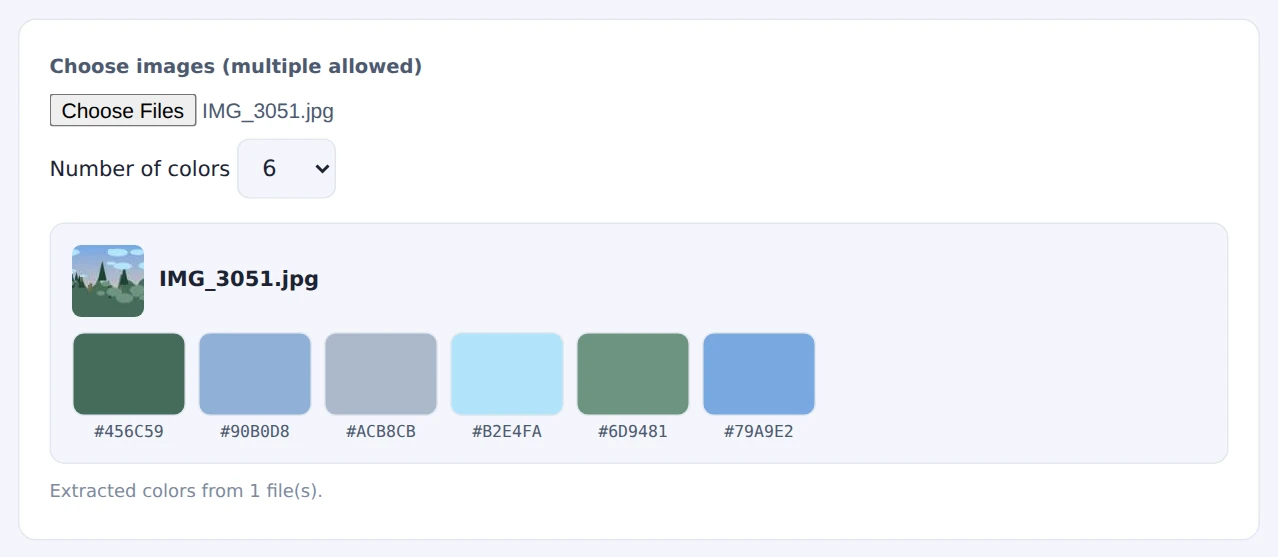
Click a swatch to copy its HEX code
STEP 3. Copy a HEX code
Click the swatch of the color you want, and its HEX code is copied.
STEP 4. Use it in your design
Paste the HEX code into the color field of your slide or design tool.
Colors covering the most area come first, so background colors often lead the list. When building a scheme, assign roles: one for the background, one main color and one accent.
When it comes in handy
- Slides and documents: build a color scheme that matches a photo
- Website design: choose theme colors from an image you like
- Brand colors: find the color codes used in a logo
- Matching photos: compare the color tendencies of several stock images
FAQ
Why doesn’t a small accent color show up?
The tool ranks colors by how much of the image they cover, so small accent colors may not make the list. Extract more colors, or crop the image down to the accent area first.
The color is slightly off from the official brand color. Why?
Compression and color conversion for screens can shift colors slightly, and the tool groups similar shades into one representative color. For official brand colors, check the brand guidelines.
Can I get RGB or CMYK values?
The tool shows HEX codes. HEX is just RGB written in hexadecimal, so most design tools show the RGB values when you enter it. CMYK depends on the print setup, so follow your printer’s specifications.
Things to keep in mind
- Large areas win: background colors tend to rank first
- Transparent areas count as white: transparent PNGs with lots of empty space will show white near the top. Trim it with Auto-Trim Image Margins for a more accurate palette
- Want to vectorize a logo? To make a logo that stays sharp at any size, use the Image to SVG Converter
Summary
Extracting colors from an image lets you recreate the look you want with exact color codes. The Color Palette Extractor shows an image’s main colors and copies any of them with a click.
Next time you’re stuck on a color scheme, start from a photo you love.