

Your screenshots have awkward empty borders that look sloppy in a document. Your photos are all named “IMG_4821.jpg” and you can’t tell which is which. The small prep work before using images eats a lot of time when you do it one file at a time.
This guide shows how to tidy up margins and file names for a whole batch of images with the free Auto-Trim Image Margins and Bulk Image Renamer tools. Your images are processed in your browser and never uploaded.
When preparing dozens of screenshots for a manual, trimming borders and renaming files were the most tedious parts. These two tools handle both in batches.
Which tool do you need?
| Task | Tool |
|---|---|
| Automatically cut empty borders from screenshots or product photos | Auto-Trim Image Margins |
| Rename many images at once with numbers or dates | Bulk Image Renamer |
Both handle multiple images at once and let you download the results as a ZIP.
Auto-Trim Image Margins
Auto-Trim Image Margins treats the color at the corners as the background and trims matching borders from all four sides.
- Choose the images to trim (several at once is fine)
- Adjust Detection strictness and Margin to keep if needed (the defaults usually work)
- Press Auto-detect & trim margins
- Save images one by one, or press Download all as ZIP
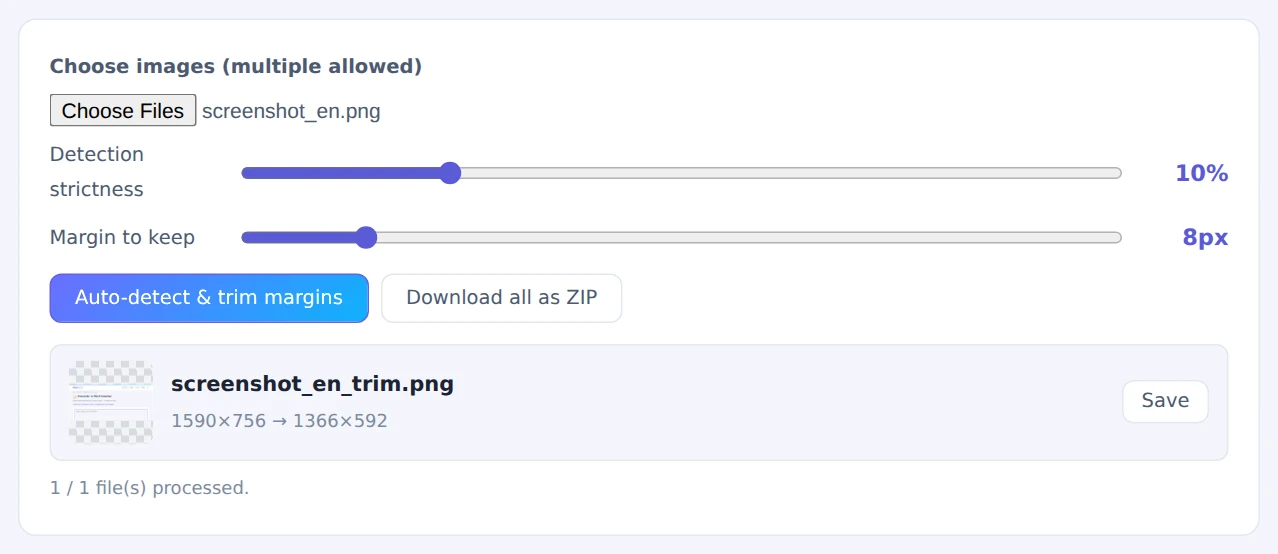
1590×756 trimmed to 1366×592
Each image’s corners are checked separately, so a batch with white and dark backgrounds is handled correctly.
Bulk Image Renamer
The Bulk Image Renamer builds new names from placeholders you combine into a pattern.
- Choose the images to rename (the order you select them in sets the numbering)
- Enter a Naming pattern. For example,
manual_{n}gives “manual_001.png”, “manual_002.png” and so on - Set Start at and Digits
- Check the new names in the list, then press Rename & download ZIP

Available placeholders (click a button to insert one at the cursor):
{n}: number{name}: original name{date}: today’s date{w}and{h}: the image’s width and height
Browsers can’t rename files on your computer directly, so the tool saves renamed copies in a ZIP. Unzip it and use those files in place of the originals.
A handy order for a whole batch
When preparing a set of images for a manual or document, this order works well:
- Trim the margins with Auto-Trim Image Margins
- Match the sizes with the Image Resizer & Compressor, which also makes files lighter
- Name them with the Bulk Image Renamer, numbered in step order
When they come in handy
- Manuals and how-tos: tidy screenshot borders and number them by step
- Online store product photos: even out white margins and name images by product code
- Scanned documents: trim scanner borders and add dates to file names
- Organizing photos: rename event photos with the event name and a number
FAQ
Can it trim margins from ordinary photos?
It works best when the corners are a solid (or nearly solid) color. In photos where the subject reaches the corners, it may cut more than you want. For photos, choose the area yourself with the Image Cropper.
Can I change the file extension while renaming?
No. The original extension is kept automatically. To change the actual format, use the Image Format Converter.
Are my images uploaded?
No. Detection, trimming, renaming and ZIP creation all happen inside your browser.
Things to keep in mind
- Too much or too little trimmed? Lower Detection strictness if it cuts too much; raise it if borders remain
- Numbering follows your selection order: reselect the files to change the order
- Originals aren’t touched: processed images are saved separately in a ZIP
Summary
Tidying margins and file names up front makes documents and image libraries much easier to manage. Both tools handle any number of images at once, without uploading anything.
Try them the next time you prepare a batch of screenshots.