

You copied a paragraph from a PDF, and every line ends with a hard line break. Pasted into an email or a document, it looks broken. Text copied from web pages and old files often carries extra spaces and tabs too. Cleaning up line breaks and whitespace by hand is slow and easy to get wrong.
This guide shows how to remove unwanted line breaks, spaces and tabs in one go with the free Line Break & Whitespace Remover. Your text never leaves your browser.
I kept fixing PDF quotes line by line before pasting them into documents. This tool turns that into a single checkbox.
Why text from PDFs has broken lines
A PDF stores text as lines positioned on a page, not as flowing paragraphs. When you copy it, each visual line usually ends with a real line break, so the text stays chopped up wherever you paste it.
Other common culprits:
- Web pages and emails: extra spaces, tabs or blank lines from the page layout
- Spreadsheets: line breaks inside cells that split rows when pasted
- Old documents: text aligned with runs of spaces instead of tabs or columns
What this tool does
- Removes all line breaks, or only empty lines
- Removes spaces and tabs
- Trims spaces at the start and end of each line
- Collapses repeated spaces into one
- Updates the result instantly as you tick options
- Processes your text inside your browser and never sends it to a server
How to use it
STEP 1. Paste your text
Open the Line Break & Whitespace Remover and paste your text into Original text.
STEP 2. Choose what to remove
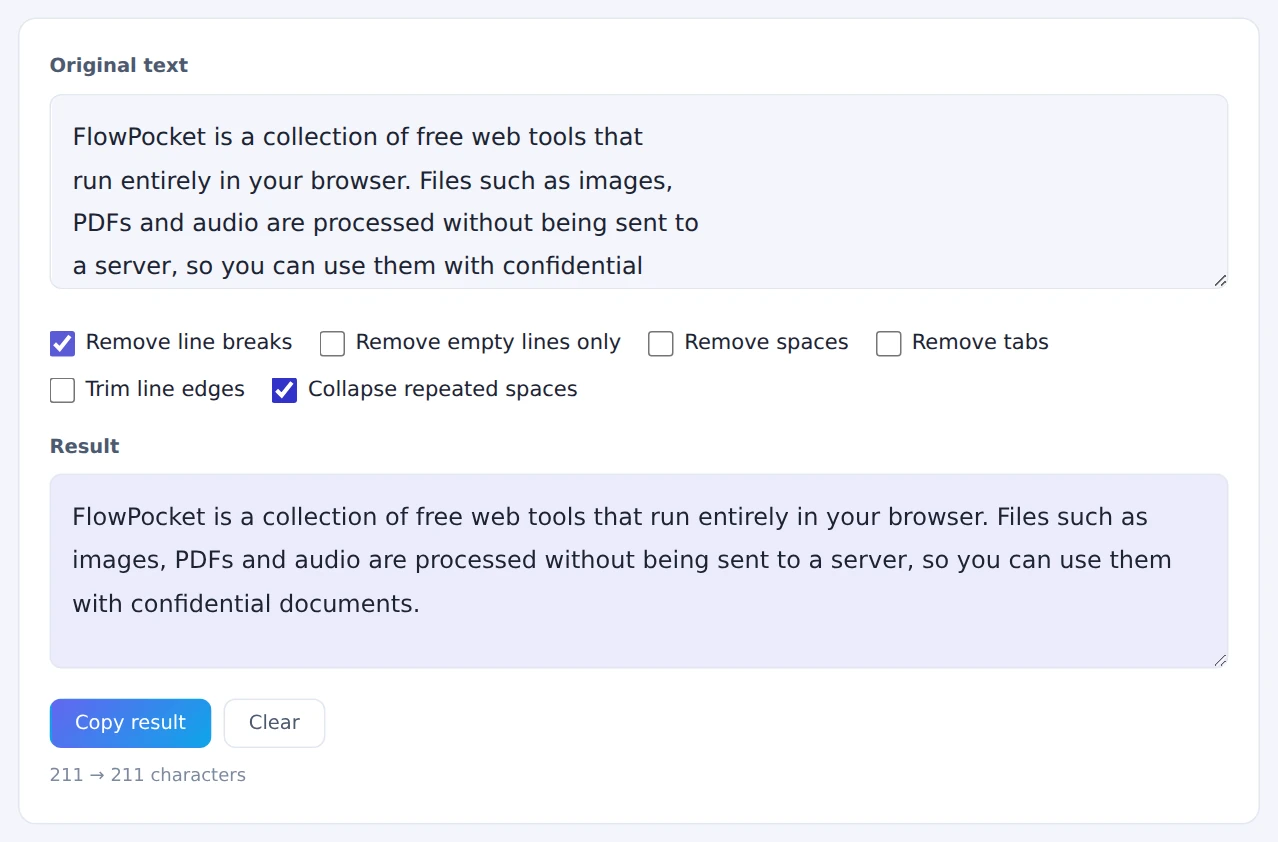
Tick the options you need. To join a PDF paragraph back together, tick Remove line breaks. The Result updates immediately.
STEP 3. Fine-tune
Combine options as needed. Collapse repeated spaces is handy for English text, where removing line breaks can leave double spaces behind.
STEP 4. Copy the result
Press Copy result and paste it wherever you need it.
When you remove line breaks from English text, tick Collapse repeated spaces too, so words that were split across lines don’t end up with two spaces between them.
When it comes in handy
- Quoting PDFs: paste clean paragraphs into documents, emails or slides
- Preparing data for Excel: remove stray tabs and line breaks that split cells
- Forms with character limits: strip extra whitespace before counting
- Cleaning up copied web text: get rid of layout spacing and blank lines
FAQ
Can I keep paragraph breaks and remove only line breaks within paragraphs?
There’s no fully automatic way to tell paragraphs from wrapped lines. The reliable approach is to remove all line breaks, then add the paragraph breaks back by hand. If your text has blank lines between paragraphs, you can also mark them first and restore them afterwards.
Can I remove spaces but keep the line breaks?
Yes. Leave Remove line breaks unticked and tick only Remove spaces. Every option can be combined freely.
Is my text sent anywhere?
No. Everything runs inside your browser, so it’s safe to use with confidential documents.
Things to keep in mind
- Hyphenated words may stay split: if the PDF hyphenated words at line ends, you’ll need to remove those hyphens yourself
- Keep the original: when cleaning long documents, keep a copy of the source text
- Counting afterwards? Check the length with the Character & Word Counter
- Fixing file line endings? To convert CRLF and LF in a file, use the Line Ending Converter
Summary
Text copied from PDFs and web pages usually just needs its extra line breaks and spaces removed. The Line Break & Whitespace Remover does it in one click, and your text never leaves your device.
Try it the next time a PDF quote comes out in pieces.