
You’ve seen Instagram profiles where nine posts line up to form one big picture. You’d like to try a grid post, but splitting the image and figuring out the posting order is confusing. Once you know how to split the image and which order to post in, anyone can do it.
This guide shows how to split one image for social media with the free Image Grid Splitter, and the right order to post the pieces. Your image is processed in your browser and never uploaded.
The first time I tried a grid post, I got the order wrong and the picture came out scrambled. That’s why the tool puts the posting order right in the file names.
What is a grid post?
A grid post splits one image into several pieces and posts them in sequence, so your Instagram profile shows them as one large image. It’s popular for announcements, product launches and making a strong first impression on your profile.
Two things matter. The first is the order. On an Instagram profile the newest post appears at the top left, so you have to start with the bottom-right piece and finish with the top-left one.
The second is the piece shape. Since January 2025, Instagram’s profile grid shows posts as portrait 3:4 rectangles instead of squares. Square pieces get trimmed on the left and right in the grid and the seams no longer line up, so today you should split into 3:4 pieces (1080×1440px).
What this tool does
- Splits an image into 3×3 (9 pieces), 3 across, 3 down or 2×2 (4 pieces)
- Lets you choose the piece shape: portrait 3:4 (1080×1440px), portrait 4:5 (1080×1350px) or square (1080×1080px)
- Crops the center automatically to fit the pattern and piece shape
- Shows the posting order as numbers on the preview
- Numbers the files in the order you should post them
- Downloads all the pieces as a single ZIP
- Processes the image inside your browser without sending it to a server
How to use it
STEP 1. Choose an image
Open the Image Grid Splitter and choose the image to split. The center portion appears in the preview.
STEP 2. Choose a split pattern and piece shape
For an Instagram grid post, choose 3×3 (9 pieces) and leave the piece shape on the default Portrait 3:4. Split lines and posting-order numbers appear on the preview.
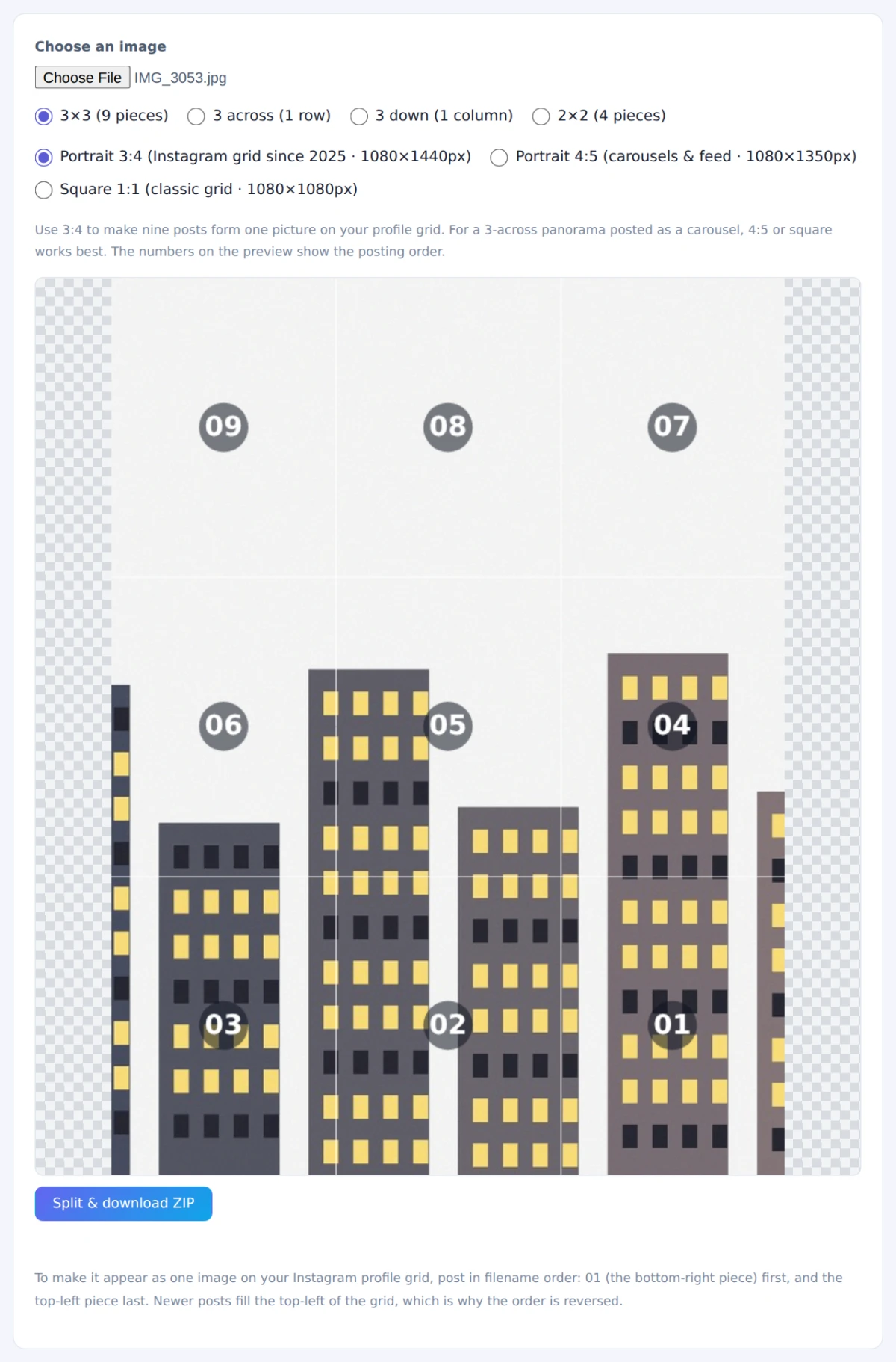
The center is cropped to a square automatically
STEP 3. Split and save
Press Split & download ZIP to save all the numbered files at once. Photos are saved as JPEG; images that may contain transparency (such as PNG) are saved as PNG.
STEP 4. Post in number order
Post the pieces one by one in file-name order, 01 to 09. Piece 01 is the bottom right and 09 is the top left, matching the numbers on the preview.
Posting anything else partway through shifts every piece by one spot. Post all nine in a row before going back to regular posts.
When it comes in handy
- Profile makeovers: make a bold first impression with one large picture
- Announcements and launches: spread one big visual across nine posts
- Panoramas: split a wide landscape into three and post it as a swipeable carousel
- Tall illustrations: split a long vertical image into three
FAQ
Which piece shape should I choose: 3:4, 4:5 or square?
To make nine posts form one picture on your profile grid, choose portrait 3:4 to match the grid. For a 3-across panorama posted as a carousel, choose 4:5, which appears largest in the feed, or square, which looks the same everywhere. In a carousel the first image’s ratio applies to every slide, so all three pieces are exported in the same shape.
What if I post in the wrong order?
The pieces end up in the wrong positions and the picture looks scrambled. Delete the misplaced posts and post them again in the right order.
Why are the edges of my image cut off?
The tool crops the center to match the overall ratio set by the pattern and piece shape (3:4 overall for 3×3 with 3:4 pieces, 12:5 for 3 across with 4:5 pieces). If there’s a part you must keep, adjust the framing first with the Image Cropper.
Things to keep in mind
- Post in number order: start at 01 and don’t post anything else in between
- Start with a large image: each piece is smaller than the original, so use the highest-resolution version you have
- Watch text across seams: text that crosses the line between pieces can be hard to read on the profile
- Need a specific size? Resize the pieces with the Image Resizer & Compressor
Summary
A grid post comes down to splitting cleanly and posting from the bottom-right piece. With the Image Grid Splitter, you just post the files in number order.
Try it for your next announcement or profile refresh.