
You only need part of a screenshot. A photo has distracting background you’d like to cut away. Cropping, cutting out just the part of an image you want, is one of the most common edits for documents and social posts.
This guide shows how to crop an image to any area with the free Image Cropper. Your image is processed in your browser and never uploaded.
I wanted something for quick crops on a new or borrowed computer, without installing an image editor. That’s why this tool exists.
Cropping vs resizing
Both make an image smaller, but in different ways:
- Cropping: cuts away part of the image. What’s visible changes, and so can the aspect ratio
- Resizing: scales the whole image up or down. Everything stays in the picture, and the aspect ratio is unchanged
When you need both a ratio and a size, like 1200×630, crop to the ratio first, then resize to the final dimensions.
What this tool does
- Lets you drag over the area to keep (or swipe on a phone)
- Shows the selection size in pixels and its aspect ratio as you drag
- Lets you crop again to fine-tune the result
- Returns to the original image with Reset
- Processes the image inside your browser and never sends it to a server
How to use it
STEP 1. Choose an image
Open the Image Cropper and choose the image to crop. A preview appears below.
STEP 2. Select the area to keep
Drag over the image to draw a box around the part you want to keep. The size and ratio of your selection appear below the image as you drag.
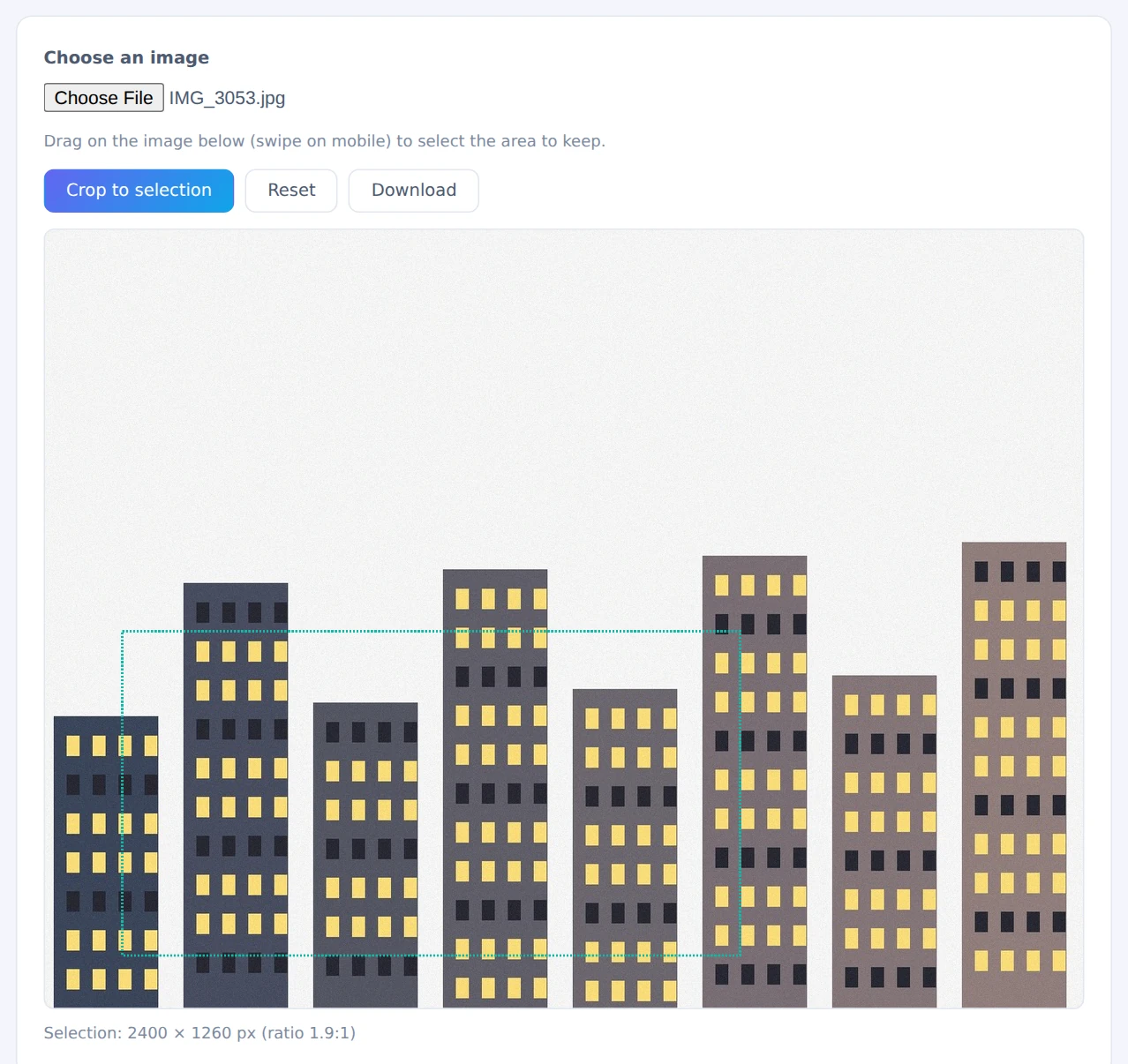
1.9:1 is close to the 1200×630 ratio used for featured images
STEP 3. Crop
Press Crop to selection and only the selected area remains. To tighten it further, repeat on the cropped image. To start over, press Reset.
STEP 4. Download the result
Press Download. The file is saved as “original-name_crop”.
Crop roughly first, then crop again more precisely. It’s easier than trying to get the box perfect in one go.
When it comes in handy
- Screenshots: keep only the relevant part for a document or how-to
- Photo composition: remove clutter and distractions around the edges
- Social and blog images: get close to the ratio a featured image needs
- Profile pictures: cut a roughly square area around a face
FAQ
What aspect ratios are common?
Blog featured images and social link cards are usually 1200×630 (about 1.9:1). YouTube thumbnails and slides use 16:9 (about 1.78:1). Instagram posts are square (1:1) or portrait 4:5 (0.8:1). Use the ratio shown while you drag as a guide.
Can’t I crop with the tools built into Windows or my phone?
Yes. Windows can crop in the Photos app, and iPhone and Android can crop in their photo apps’ Edit screen. This tool is handy when you don’t want to install anything, or when you want to see the exact pixel size while you crop.
Does cropping reduce quality?
PNG images are saved as PNG, so there’s no quality loss. JPEG images are re-saved as JPEG, which adds a tiny bit of recompression, but at high quality (92%) the difference is practically invisible.
Things to keep in mind
- No fixed-ratio mode: selection is freeform, so use the live ratio readout. To finish at an exact size, follow up with the Image Resizer & Compressor
- One image at a time: the area to keep differs for each image, so there’s no batch mode
- Just need to hide something? For details in the middle of an image, use Pixelate / Blur Image instead
Summary
When you only need part of an image, cropping away the rest is the simplest fix. The Image Cropper shows the size and ratio as you go, without uploading anything.
Try it on the next screenshot you paste into a document.