
You want to share a screenshot, but your name and email address are in it. A travel photo has a stranger’s face or a license plate in the corner. Before posting, it’s safest to pixelate or blur the parts you don’t want people to see.
This guide shows how to hide parts of an image with the free Pixelate / Blur Image tool. Your image is edited inside your browser and never uploaded.
Uploading an image to an unknown website just to hide private information in it always felt backwards to me. So I built a tool where the whole edit happens on your own device.
Pixelate vs blur
There are two common ways to hide part of an image:
- Pixelate: replaces the area with large square blocks. The fine shapes are gone, which makes it the better choice for text and numbers
- Blur: smears the area. It looks more natural and suits softening faces or backgrounds
For anything that must never be read, such as account numbers or passwords, use strong pixelation. A light blur can sometimes leave text guessable.
What this tool does
- Lets you drag over the area to hide (or swipe on a phone)
- Applies pixelation or blur with adjustable strength
- Repeats on as many areas as you need
- Returns to the original image with Start over
- Edits the image inside your browser and never sends it to a server
How to use it
STEP 1. Choose an image
Open Pixelate / Blur Image and choose the image to edit. A preview appears below.
STEP 2. Select the area to hide
Drag over the image to draw a box around the part you want to hide. On a phone, swipe with your finger.
STEP 3. Choose the effect and apply it
Pick Pixelate or Blur, adjust Strength, and press Apply to selection. For several areas, repeat steps 2 and 3.
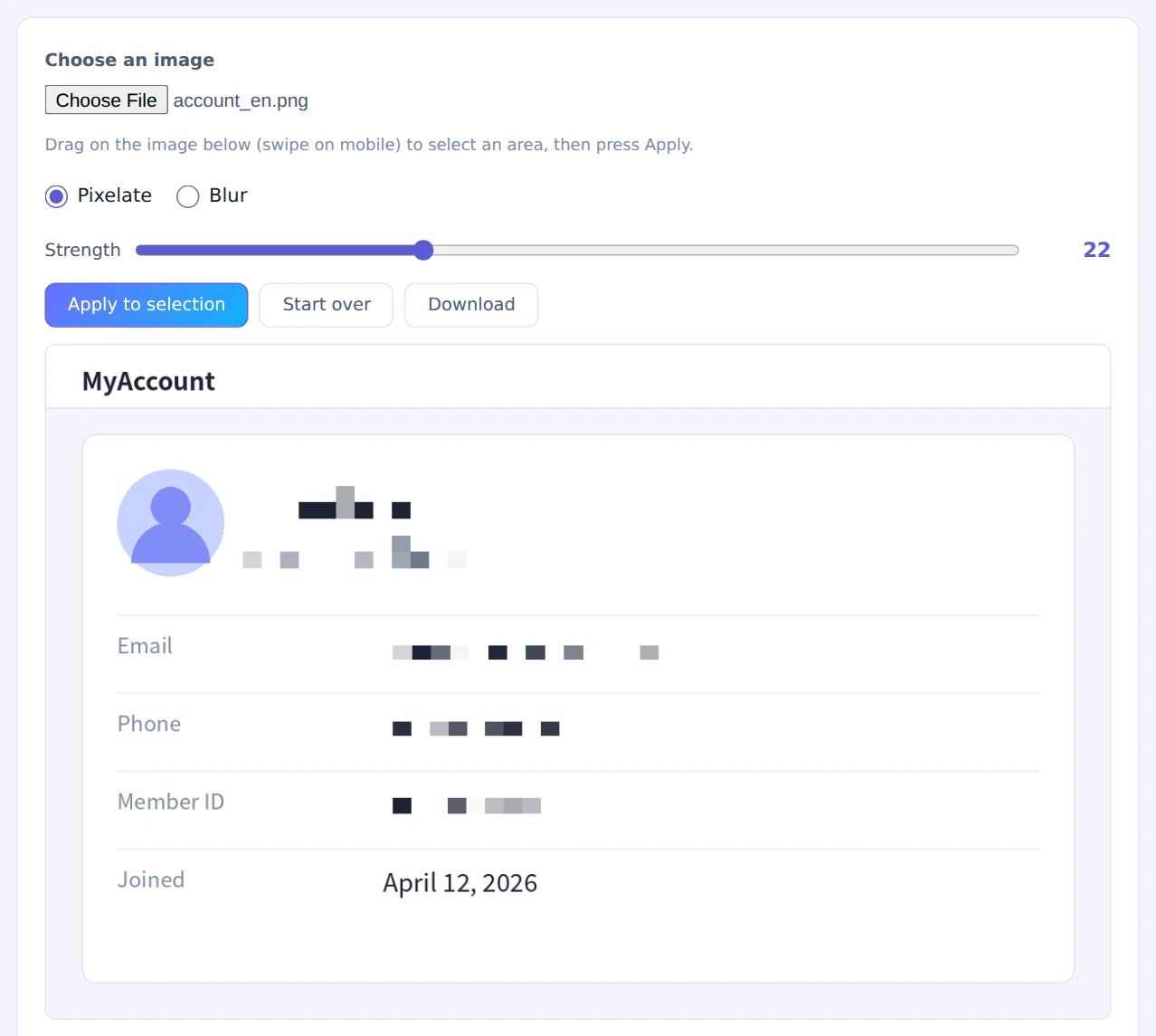
Select a slightly larger area than the text you want to hide
STEP 4. Download the result
When you’re happy with it, press Download. The file is saved as “original-name_masked”.
When hiding text, select a slightly larger area than the text itself. Leftover edges of letters can give the content away.
When it comes in handy
- Screenshots for social media or blogs: hide names, email addresses and usernames
- Photos with bystanders: hide faces and license plates
- Support requests and bug reports: hide account numbers or addresses before sending a screenshot
- Selling online: hide the address on shipping labels or documents in product photos
FAQ
Is pixelating safer than drawing a black box?
Both hide information well. What matters is that the edit is baked into the image itself. Some phone photo apps save markup in a way that can be undone later. Images saved from this tool can’t be un-pixelated.
Can pixelated text be recovered?
With strong pixelation, the detail is gone and can’t be restored. If the blocks are too small (low strength), though, the shapes of letters may still show faintly. When hiding text or numbers, raise the strength until each block is larger than the characters.
Is photo location data removed too?
Yes. The saved image doesn’t keep EXIF data such as the date taken or GPS location. To check whether an original photo contains location data, use the EXIF Viewer & Remover.
Things to keep in mind
- The effect is permanent once saved: keep your original image somewhere safe
- One image at a time: the areas to hide differ for each image, so there’s no batch mode
- Check for things you missed: look again at the edges and at reflections before you post
- If it’s at the edge, cut it off: for details near the border, cropping them out with the Image Cropper is even more reliable
Summary
Before sharing an image, hide private details by editing the image itself. Pixelate / Blur Image lets you hide as many areas as you need without uploading anything.
Next time you post a screenshot, take a few seconds to check it first.