
Which files changed between last month’s website files and this month’s? Is the ZIP you received the same as the folder on your computer? Opening folders one by one to compare them takes time, and it’s easy to miss something. The reliable way is to compare the two folders or ZIPs as a whole and list only the files that differ.
This guide shows how to compare the contents of folders and ZIP files with FlowPocket’s Text & File Compare. Nothing is uploaded; everything is processed in your browser.
There are dedicated apps for comparing folders, such as Beyond Compare and WinMerge. But work computers often don’t let you install software, and installing an app just to compare folders once in a while is a hassle. This tool runs in your browser, with nothing to install and no administrator rights needed.
I often wanted to send a client only the files I had updated, but lost track of which ones I’d changed. So I made it possible to find the changed files, check what changed inside them and bundle just the ones you need into a ZIP, all on one screen.
What you can do
- Compare folder to folder, ZIP to ZIP, or a folder to a ZIP
- See the files sorted into “Different”, “Left only”, “Right only” and “Same” in a folder tree
- Select a file to see exactly which lines and characters changed
- Copy files or folders to the other side, or edit their contents
- Save only the changed files, only the files you checked, and so on, as a ZIP
- Compare ZIPs without extracting them
How to use it
Step 1. Put a folder or ZIP on each side
Open Text & File Compare and put the old version on the left and the new version on the right. Use “Choose folder” for a folder or “Choose Files” for a ZIP, or drag and drop it onto the dashed box. If you drop two folders or ZIPs at once, the first goes on the left and the second on the right.
The results appear right away as a tree above the compare view.
Step 2. Find the changed files in the tree
Files at the same path are compared and sorted into four groups:
- Different: on both sides, but the contents differ
- Left only: only on the left (removed)
- Right only: only on the right (added)
- Same: identical contents
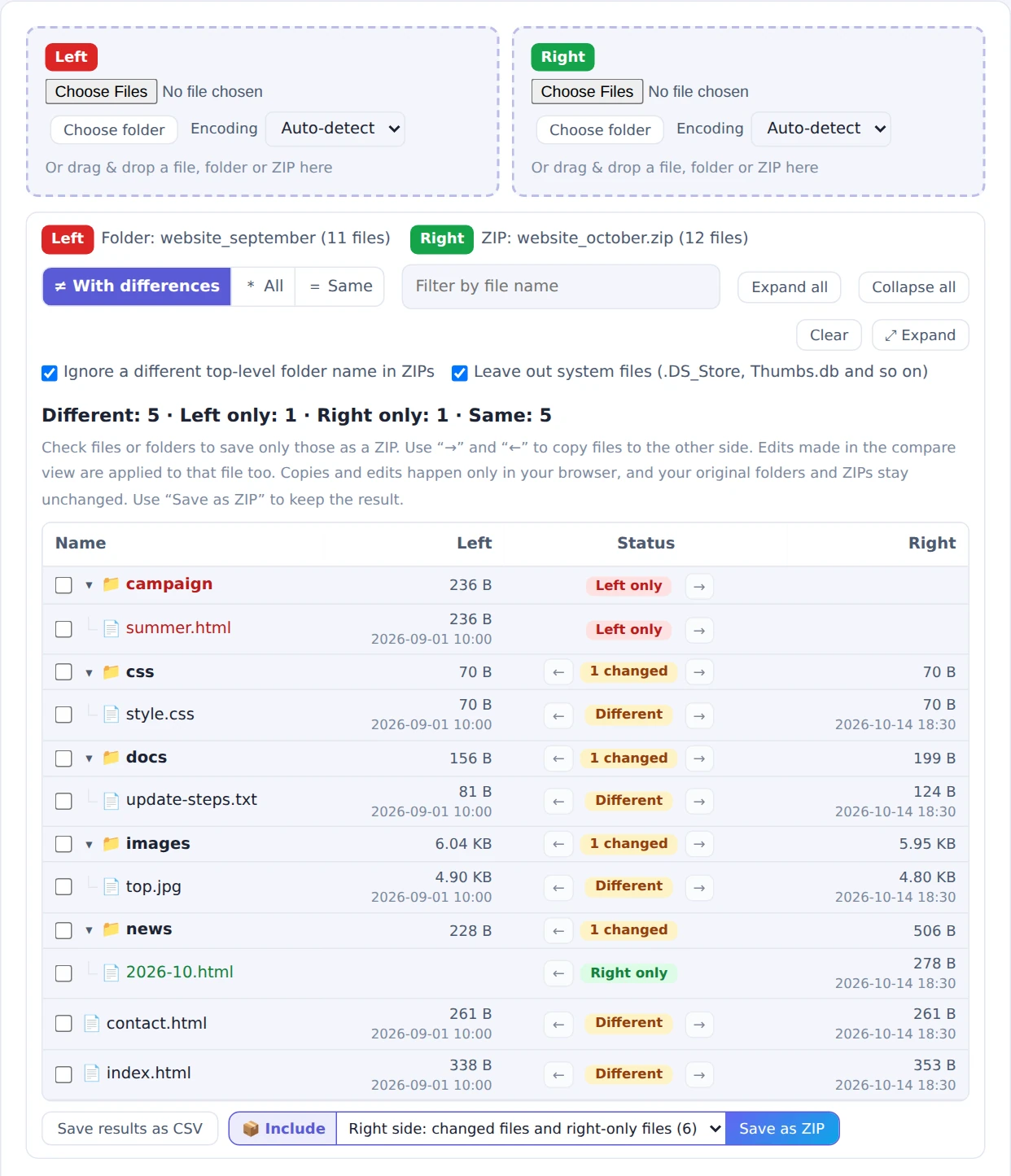
Each folder row shows how many changed files it contains
Each folder row shows how many changed files it contains, such as “2 changed”. At first only “With differences” is shown, so the changed files are easy to spot. You can switch to “All” or “Same”, or filter by file name.
Step 3. Check what changed inside a file
Select a file in the tree and the compare view below shows exactly what changed, highlighted in color. Use “▼ Next changed file” and “▲ Previous changed file” to go through the changed files in order, and “Back to tree” to return to the list.
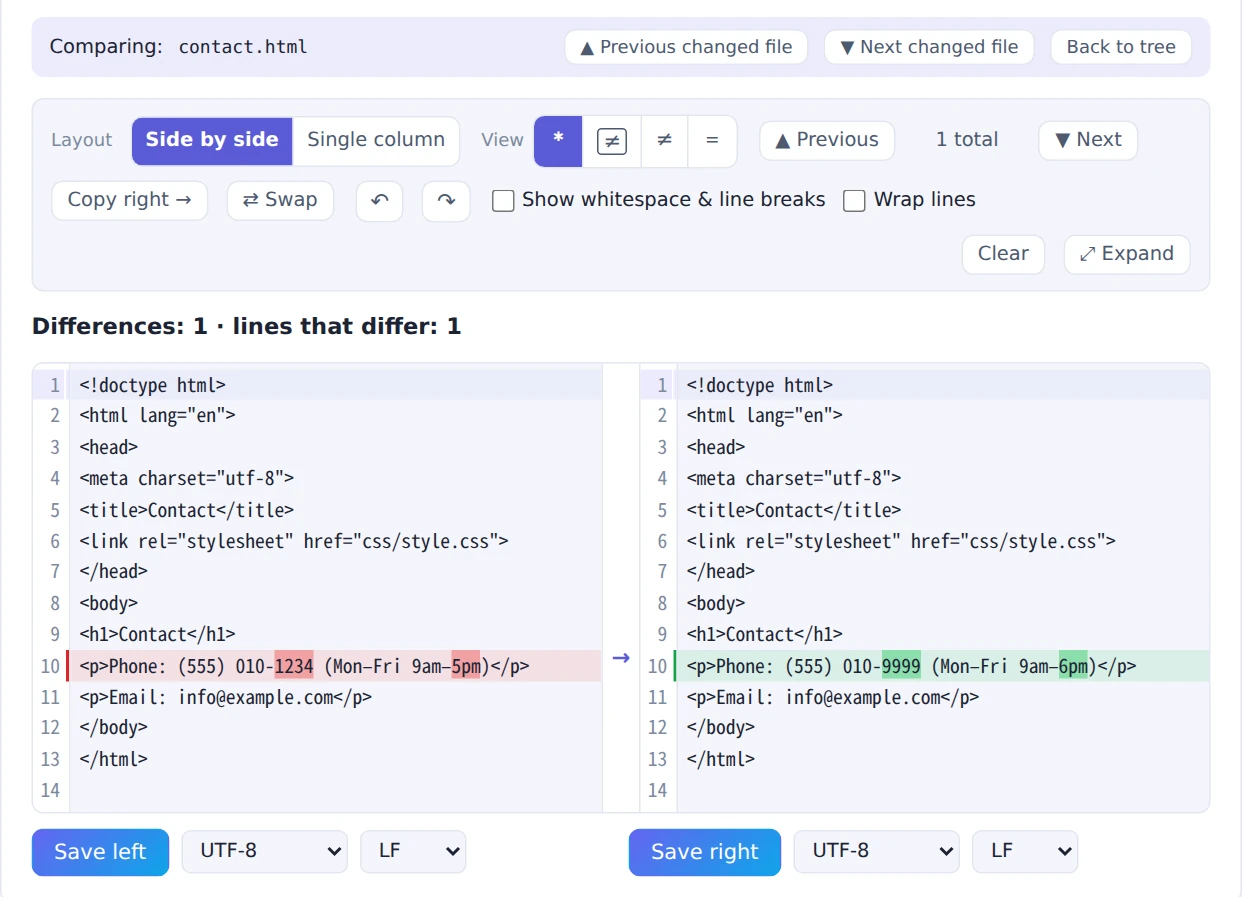
Use “▼ Next changed file” to go through the changed files in order
Files that aren’t text, such as images and PDFs, can’t be shown. Whether they differ is judged by their size and a checksum (CRC32) of their contents.
Step 4. Copy or edit if you need to
In the Status column, “→” copies the left version to the right and “←” copies the right version to the left. On a folder row, it copies all the changed files in that folder. If you edit a file in the compare view, your changes are applied to that file too.
Copied files are marked “Copied” and edited files “Edited”, and “↺” undoes them. Copies and edits happen only in your browser, and your original folders and ZIPs stay unchanged.
Step 5. Save as a ZIP
Choose what to put in the ZIP next to “📦 Include”, then click “Save as ZIP”. You can choose from the following, for either the left or the right side:
- Changed files and one-side-only files: for handing over just the updates
- All files, with copies and edits: for saving the finished version after copying or editing
- Only copied or edited files: for bundling just the files you worked on
- Checked files: for including only the files and folders you checked at the left of the tree
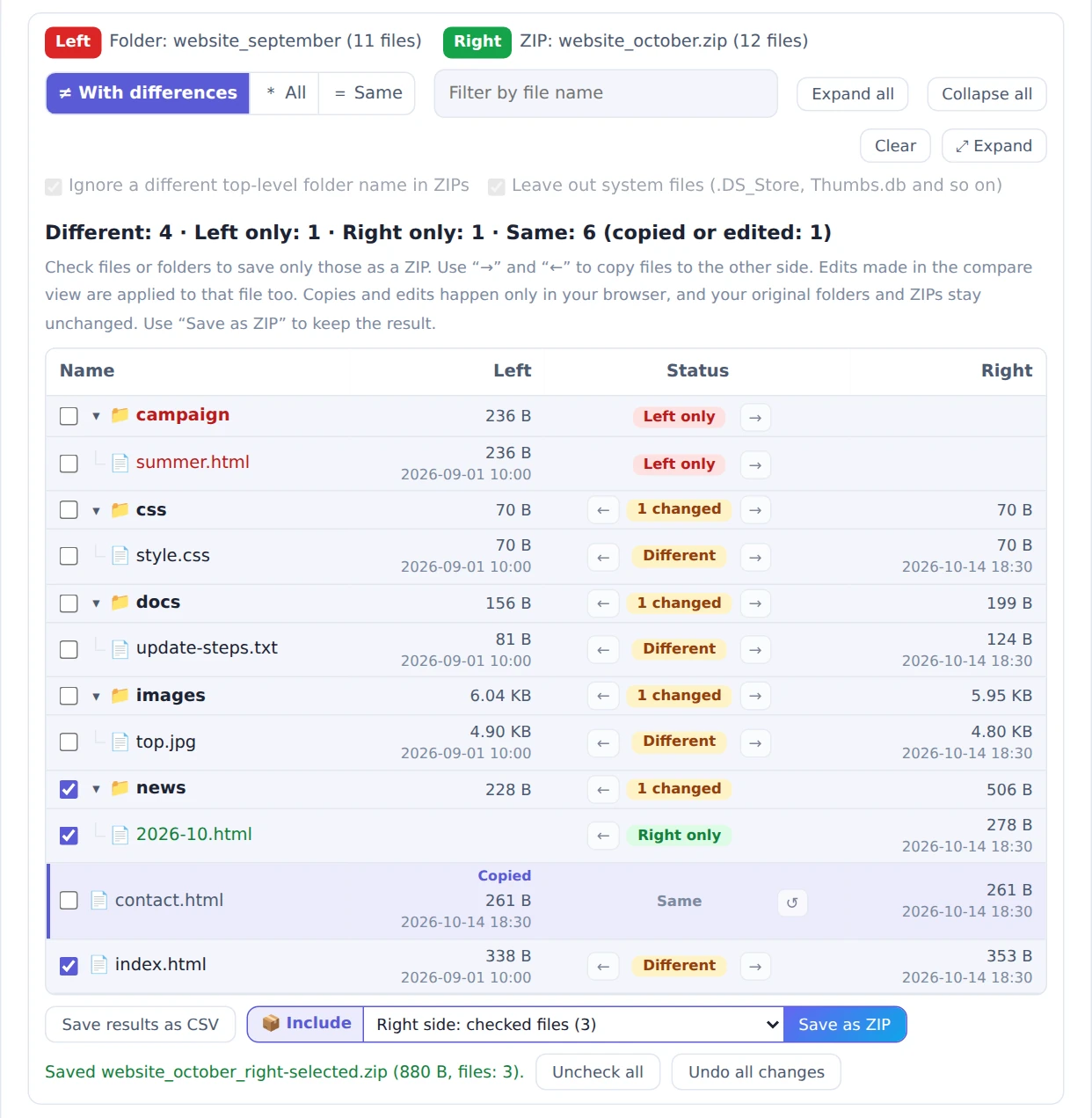
Whether the ZIP was saved is shown right next to “Save as ZIP”
Each option shows how many files it includes, and options with no files can’t be selected. Inside the saved ZIP, files keep the same folder structure as the tree. You can also save the list of results with “Save results as CSV”.
Using the whole screen
- “⤢ Expand” in the tree: fills the screen with the folder comparison, which makes large folders easier to browse
- “⤢ Expand” in the compare view: fills the screen with just the file comparison. Buttons like “Next changed file” stay at the top, so you can move on to the next file without leaving it
If you select a file while the tree is expanded, the expanded file comparison opens on top of it. Press Esc to close the top screen first.
Comparison settings
- Ignore a different top-level folder name in ZIPs: when everything in a ZIP is inside one folder, such as “website_october”, that folder name is left out so the files inside can be compared even if the folder names differ
- Leave out system files: files you don’t need to compare, such as “.DS_Store” made by Macs and “Thumbs.db” made by Windows, are left out of the list
File names with accents written in different ways (for example, names created on a Mac) are made consistent before comparing, so they are treated as the same name.
FAQ
Can I use it on a work computer?
Yes. It runs in your browser, so you don’t need to install anything or have administrator rights. Your files aren’t sent anywhere, so you can compare data that can’t leave your company.
Are my files uploaded anywhere?
No. Loading, comparing and saving all happen in your browser.
Are files with different modified dates marked as different?
No. Only the contents are compared. If the contents are the same, the file is marked “Same” even if the dates differ. The dates are shown in the tree for reference.
Can it handle folders with lots of files?
Yes. Even folders with thousands of files are usually compared in a few seconds, although it can take longer depending on your computer, its free memory and the size of the files.
Does it work on phones?
Folders can’t be chosen on phones, so compare two ZIPs instead.
Can I copy or save directly into my original folder?
No. To make sure your original files are never changed by mistake, results are always downloaded as a ZIP.
Things to know
- Files can’t be deleted: if you want to drop files that exist on only one side, choose what goes in the ZIP instead
- Empty folders aren’t shown: only files are compared
- The contents of password-protected ZIPs can’t be shown: to compare the text inside, extract the ZIP first and compare it as a folder
- Just comparing two texts or CSVs? See “How to Compare Two Text Files or CSVs and Highlight the Differences” for details
Summary
To find the differences between two folders or ZIPs, comparing them as a whole and checking the tree is faster and more reliable than opening them one by one. With FlowPocket’s Text & File Compare, you can find the changed files, check what changed inside them and bundle just the ones you need into a ZIP, all in your browser. Nothing is sent anywhere.
Start by dropping the two folders or ZIPs you want to compare onto the left and right boxes.