
You want to add chapters to a training or seminar recording, or pull step-by-step screenshots out of a screen recording. Scrubbing through the video and noting down the time of every change takes far longer than you’d expect. The shortcut is to find the moments where the screen changes automatically and list them.
This guide shows how to use FlowPocket’s Video Scene Log Generator to find scene changes in a video and export them as YouTube chapters or as images for a how-to guide. Your video is never uploaded; everything is processed in your browser.
You could use video editing software or YouTube’s automatic chapters instead, but those mean installing an app or uploading your video to YouTube first. This tool runs in your browser, so you can work with internal training videos that can’t leave your company.
Every time I made chapters for a training video or screenshots for a how-to, I kept pausing the video and copying down times. I wanted to get rid of that chore, so detection and export are all on one screen.
What you can do
- Automatically find the moments where the screen changes significantly
- List each scene with a thumbnail and its time
- Add notes, remove scenes you don’t need and add missing ones
- Export as YouTube chapters, text, Markdown or CSV
- Save scene images as a ZIP, or as one overview image
- Process everything in your browser without sending the video to a server
How to use it
Step 1. Choose a video and a video type
Open Video Scene Log Generator and choose a video file, or drag and drop it onto the dashed box.
Then pick a video type. For most videos, this is the only setting you need:
- Slides & screen recordings: training or seminar slides, screen captures and other videos with clear cuts
- Camera footage: videos shot with a phone or camera, where the picture is always moving a little
To analyze just part of a long video, enter a start and end time under “Range”. “Current position” fills in where the preview is paused.
Step 2. Detect scenes and check the list
Click “Detect scenes” to list the moments where the screen changed significantly, each with a thumbnail. Progress and an estimate of the time left are shown while it runs, and you can stop it with “Cancel”.
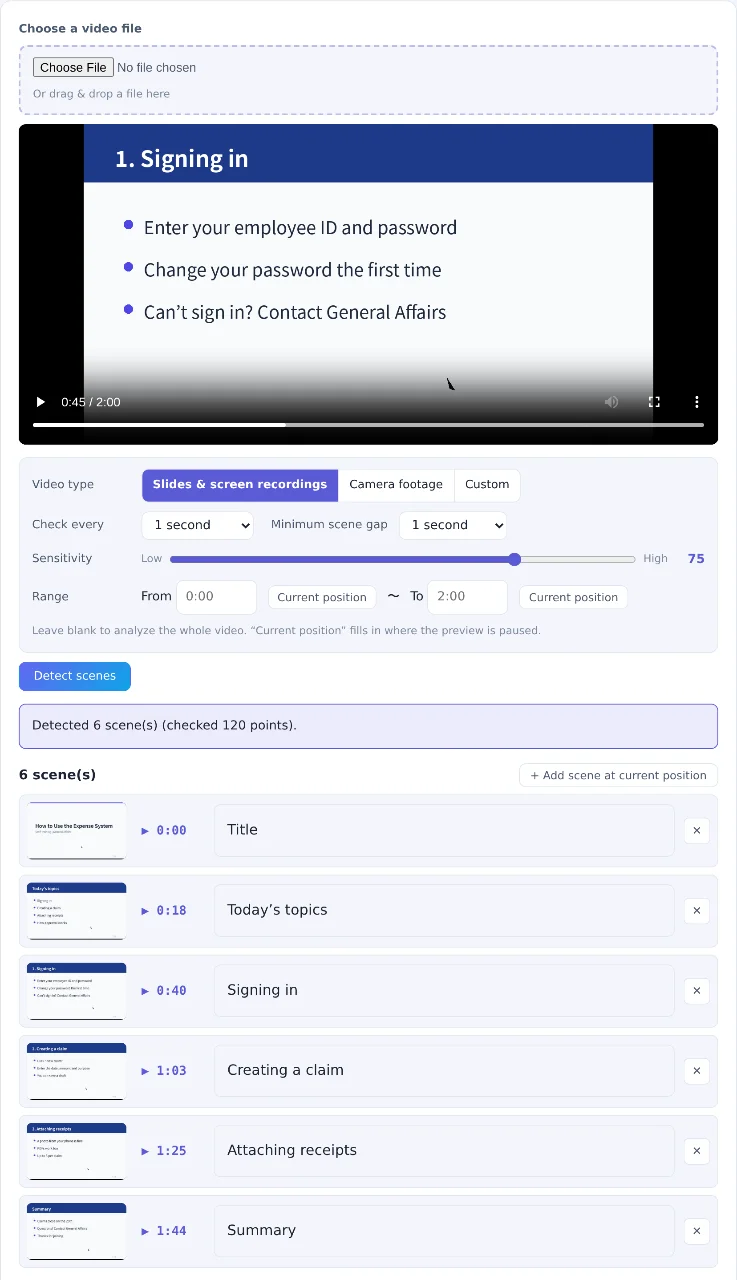
Click a time to play the preview from there
Click a time to play the preview from there. Click a thumbnail to enlarge it, and use the ← → keys to move between scenes.
Step 3. Add notes and tidy up the scenes
Type a chapter name or what happens in each scene. Notes are saved automatically in your browser, so if you choose the same video again, you can pick up where you left off.
- Remove a scene: click “✕”. Made a mistake? “Undo delete” brings it back
- Add a missing scene: pause the preview and click “+ Add scene at current position”
Step 4. Export
Choose a format under “Export”, then click “Copy” or “Save as file”. You can check what will be exported in the box below.
- Text: one line per scene, like “0:18 – Today’s topics”. For work logs and notes
- YouTube chapters: ready to paste into a video description
- Markdown: a table of times and notes, for minutes or a team wiki
- CSV: opens in Excel, with the number, time, seconds and note
Making YouTube chapters
Choose “YouTube chapters” and the result is ready to paste into your video’s description on YouTube. Once you save the description, the progress bar is split into chapters.
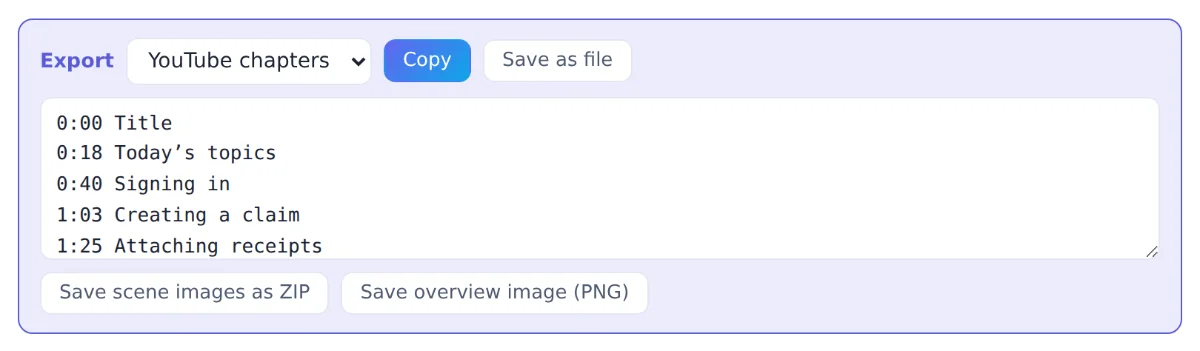
Copy it and paste it into your video’s description on YouTube
YouTube chapters have a few rules. If they aren’t met, you’ll see a warning in the export box, so remove short scenes as needed.
- The first chapter starts at 0:00 (this tool always writes the first scene as 0:00)
- There are at least 3 chapters
- Each chapter is at least 10 seconds long
Scenes without a note get a placeholder name such as “Chapter 1”. Write the chapter names in the notes first and the result is ready to use.
Saving scene images
When you’re turning a screen recording into a how-to guide, the image exports come in handy.
- Save scene images as ZIP: saves every scene at its original resolution (up to 1920px). Files are named “number_time_note.jpg”, so they stay in order when you lay them out in a guide. A CSV list of the scenes is included
- Save overview image (PNG): puts the thumbnails, times and notes on one image, for sharing in chat or giving a quick summary of a video
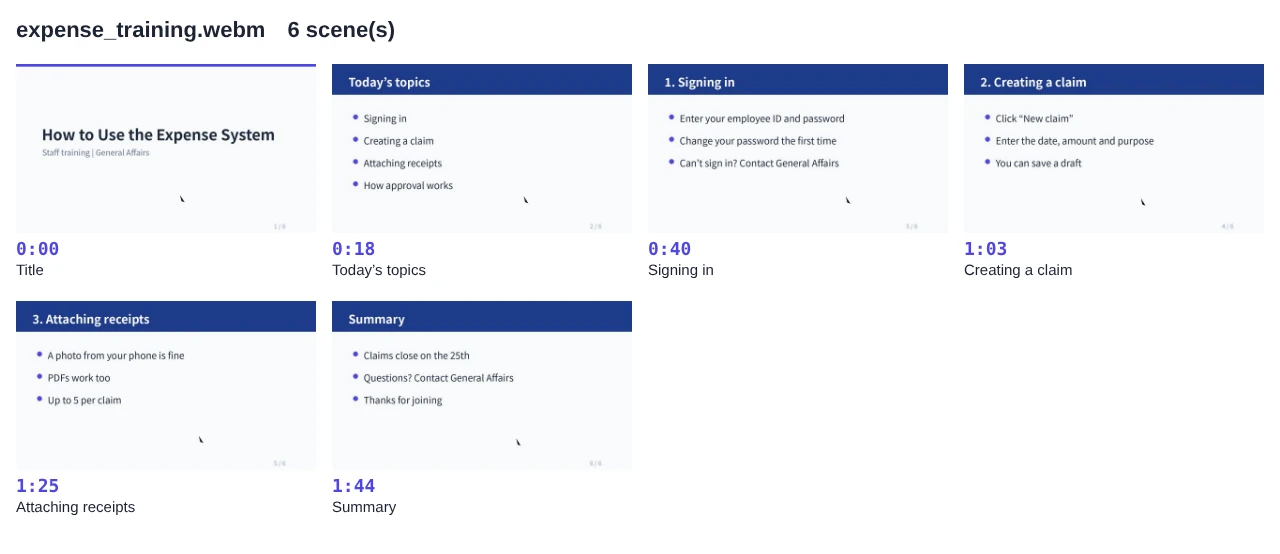
Made with “Save overview image (PNG)”
If detection isn’t right
The tool samples frames at the interval you set and measures how much each one differs from the previous frame. It doesn’t understand what’s on screen, so some videos need a little tuning.
- Too many scenes: move “Sensitivity” toward Low. If flashes or fades produce several similar scenes in a row, set a longer “Minimum scene gap”
- Changes are missed: move “Sensitivity” toward High, or choose a shorter “Check every” interval
- Almost every frame shows up in camera footage: set the video type to “Camera footage”, since camera shake and changes in brightness are easily picked up as changes
- Only one scene in a video with little movement: if the picture barely changes, that’s the correct result. Add the breaks you want with “+ Add scene at current position”
Each time found is checked again closely, to about 0.2 seconds of the actual change. Times are rounded up to the next second, so playback from that time starts after the change.
FAQ
Is my video uploaded anywhere?
No. Everything from analysis to export happens in your browser. It works on work computers too, with nothing to install and no administrator rights needed.
Which videos can I use?
Any video your browser can play, such as MP4 or WebM. iPhone videos are often in HEVC (H.265), which some browsers can’t play. In that case, try Edge or Safari, or set iPhone Settings → Camera → Formats to “Most Compatible” before recording.
Does it work on phones?
Yes, although long or high-resolution videos take a while. If it stops, try a longer “Check every” interval or use a computer.
Can it record what’s being said?
It only looks at changes on screen. To turn speech into text, use it together with Audio Transcription.
Does it describe what happens in each scene?
No. It finds times and images only. Write what’s on screen in the note field while looking at the thumbnails.
Things to know
- Notes are saved only in the browser you used: they don’t carry over to another computer or browser. To keep them, save them as text or CSV
- Long videos take time: checking a one-hour video every second can take a few minutes. Use “Range” to analyze only the part you need
- Need a smaller video file? Video Compressor shrinks videos to a target size
Summary
For video chapters or how-to screenshots, finding the changes automatically and listing them is much faster than scrubbing through and copying down times. With FlowPocket’s Video Scene Log Generator, you can make YouTube chapters, step-by-step images and an overview image, all in your browser. Your video is never sent anywhere.
Start by loading a video you’d like to add chapters to.