
You downloaded a folder from SharePoint, Teams, OneDrive or Google Drive, and the ZIP won’t open on Windows. Either it says “The Compressed (zipped) Folder is invalid”, or “Extract All” stops with “Path too long”. Everything looks fine in the browser, but the download won’t open. Here’s why, and how to fix it.
To fix it, we’ll use FlowPocket’s Fix a ZIP That Won’t Extract, which needs nothing installed. Your ZIP is never uploaded; everything runs inside your browser.
I hit this every time I downloaded a SharePoint folder at work. I couldn’t install 7-Zip on a work PC, so I built a tool to fix these ZIPs myself.
The short answer: the names inside the ZIP are too long
When a ZIP from a cloud service won’t open, the cause is almost always that the folder and file names inside it are too long. The ZIP isn’t broken.
Windows File Explorer refuses to open a ZIP if even one name inside it (folders plus file name) is 260 bytes or longer, and calls it “invalid”. English letters take 1 byte each, but accented letters take 2 and Japanese or Chinese characters take 3. And even when the ZIP opens, “Extract All” stops with “path too long” if the full path including the destination goes over 260 characters.
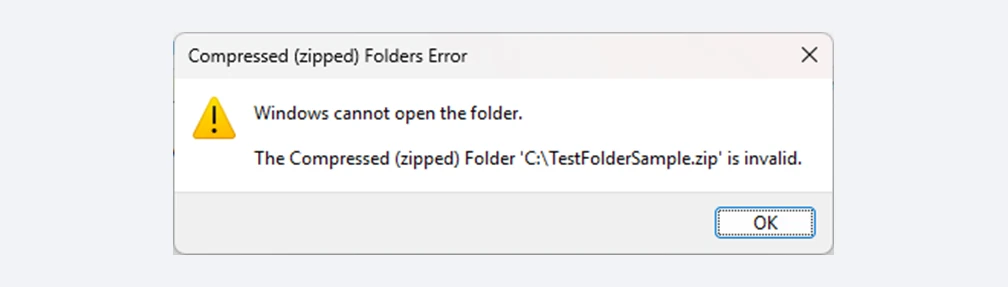
A common error with ZIPs downloaded from the cloud
For the difference between the two errors and their limits, see “ZIP Won’t Extract? Fix “Compressed Folder Is Invalid” and “Path Too Long”“.
Why cloud downloads hit this so often
Cloud services allow longer names than Windows can open
SharePoint and OneDrive allow a full path (folders plus file name) of up to 400 characters (see Microsoft’s Restrictions and limitations in OneDrive and SharePoint). Long paths work perfectly in the cloud, so nobody notices they’re too long until someone downloads them and tries to open them on Windows.
Downloading a folder puts its whole structure in the ZIP
When you download a folder, everything below it goes into the ZIP. Shared work folders tend to be deep (year, project, meetings, documents…) with long, descriptive names. Each name is reasonable on its own, but together they go over the limit.
The destination folder adds to the length
“Extract All” creates a folder named after the ZIP inside your Downloads folder. The “path too long” limit (260 characters) counts that destination too.
Notes for each service
SharePoint and Teams
Files in a Teams “Files” tab are actually stored in SharePoint, so ZIPs downloaded from Teams fail for the same reasons. Each channel has its own folder, often with more folders inside, which makes paths even longer.
SharePoint and OneDrive also limit how much you can download at once, such as 10,000 files, and some files protected by sensitivity labels may be left out of the ZIP (see Microsoft’s download instructions). If files seem to be missing, check these too.
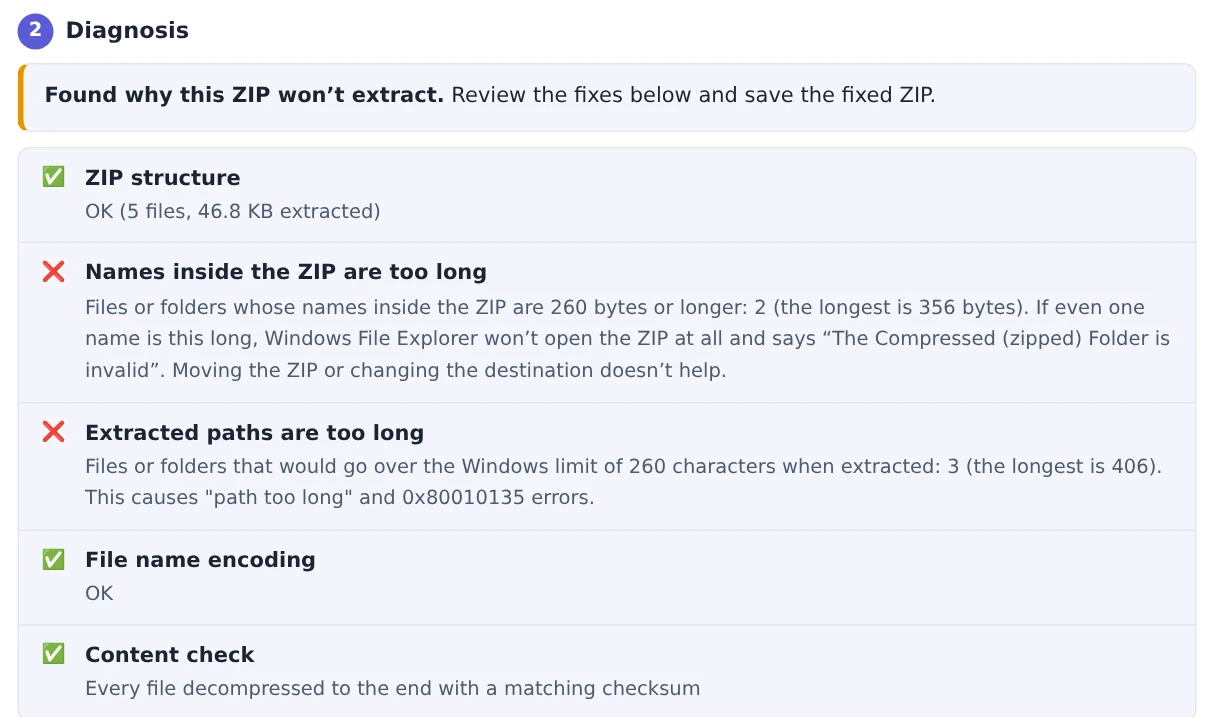
Fine in the cloud, but too long for Windows to open
OneDrive
OneDrive works the same way as SharePoint: downloading a folder gives you a ZIP. Syncing with the OneDrive app avoids ZIPs altogether, but syncing is also bound by Windows path limits, so some files may fail to sync.
Google Drive
Downloading a folder from Google Drive gives you a ZIP named like “drive-download-(date and time).zip”. Large folders are split into several ZIPs of about 2GB each, so download all of them and open each one.
The big thing to watch for with Google Drive is that names can contain characters Windows doesn’t allow, such as “:”, “?” and “*”. A ZIP with names like these can be called “invalid” even when the names are short.
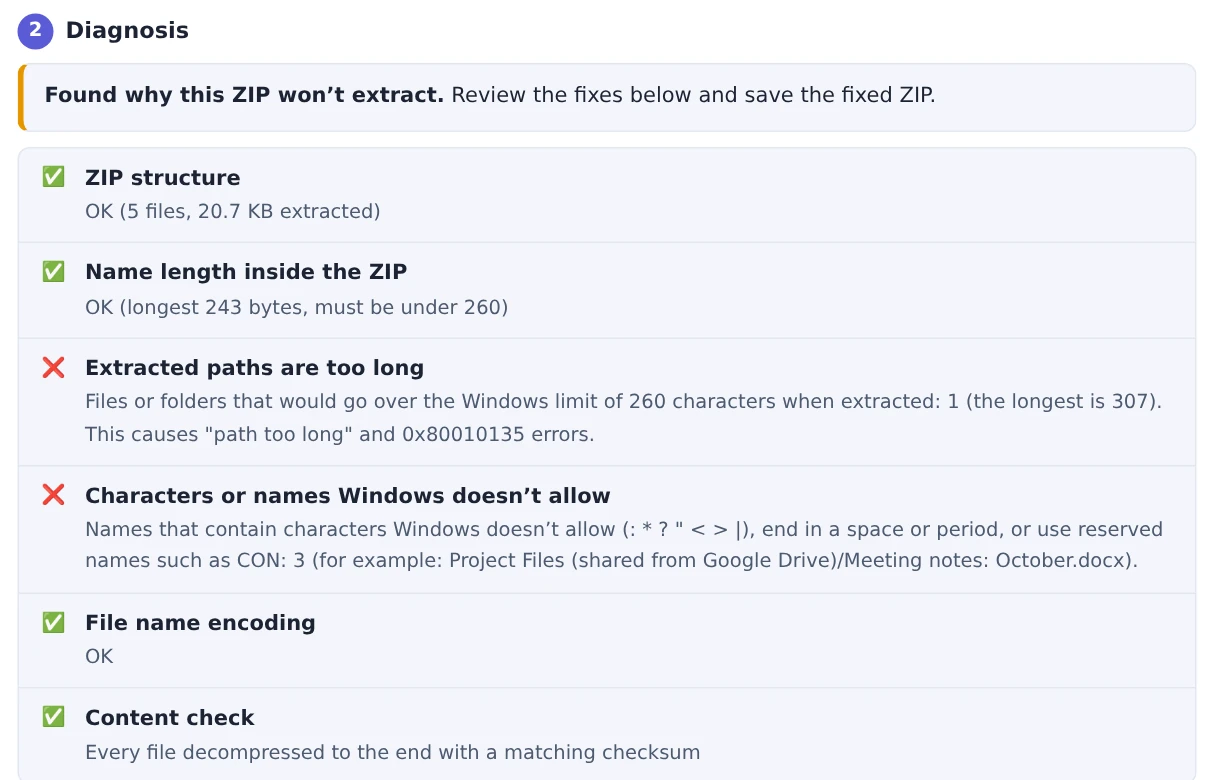
With Google Drive, characters such as “:” and “?” can also be the cause
What you can do before downloading
- Download a lower-level folder: the ZIP contains only the folder you select and everything below it, so picking just the folder you need makes the paths inside shorter
- Download in several parts: splitting a big folder also keeps you under the file count limits
- Shorten names in the cloud: if you manage the folder, shortening very long folder names helps everyone who downloads it. Renaming shared folders can affect links and syncing, so check with the people who use them first
How to fix a ZIP you’ve already downloaded
A ZIP you’ve already downloaded can be turned into one Windows can open with Fix a ZIP That Won’t Extract.
- Open the tool and choose the ZIP that won’t open (or drag it onto the box)
- Check the diagnosis: names inside the ZIP that are too long, extracted paths that are too long, names with characters Windows doesn’t allow and so on
- Review the fixes and press “Save fixed ZIP”
“Remove common top-level folders” drops the top folder that every file sits inside, which shortens every name by that much. Anything still too long gets a shorter name ending in “~”. You can check what changed in “rename-map.csv”, which is included in the fixed ZIP.
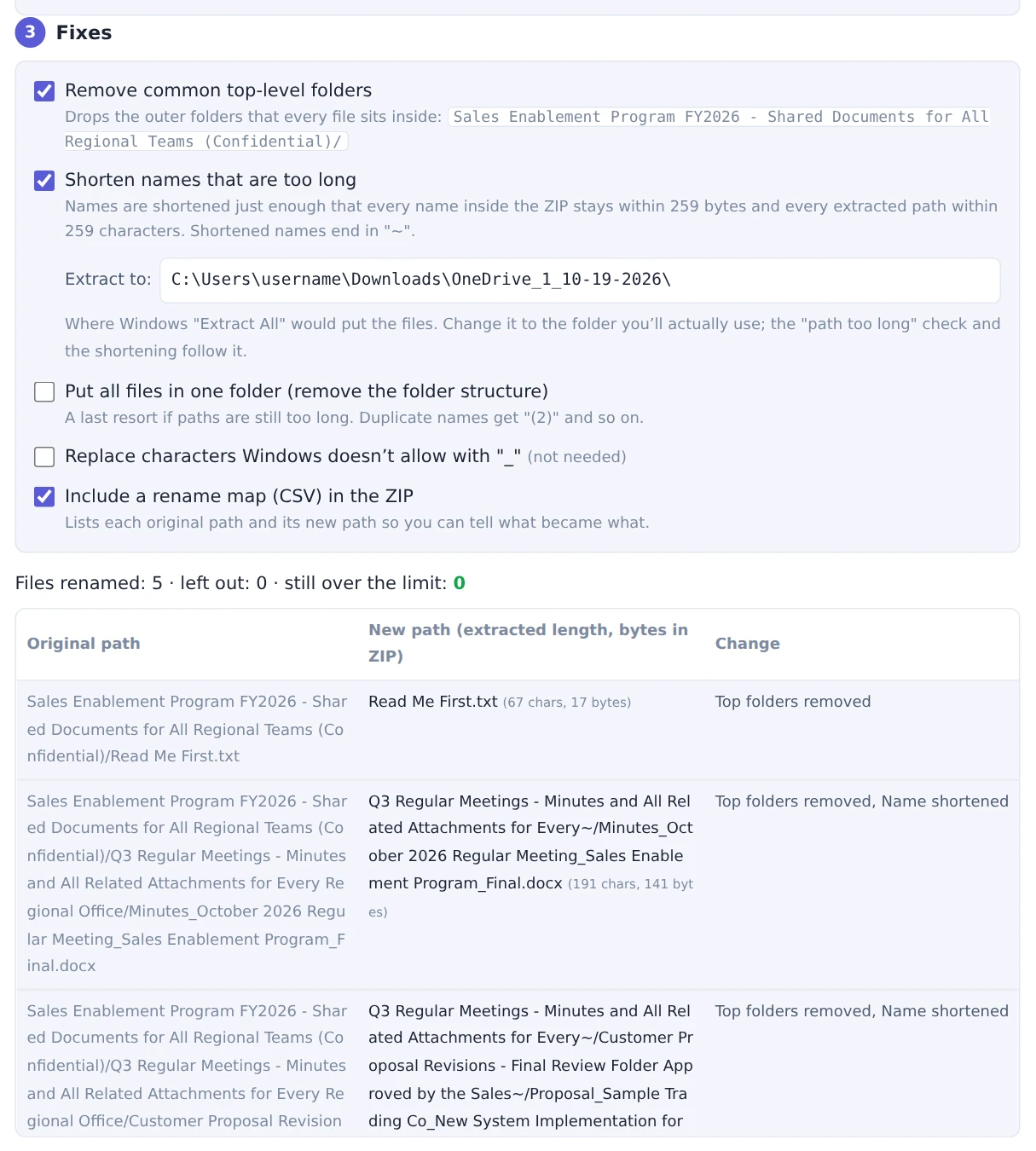
The top folder is removed and only names that are still too long are shortened
If Google Drive split your download into several ZIPs, fix each one the same way.
FAQ
Why does it open in the browser but not after downloading?
Cloud services allow paths up to 400 characters, but Windows File Explorer can’t open a ZIP with a name inside it of 260 bytes or more. The limits are different, so something that’s fine in the cloud can fail as a ZIP.
The ZIP opens on my Mac or phone. How do I send it to someone on Windows?
Fix it first with Fix a ZIP That Won’t Extract so the other person can open it on Windows. The tool works in Mac and phone browsers too.
Is it safe to use with work files?
Your ZIP is processed only inside your browser and never sent anywhere. Nothing needs to be installed.
Summary
ZIPs downloaded from SharePoint, Teams, OneDrive or Google Drive fail on Windows because names that are fine in the cloud go over Windows File Explorer’s limits. With Google Drive, characters Windows doesn’t allow can also be the cause.
Download only the folders you need, and if a ZIP still won’t open, use Fix a ZIP That Won’t Extract to make it work on Windows.