
What changed between the old and new version of a quote? Which rows differ between last month’s CSV and this month’s? Comparing two documents by eye is slow, and it’s easy to miss something. Put the two texts side by side with the differences highlighted, and you can see every change at a glance.
This guide shows how to compare text and CSV files with FlowPocket’s Text & File Compare. Your files are never uploaded; everything happens inside your browser.
There are dedicated apps for comparing text, such as WinMerge. But work computers often don’t let you install software, and installing an app for a quick comparison is a hassle. This tool runs in your browser, with nothing to install and no administrator rights needed.
I often need to compare documents and CSVs exchanged with clients, but pasting them into an online service never felt right. So I built this to work entirely in the browser, and to let you fix and save the result right there.
What this tool can do
- Show two texts side by side and highlight the lines and characters that differ
- Compare CSV and TSV files as tables, highlighting only the cells that changed
- Point out invisible differences such as spaces, line endings and encodings
- Copy differences to the other side, or edit either side in place
- Save a copy in the same format as the original, such as UTF-8 or Shift_JIS
- Compare the contents of whole folders or ZIPs (see how)
- Process everything in your browser without sending files to a server
How to use it
Step 1. Load the two files
Open Text & File Compare and choose the original file on the left and the new one on the right with “Choose file”. You can also drag and drop them onto the dashed boxes. Drop both files at once and the older one (by modified date) goes on the left, the newer one on the right.
Put a folder or ZIP on each side instead to compare their contents as a whole (see “How to Compare Two Folders or ZIP Files”).
No files? Just paste text straight into the left and right boxes.
Step 2. Review the differences
The comparison appears as soon as the files load. Anything only on the left is red, anything only on the right is green, and the exact characters that changed within a line are marked more strongly. The number of differences is shown at the top.
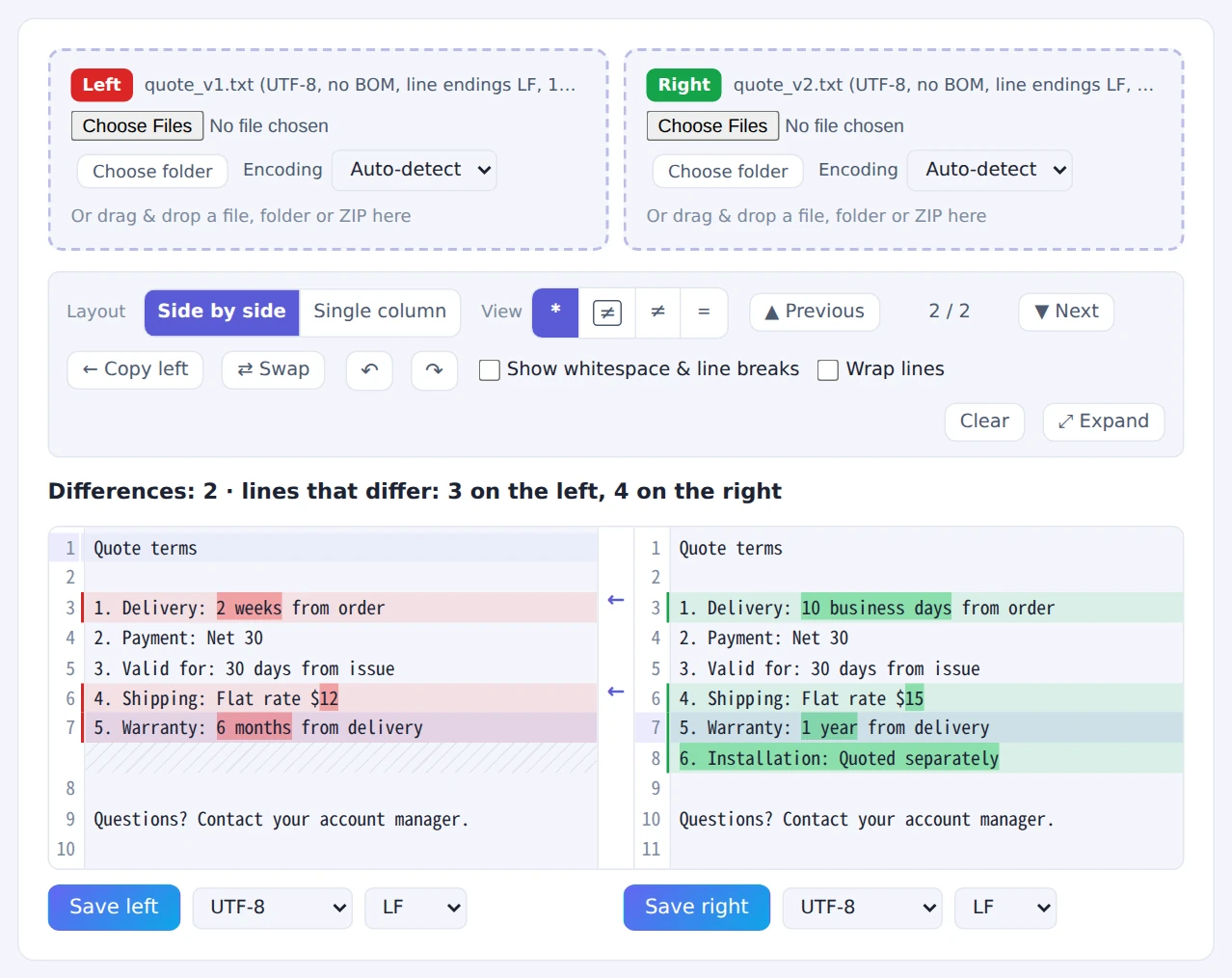
The exact characters that changed are marked more strongly
Use “▼ Next” and “▲ Previous” to jump from one change to the next. The symbol buttons under “View” change what is shown: “*” shows everything, the boxed “≠” shows changes with the lines around them, “≠” shows changes only, and “=” shows only the parts that match.
Step 3. Fix things if needed
Both sides work like a regular text editor, and the comparison updates as you type.
To make a line match the other side, put the cursor on it and press “Copy right →”. When the cursor is on the right, the button becomes “← Copy left”. Select several lines first to copy just the differing lines among them. The arrow buttons between the two sides copy a whole block of changes at once.
Step 4. Save
Press “Save left” or “Save right”. The original file is never overwritten: a copy is downloaded with “_left” or “_right” added to its name (for example, data_right.csv). The encoding and line endings of the loaded file are preselected.
Comparing CSVs as tables
When both sides are CSV or TSV files, the tool switches to “Table (CSV)” automatically. Cells are compared one by one, so you can see exactly which row and column changed.
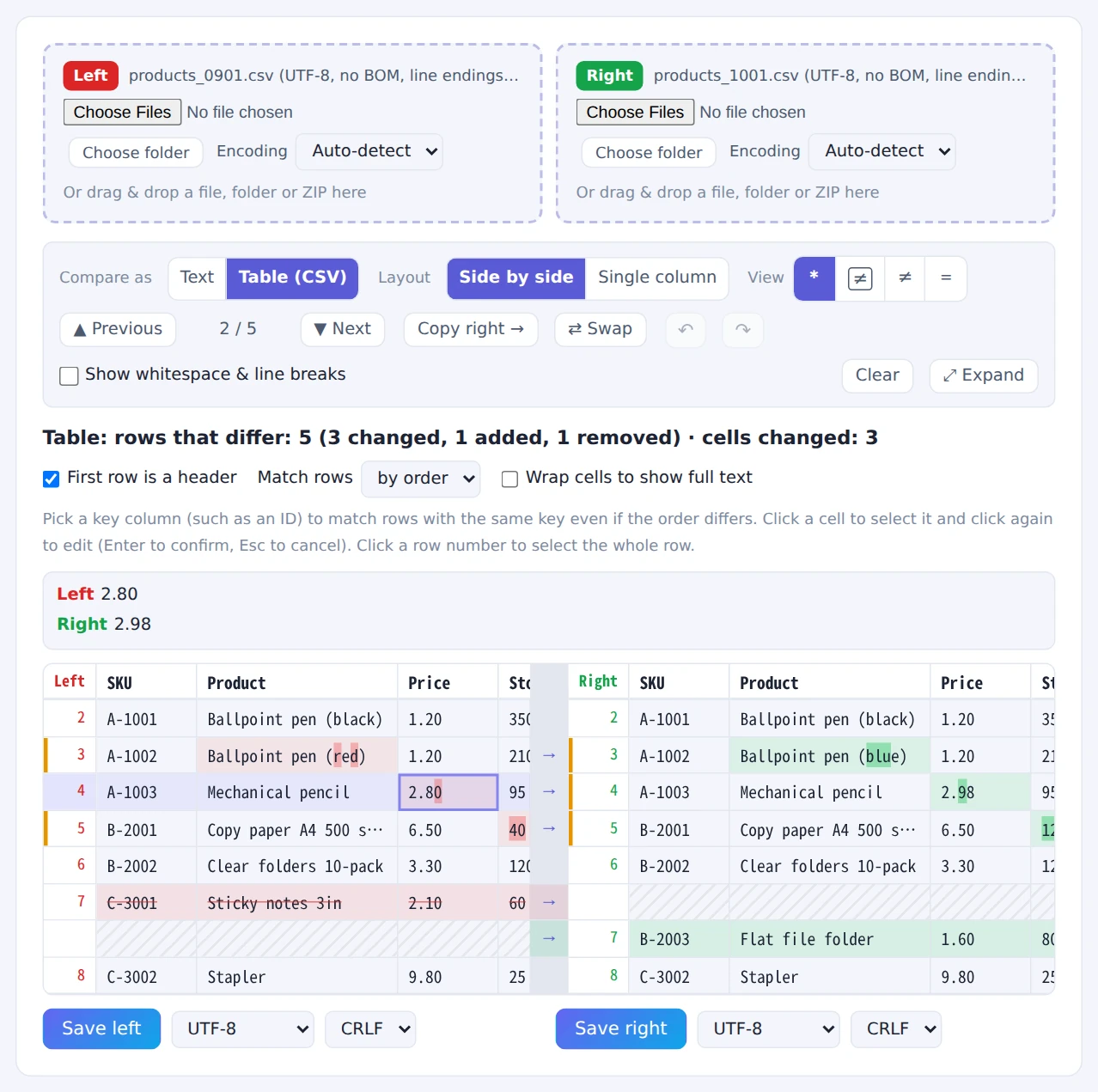
Select a cell to see both values above the table
- Reordered columns are fine: with “First row is a header”, columns are matched by their header names
- Rows in a different order? Pick a key column such as a SKU under “Match rows” to compare rows with the same key
- Check a cell’s full value: click a cell and its full text appears above the table. For a changed cell, both values are shown
- Edit right in the table: click a selected cell again to change it. Select a row by clicking its number, then press “Copy right →” to copy the whole row
Commas and line breaks inside quoted fields are handled correctly, and your edits keep the original CSV formatting, such as quoting.
Spotting invisible differences
“They look identical, but the import fails” or “Excel says they don’t match” usually means an invisible difference. This tool compares every character exactly, and when these are the only differences, it says so plainly:
- Tabs vs. spaces, trailing spaces, and full-width (ideographic) spaces
- Line endings (CRLF / LF), encoding (UTF-8, Shift_JIS) and a BOM
- Invisible characters such as zero-width spaces
- Different Unicode forms of the same character (composed vs. decomposed accents), common in file names created on a Mac
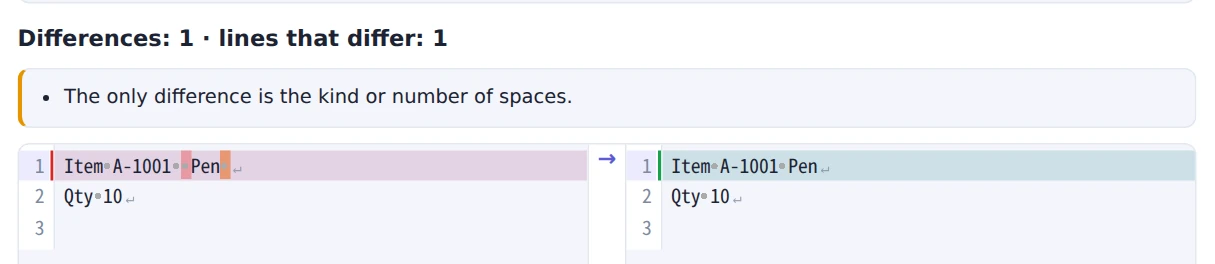
Turn on “Show whitespace & line breaks” to see spaces as symbols
Turn on “Show whitespace & line breaks” to see spaces, tabs and line breaks as symbols.
Handy shortcuts
- ⤢ Expand: fill the screen with the comparison; press Esc to return
- Layout “Single column”: show the old and new versions stacked in one column, which is easier to read on a phone
- ⇄ Swap: switch the left and right contents
- ↶ ↷: undo and redo edits and copies (Ctrl+Z / Ctrl+Y)
- Clear: empty both sides and start over
- Ctrl+F (⌘+F on a Mac): search and replace in the text
FAQ
Can I use it on a work computer?
Yes. It runs in your browser, so you don’t need to install anything or have administrator rights. Your files aren’t sent anywhere, so you can compare data that can’t leave your company.
Are my files uploaded?
No. Loading, comparing and saving all happen inside your browser.
What files can I compare?
Any text file, whatever its extension: TXT, CSV, TSV, JSON, XML, HTML, logs and so on. Excel (xlsx) and Word files aren’t text, so save them as CSV or text first.
Can I compare large files?
Each file can be up to 100MB. Above 10MB things get slow, and it may not work properly depending on your computer’s free memory. Comparing as tables works up to 10MB.
The text looks garbled.
The encoding is detected automatically but can occasionally be wrong. Pick the right one (such as UTF-8 or Shift_JIS) in that side’s “Encoding” menu and the file is reloaded.
Can I overwrite the original file?
No. To avoid accidental overwrites, saving always downloads a separate copy.
Things to keep in mind
- There’s no “ignore whitespace” option: for accuracy, spaces and line breaks are always compared. Instead, the tool tells you when whitespace is the only difference
- Images and PDFs can’t be compared: to compare images, use Screenshot Comparison
- Comparing whole folders or ZIPs? Put a folder or ZIP on each side and the changed files appear in a tree. See “How to Compare Two Folders or ZIP Files” for details
- Just want to see what’s inside a ZIP? ZIP Content Viewer lists the files without extracting them
Summary
When you need to find what changed between two documents or CSVs, a side-by-side, highlighted view is faster and more reliable than comparing by eye. FlowPocket’s Text & File Compare even flags invisible differences such as spaces and line endings, and lets you fix and save the result on the spot. Your files never leave your device.
Start by dropping the two files you want to compare.