
You want to check what’s in a ZIP someone emailed you before opening it. You need just one file out of a multi-gigabyte ZIP. Or you extracted a ZIP and the file names came out garbled. These things come up all the time.
This guide shows how to use FlowPocket’s ZIP Content Viewer to see what’s inside a ZIP without extracting it, and pull out only the files or folders you need. Your ZIP is never uploaded; everything runs inside your browser.
I kept extracting huge ZIPs only to realize I needed a single file from them. I built this tool so I could look first and take only what I need.
What this tool does
- Shows the files and folders inside a ZIP as a tree, without extracting it
- Shows how many files each folder holds and their total size
- Filters the list by file name
- Extracts single files, or whole folders
- Fixes garbled file names by choosing a different encoding
- Warns you about things that stop Windows from extracting the ZIP, such as names that are too long or contain characters Windows doesn’t allow
How to use it
Step 1. Choose a ZIP file
Open the ZIP Content Viewer and pick the ZIP with “Choose file”, or drag it onto the box. You’ll immediately see how many files and folders it contains and how large it is once extracted.
Step 2. Browse the tree
The contents appear folder by folder. Click a folder to open or close it, or use “Expand all” and “Collapse all”. Each folder shows how many files it contains and their total size, so you can see at a glance what’s where.
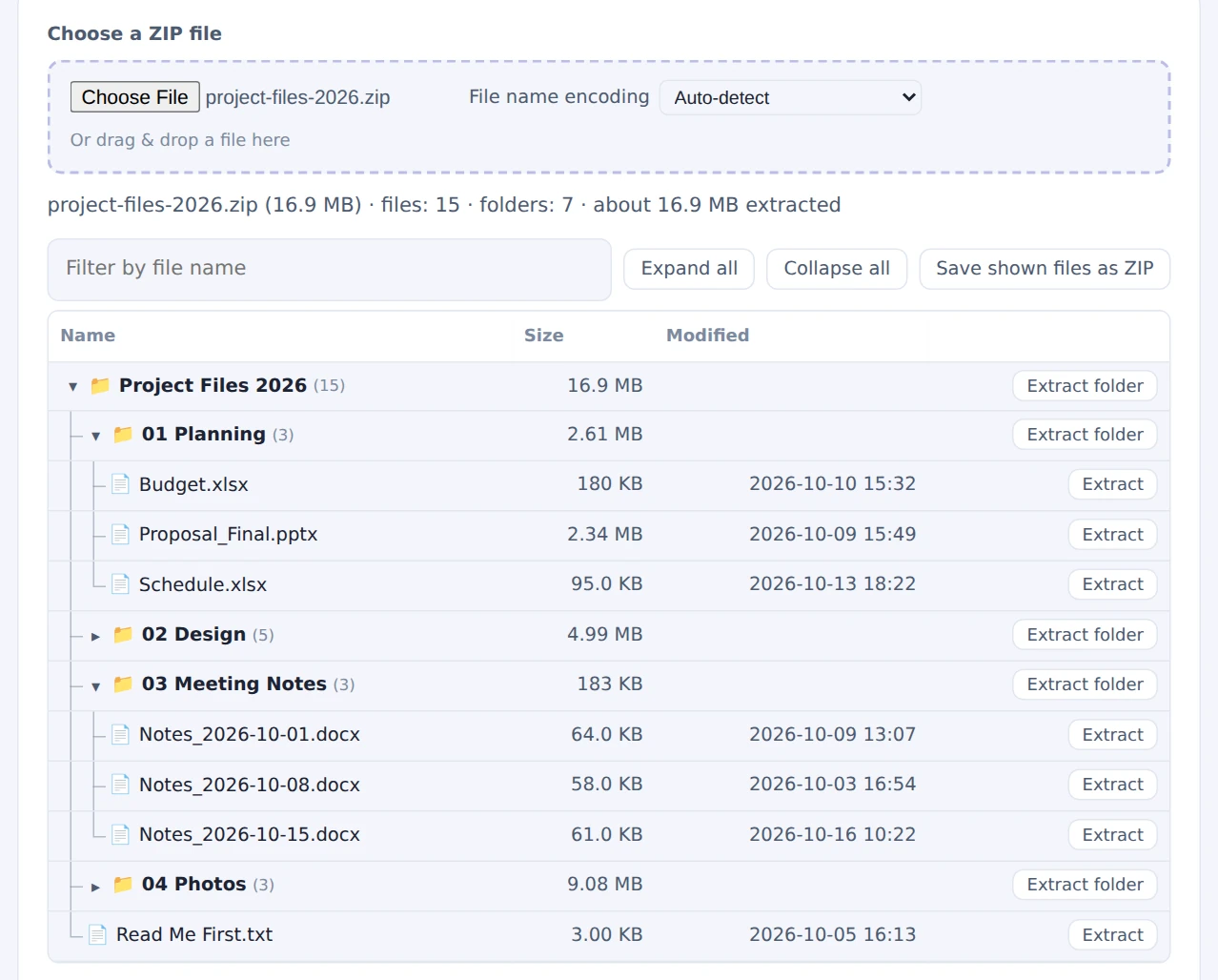
See how many files each folder holds and how large they are
Step 3. Take only what you need
- A single file: click “Extract” on a file’s row to save just that file
- A whole folder: click “Extract folder” on a folder’s row to save a new ZIP containing only that folder
- Filtered files: type something like “Notes” or “.xlsx” into “Filter by file name” to list only matching files, then click “Save shown files as ZIP”
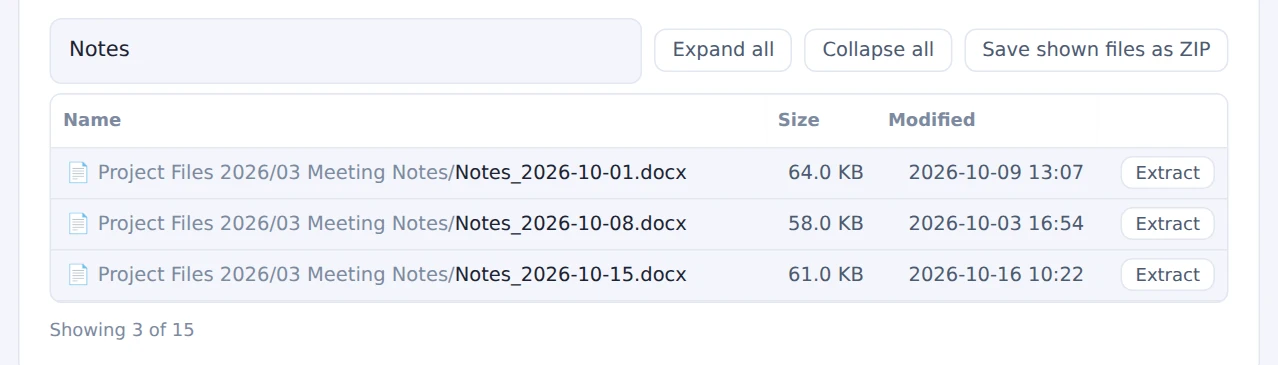
Save just the filtered files as a ZIP
Even then, the tool doesn’t extract the whole ZIP. It reads only the parts it needs, so it’s quick even for large files.
Step 4. Check the notes
If there’s something to watch out for, a note appears above the list:
- File name encoding: different systems store file names differently. If names look garbled, pick another option under “File name encoding”
- Names that are too long or use characters Windows doesn’t allow: Windows File Explorer will say “The Compressed (zipped) Folder is invalid” for these ZIPs. Fix a ZIP That Won’t Extract can turn them into ZIPs that open
- Password protection or unusual compression: you can see the list, but those files can’t be extracted here
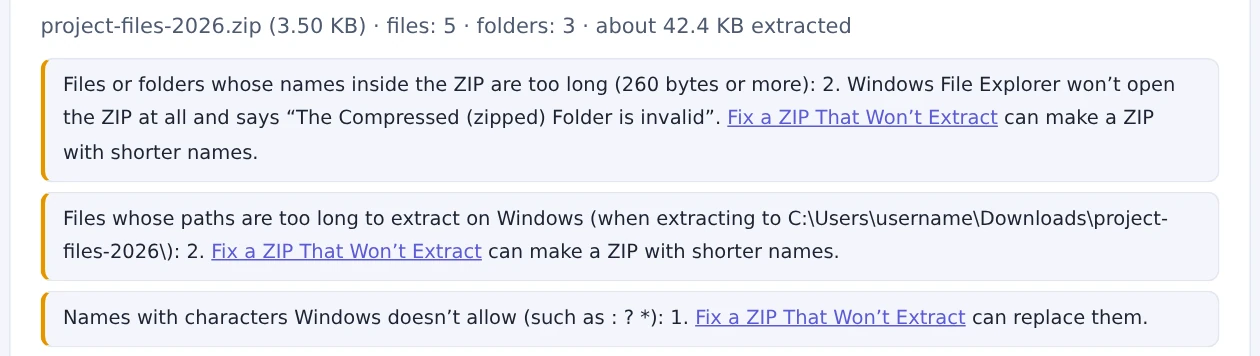
Notes appear when something would stop Windows from extracting the ZIP
How it can show the contents without extracting
Every ZIP file ends with a “table of contents” listing the name, size and location of every file inside. The tool reads only that table to build the list, so it never needs to extract the whole ZIP. Even multi-gigabyte ZIPs list instantly.
When this comes in handy
- Checking a ZIP you received: make sure it contains what you expect before extracting it
- Using part of a large ZIP: take only the files or folders you need
- Looking inside a ZIP on your phone: no app needed, just your browser
- When a ZIP won’t extract: the contents and notes help you figure out why
- Before sending a ZIP: check that no unwanted files, such as the Mac “__MACOSX” folder, are inside
FAQ
Is my ZIP uploaded anywhere?
No. Reading, listing and extracting all happen inside your browser.
Can I see inside a password-protected ZIP?
You can see the list of file names and sizes, but you can’t extract the files. Use an app that supports the password for that.
Does it work with 7z or RAR files?
Only ZIP files are supported.
What about a ZIP whose download was cut off?
The files that can be read from the start are listed. To fix the ZIP itself, Fix a ZIP That Won’t Extract can build a new ZIP from the files that can be read.
Summary
With FlowPocket’s ZIP Content Viewer, you can see what’s inside a ZIP without extracting it and take out only the files or folders you need. It also helps with garbled names and tells you why Windows might refuse to extract a ZIP.
Use it whenever you want to check a ZIP before opening it, or need just part of a large one.