
You tried to extract a ZIP and Windows said “The Compressed (zipped) Folder is invalid” or “Path too long”. Search around and you’ll find advice to “enable long paths in Windows”. Before you start editing the Registry or Group Policy, hold on.
The short answer: shortening the names in the ZIP is quicker and more reliable
The Windows long paths setting rarely fixes ZIP errors. Try this first:
- If Windows says the ZIP is “invalid”: use Fix a ZIP That Won’t Extract to make a copy of the ZIP with shorter names. It works right in your browser, with nothing to install and no administrator rights needed
- If extraction stops with “Path too long” (0x80010135): first extract again to a short location such as C:\temp. If it still stops, shorten the names with Fix a ZIP That Won’t Extract
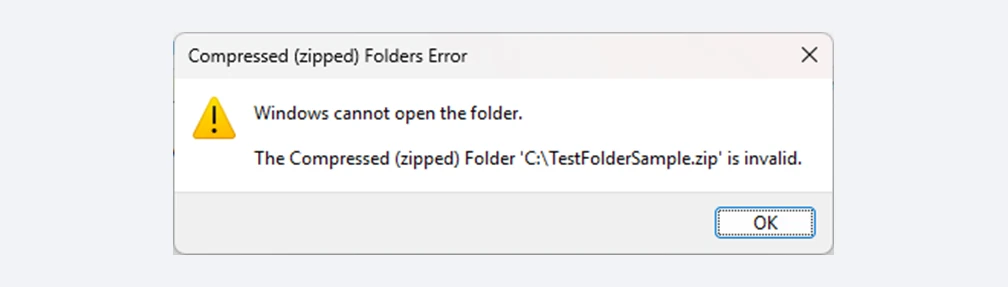
The long paths setting doesn’t fix this error
I also assumed changing the setting would fix it. After looking into it, it turned out to make almost no difference for ZIP errors, so I wrote this up to save you the detour.
How to shorten the names and extract the ZIP
- Open Fix a ZIP That Won’t Extract and choose the ZIP that won’t extract
- Check the diagnosis. Fixes that match the problems found are already checked
- Click “Save fixed ZIP”, then open or extract the saved ZIP in File Explorer
Your ZIP is never uploaded; it’s processed inside your browser. “rename-map.csv”, included in the fixed ZIP, shows the original name of any file that was shortened.
Why the long paths setting doesn’t fix ZIP errors
What the long paths setting is
Windows has an old limit of 260 characters for a file’s full path. Since Windows 10 version 1607, you can turn on a setting that lifts this limit. That’s the “long paths” setting.
However, according to Microsoft’s documentation, long paths only work when the Windows setting is on and the app itself supports long paths. Apps that don’t support them keep the 260-character limit even with the setting on.
“Invalid” is a limit of File Explorer’s ZIP support
File Explorer calls a ZIP “invalid” when a name stored inside it is 260 bytes or longer. Plain English letters take 1 byte each, but accented letters take 2 and Japanese or Chinese characters take 3. This is a limit of File Explorer’s ZIP support itself, which doesn’t use the long paths setting (per Microsoft’s support blog, in Japanese). The same ZIP gives the same error with the setting on.
“Path too long” usually isn’t fixed in File Explorer either
“Path too long” (0x80010135) appears when the full path including the destination goes over 260 characters. That is the limit the setting is about, but when you extract with File Explorer’s “Extract All”, turning the setting on usually doesn’t help.
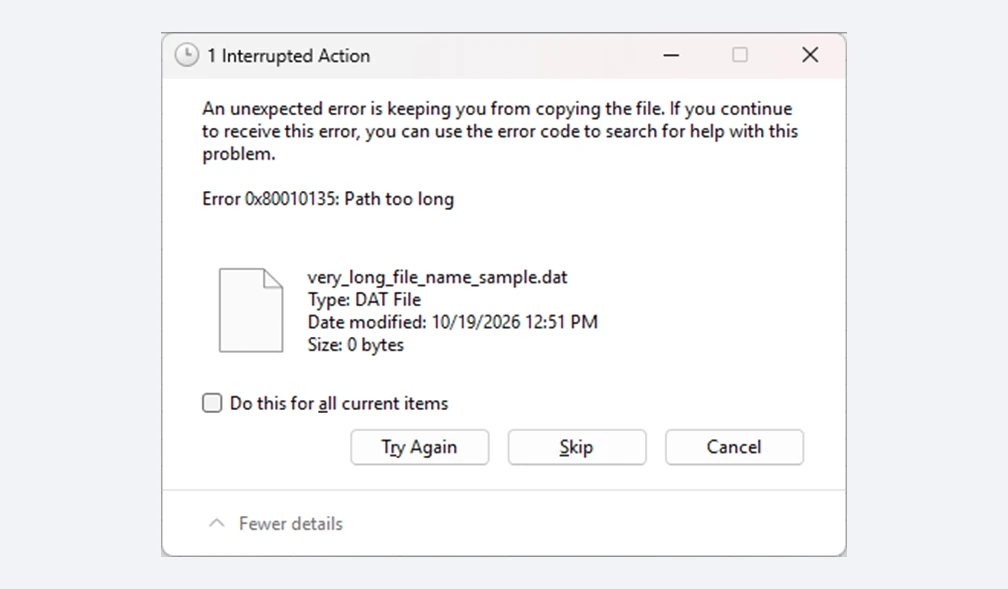
With File Explorer, turning the setting on usually doesn’t help
Before you change the setting
If you shorten the names in the ZIP with Fix a ZIP That Won’t Extract, you don’t need to change any settings on your PC. You only need to change the setting if you want to keep the original names and work with apps or commands that support long paths.
If you do want to change the setting, keep the following in mind.
- Work PCs usually won’t let you change it: it needs administrator rights, and company policy may control the setting. Ask your IT team if you need it
- Other people still can’t open the files: even if your PC handles long paths, the people you send files to, or apps that don’t support long paths, may not
- It doesn’t solve the root problem: the long names are still there, so copying, backups and other apps can run into the same issue
For reference: how to turn on long paths
This is for working with apps or commands that support long paths, not for fixing ZIP errors. Both methods need administrator rights, and you may need to restart.
With Group Policy (Windows Pro, Enterprise and similar)
- Type “gpedit.msc” in the Start menu to open the Local Group Policy Editor
- Go to Computer Configuration → Administrative Templates → System → Filesystem
- Open “Enable Win32 long paths”, choose “Enabled” and click OK
With the Registry
In Registry Editor, set this value to 1 (create it as a DWORD value if it doesn’t exist):
HKEY_LOCAL_MACHINE\SYSTEM\CurrentControlSet\Control\FileSystem
LongPathsEnabled = 1
Mistakes in the Registry can stop Windows from working properly. If you’re not comfortable with it, don’t change it.
FAQ
I turned the setting on, but I still get “Path too long”.
When you extract with File Explorer, turning the setting on usually doesn’t help. Extract to a shorter location, or shorten the names inside the ZIP with Fix a ZIP That Won’t Extract.
How do I turn it back off?
In Group Policy, set “Enable Win32 long paths” to “Not Configured” or “Disabled”. In the Registry, set “LongPathsEnabled” back to 0.
Is it the same on Windows 11?
Yes. The setting is in the same place, and apps still need to support long paths. Microsoft’s support blog also confirms that the “invalid” error happens the same way on Windows 11.
Can I extract the ZIP with a command?
PowerShell’s Expand-Archive and the tar command are covered in “How to Extract a ZIP Without 7-Zip or Installing Anything“.
Summary
The Windows long paths setting is for apps that support long paths, and it rarely fixes errors when extracting ZIPs in File Explorer. In particular, it does nothing for “The Compressed (zipped) Folder is invalid”.
Before editing the Registry or Group Policy, shorten the names inside the ZIP with Fix a ZIP That Won’t Extract, then extract it as usual.