
Windows says “The Compressed (zipped) Folder is invalid” when you try to open a ZIP. Every guide says “just install 7-Zip”, but you can’t install software on your work PC. This guide shows how to extract a ZIP without installing anything.
The short answer: fix the ZIP in your browser, then extract as usual
The easiest way is to turn the ZIP into one Windows can open with FlowPocket’s Fix a ZIP That Won’t Extract.
- Nothing to install and no commands to type. Just choose the ZIP in your browser
- Your ZIP is never uploaded; it’s processed inside your browser
- The fixed ZIP extracts with File Explorer’s “Extract All” as usual
If you’re comfortable with commands, Windows also has PowerShell and the tar command built in. Those are covered later in this guide.
I ran into this on work computers again and again, and looking up commands every time was a hassle, so I built a tool that fixes these ZIPs in the browser.
Why won’t File Explorer open it?
Most ZIPs that File Explorer refuses to open aren’t broken. The usual cause is that the file or folder names inside are too long, or that names contain characters Windows doesn’t allow, such as “:” or “?”. Apps like 7-Zip extract ZIPs in a different way from File Explorer, which is why they can often open them.
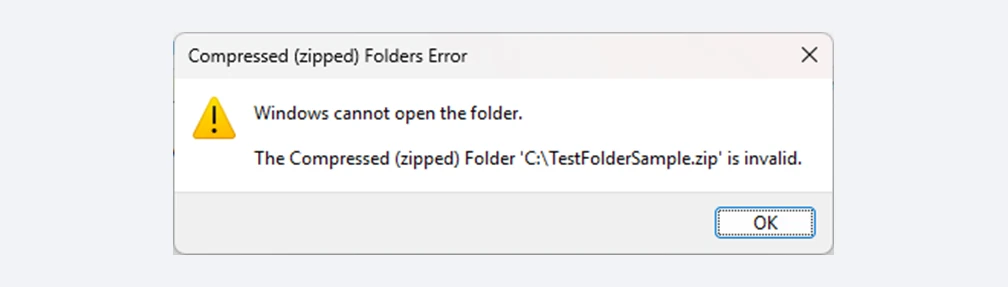
Most ZIPs File Explorer won’t open aren’t actually broken
So once the names inside the ZIP are fixed to a length and characters Windows can handle, File Explorer opens it without any extra software. For more on the causes, see “ZIP Won’t Extract? Fix “Compressed Folder Is Invalid” and “Path Too Long”“.
How to fix the ZIP in your browser (recommended)
- Open Fix a ZIP That Won’t Extract and choose the ZIP that won’t open (or drag it onto the box)
- The diagnosis shows why it won’t open. Fixes that match the problems found are already checked
- Click “Save fixed ZIP”, then open or extract the saved ZIP in File Explorer
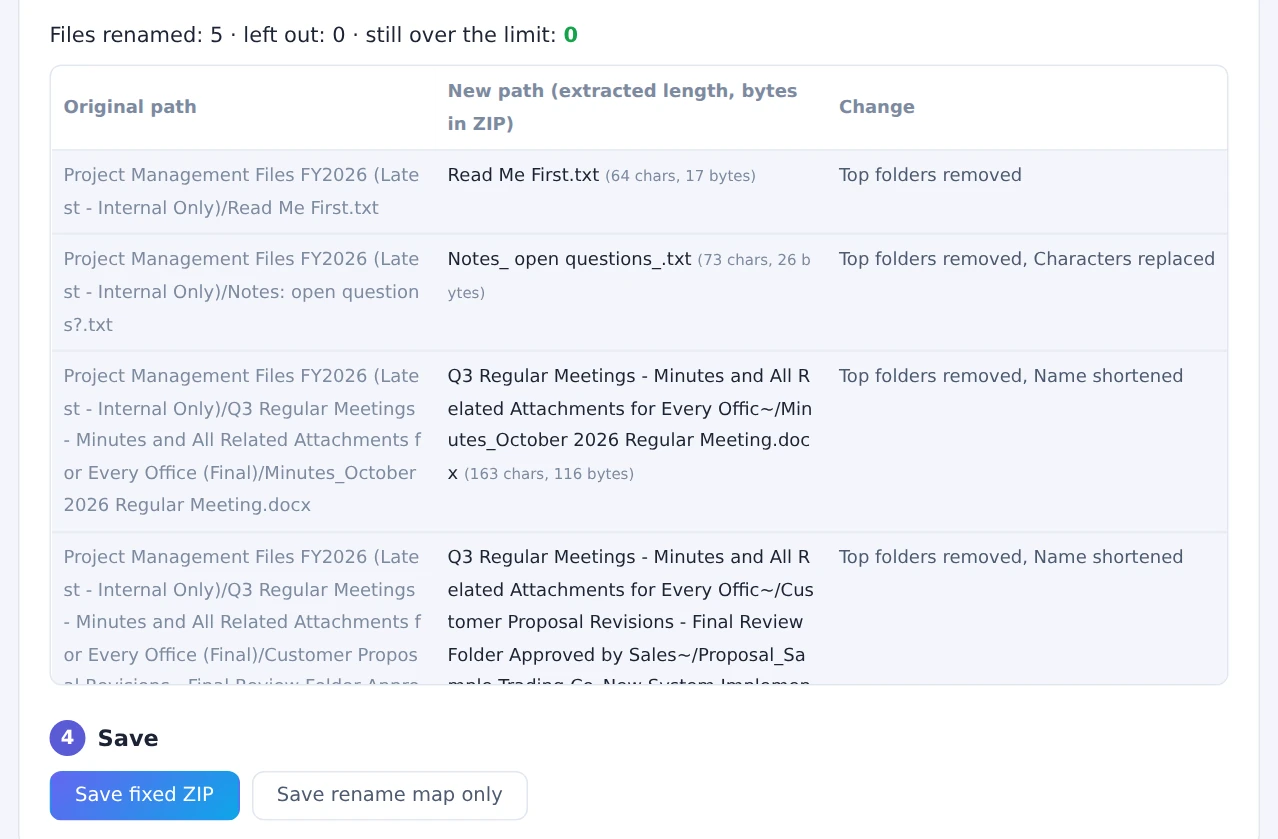
The fixed ZIP extracts in File Explorer as usual
Names that are too long are shortened, and characters Windows doesn’t allow are replaced with “_”. “rename-map.csv”, included in the fixed ZIP, shows the original name of anything that changed. You can also pass the fixed ZIP on to others and they can open it too.
Extracting with commands (for experienced users)
If you need the files with their original names, you can also extract with commands that come with Windows. Both require typing commands and have these weaknesses:
- Names with characters Windows doesn’t allow still can’t be extracted
- If the full path including the destination is too long, it may fail
- The extracted files keep their long names, so the same problems can come back when you open or copy them later
- Some companies restrict the use of PowerShell and similar tools
PowerShell’s Expand-Archive
Search for “PowerShell” in the Start menu, open it, and run the following, changing the ZIP location and destination to match yours. Microsoft’s support blog also mentions it as a workaround for ZIPs whose names are too long for File Explorer.
Expand-Archive -Path "C:\temp\reports.zip" -DestinationPath "C:\temp\reports"The tar command
The tar command included in Windows 10 and later can also extract ZIPs (see Microsoft’s tar documentation). Create the destination folder first, then run:
mkdir C:\temp\reports
tar -xf "C:\temp\reports.zip" -C C:\temp\reports
Comparing the three methods
| Fix in browser | PowerShell | tar | |
|---|---|---|---|
| Install | Not needed | Not needed | Not needed |
| How | Click through a page | Type a command | Type a command |
| Names too long | Fixed by shortening | Usually extracts | Usually extracts |
| Characters Windows doesn’t allow | Fixed by replacing with “_” | Can’t extract | Can’t extract |
| Names after extracting | Short enough for Windows | Still long | Still long |
| Sending to others | Just send the fixed ZIP | They need the same steps | They need the same steps |
If you’re not sure, start by fixing the ZIP in your browser. Use PowerShell or tar only when you need the files with their original long names.
A note for work computers
Some companies have rules about using PowerShell, or about loading files into outside web services. FlowPocket’s tools never send your files anywhere, but if you’re unsure, check your company’s policy.
FAQ
Will enabling long paths in Windows let me open it?
Not if File Explorer says the ZIP is “invalid”. See “Will Enabling Long Paths in Windows Fix Your ZIP?” for details.
What can the person creating the ZIP do?
Keep folder structures shallow, keep folder and file names short, and avoid characters Windows doesn’t allow, such as “:” and “?”. If you’re downloading from SharePoint or Google Drive, see “ZIP from SharePoint, Teams, OneDrive or Google Drive Won’t Open?” as well.
Summary
Even on a PC where you can’t install 7-Zip, fixing the ZIP with Fix a ZIP That Won’t Extract lets you extract it as usual, with nothing to install. If you’re comfortable with commands and need the original names, PowerShell’s Expand-Archive or the tar command also work.