
You downloaded a folder from SharePoint or Teams as a ZIP, tried to open it in Windows, and got “The Compressed (zipped) Folder is invalid”. Or “Extract All” stopped partway with “Error 0x80010135: Path too long”. The same ZIP opens fine on your phone, but your PC refuses. Sound familiar?
This guide explains why these errors happen and how to fix the ZIP right in your browser, without installing anything, using FlowPocket’s Fix a ZIP That Won’t Extract. Your ZIP is never uploaded; everything runs inside your browser.
I kept running into this when downloading SharePoint folders at work. Every guide said “install 7-Zip”, but you can’t just install software on a work PC. So I built a tool that fixes these ZIPs in the browser.
Errors you might see
When you open a ZIP in File Explorer or press “Extract All”, Windows may show:
- “Windows cannot open the folder. The Compressed (zipped) Folder ‘…’ is invalid.”
- “An unexpected error is keeping you from copying the file. … Error 0x80010135: Path too long”
- “Destination Path Too Long” (The file name(s) would be too long for the destination folder)
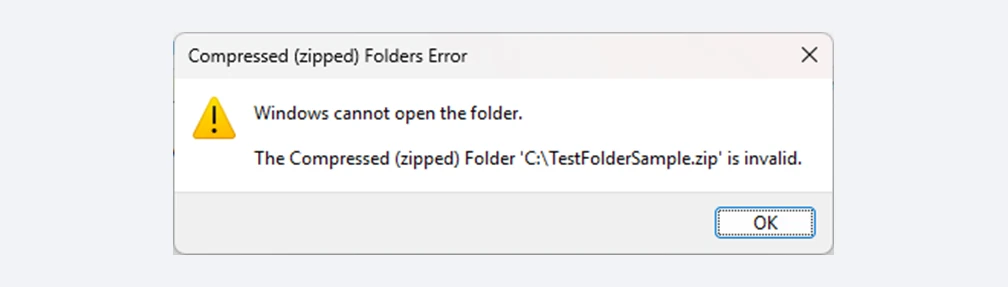
The ZIP won’t open at all. Long names inside it are the usual cause
In none of these cases is the ZIP necessarily broken. Usually the problem is the file and folder names inside the ZIP. The “invalid” error, where the ZIP won’t even open, and the “path too long” errors, where extraction stops partway, come from two different limits, though, so let’s look at them separately.
Cause 1: A name inside the ZIP is too long (“invalid”)
If the ZIP won’t even open and Windows calls it “invalid”, the most likely cause is that a name stored inside the ZIP (folders plus file name) is too long.
Windows File Explorer refuses to open the whole ZIP if even one name inside it is 260 bytes or longer. Microsoft’s Japanese support team explains this on its official blog (in Japanese).
The key is that the limit counts bytes, not characters. Plain English letters take 1 byte each, but accented letters take 2 and Japanese or Chinese characters take 3, so names in those languages reach the limit much sooner. Deeply nested work folders with long names can go over it easily.
Because the limit depends only on the names inside the ZIP, moving the ZIP or changing where you extract it doesn’t help. Even on the desktop or at C:\, you get the same error.
For why this happens so often with ZIPs from SharePoint or Google Drive, and what you can do before downloading, see “ZIP from SharePoint, Teams, OneDrive or Google Drive Won’t Open?”.
Cause 2: The extracted path is too long (“path too long”)
If the ZIP opens but “Extract All” or copying stops with “Path too long (0x80010135)”, the full path including the destination folder goes past 260 characters. The path is the whole name from the drive down, such as “C:\Users\username\Downloads\Reports\…\file name.xlsx”.
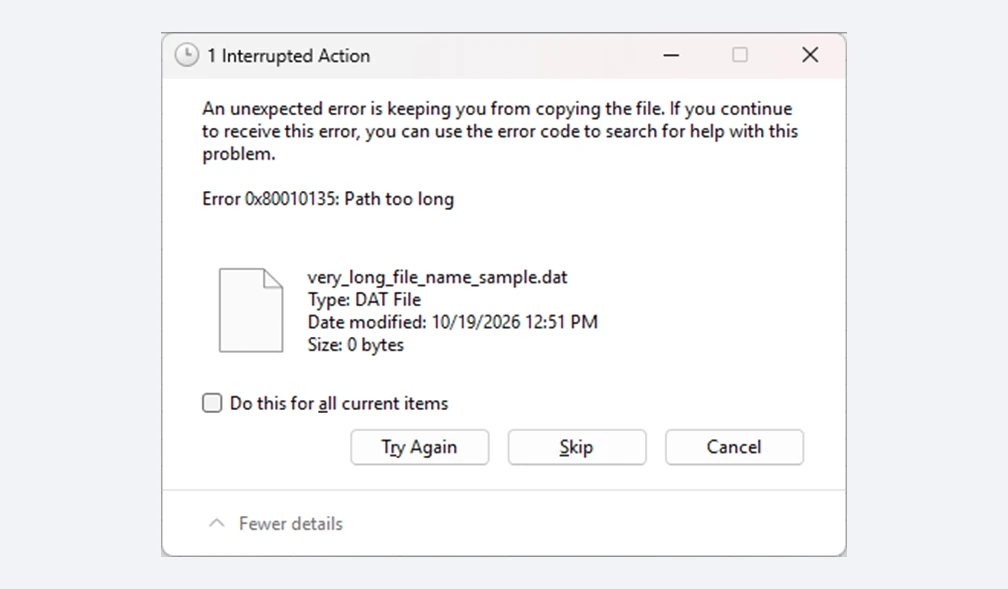
Shown when a file’s path goes over the limit during extraction
When the path of a folder being created goes over the limit, Windows may say “Destination Path Too Long” instead. The cause is the same.
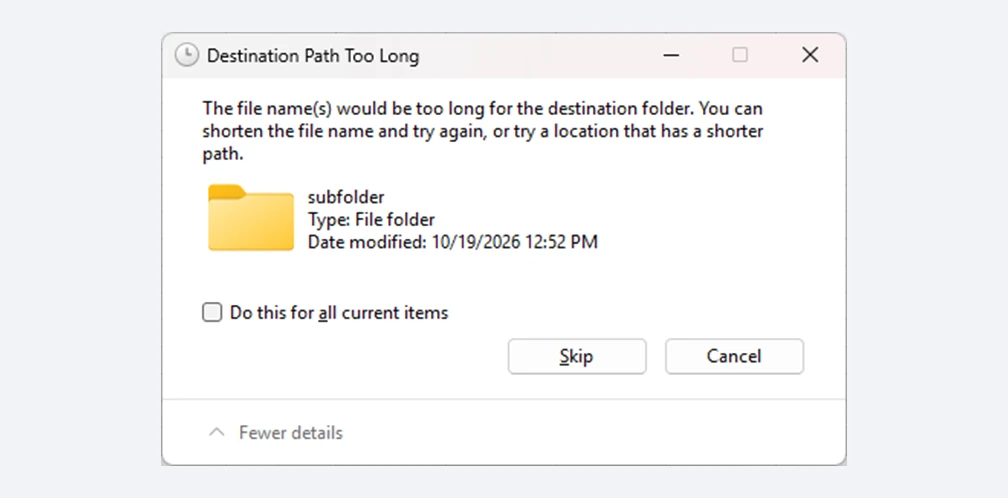
Can appear when a folder’s path goes over the limit during extraction
This limit counts characters and includes the destination folder. Extracting in your Downloads folder adds “C:\Users\username\Downloads\ZIP name\”, so names that fit inside the ZIP can go over the limit once extracted. On the other hand, extracting again somewhere short, such as C:\temp, can be enough.
Another cause: Characters Windows doesn’t allow
Macs and phones allow names with “:”, “?” or “*”, but Windows doesn’t. Names ending in a space or a period, and reserved names such as “CON” or “NUL”, aren’t allowed either. A ZIP containing names like these can also make File Explorer call it “invalid”.
Why it opens on your phone but not on your PC
Both the name length limits and the character rules are specific to Windows File Explorer. iPhone, Android and macOS don’t have them, so the same ZIP opens without trouble. If a ZIP works on your phone but not on your PC, suspect long names and unusual characters first.
Common workarounds and their limits
- Extract to a short folder: extracting to something like C:\temp shortens every path by the length of the destination. This only helps with “path too long”, not with “invalid”
- Use 7-Zip or another app: these usually handle long names, but many work PCs don’t allow installing software
- Use PowerShell’s Expand-Archive: it’s built into Windows, so nothing to install, but you have to type a command. The extracted files also keep their long names, so the same problems can come back when you open, copy or send them later
- Enable long paths in Windows: File Explorer’s ZIP support doesn’t use this setting, so it doesn’t fix “invalid”. Work PCs often don’t let you change it anyway
For extracting without 7-Zip, see “How to Extract a ZIP Without 7-Zip or Installing Anything”. For why the long paths setting doesn’t help, see “Will Enabling Long Paths in Windows Fix Your ZIP?”.
The reliable fix is to rename the files inside the ZIP so their length and characters work on Windows. Then File Explorer opens the ZIP and “Extract All” works as usual.
How to fix the ZIP in your browser
Step 1. Choose the ZIP that won’t extract
Open Fix a ZIP That Won’t Extract and pick the ZIP with “Choose file”, or drag it onto the box.
Step 2. Check the diagnosis
The reasons it won’t extract appear right away: names inside the ZIP that are 260 bytes or longer (the “invalid” cause), paths over 260 characters once extracted (the “path too long” cause), names with characters Windows doesn’t allow, file name encoding, damaged files and more.
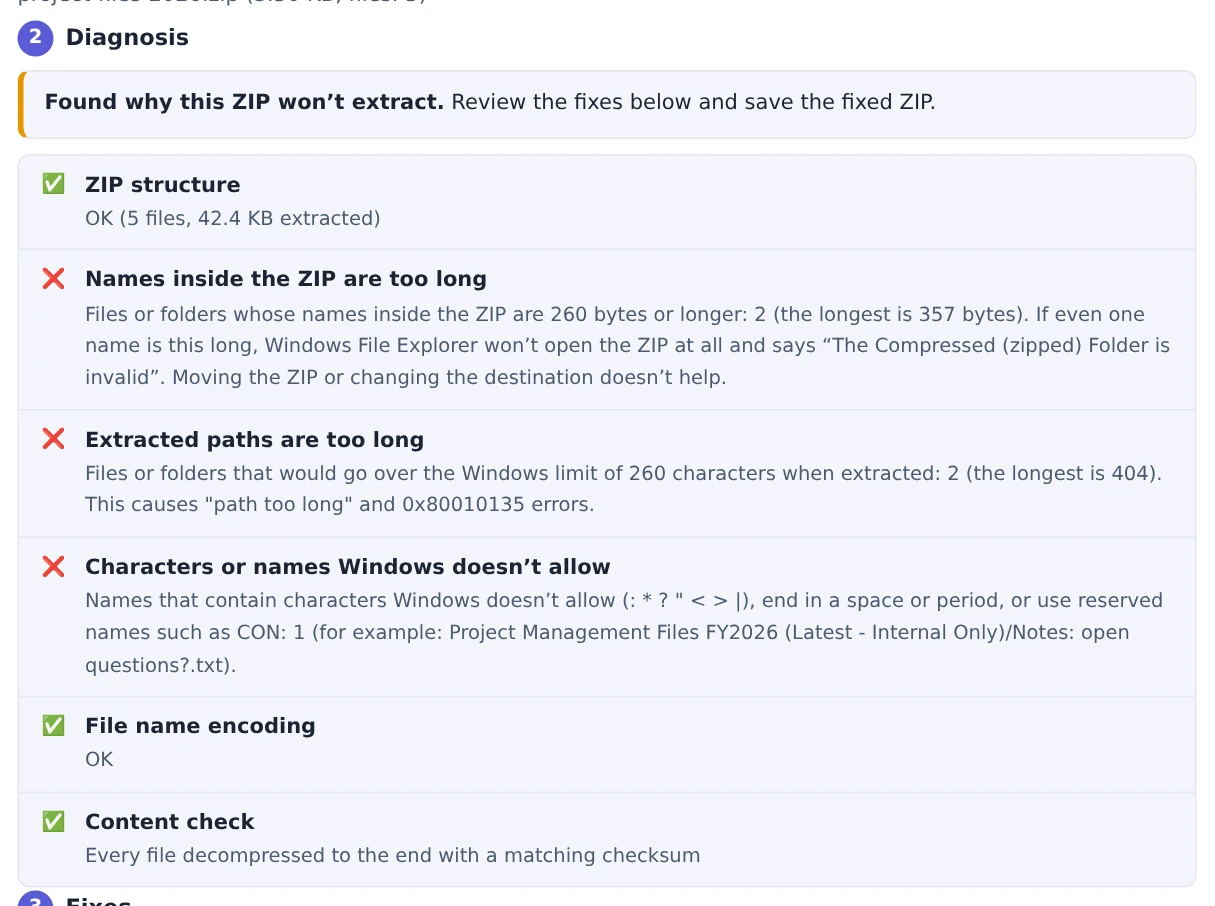
The causes of “invalid” and “path too long” are shown separately
Step 3. Review the fixes
Fixes that match the problems found are already checked:
- Remove common top-level folders: drops the top folder every file sits inside, which shortens every name by that much
- Shorten names that are too long: names are shortened just enough that every name inside the ZIP stays within 259 bytes and every extracted path within 259 characters. Shortened names end in “~”
- Replace characters Windows doesn’t allow with “_”
The table shows each original path next to its new one, with its extracted length and its size in bytes. When “still over the limit” is 0, you’re good to go.
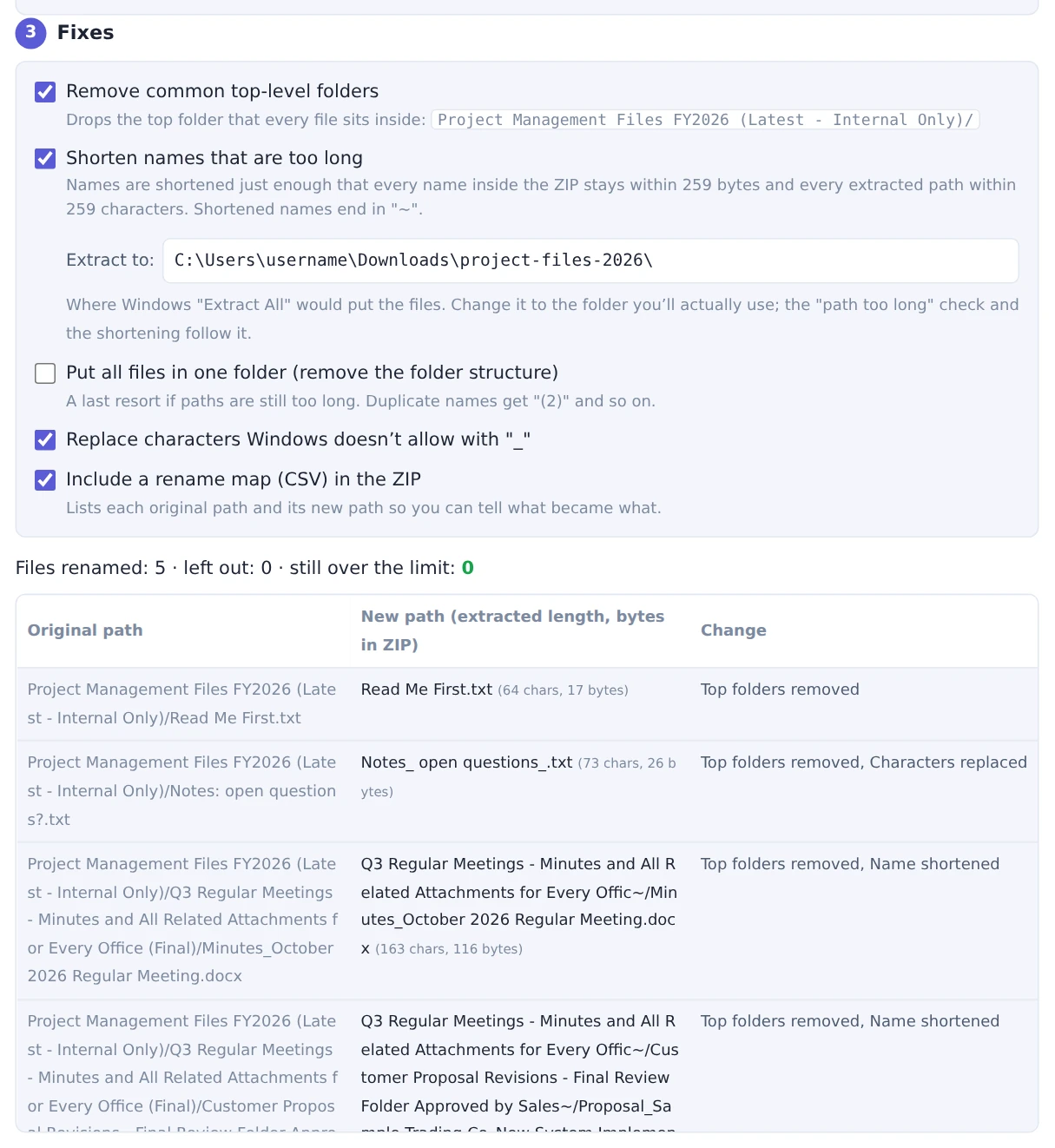
Each new path shows its extracted length and its size in bytes inside the ZIP
For very deeply nested ZIPs where something is still over the limit, turning on “Put all files in one folder” always makes everything fit.
Step 4. Save the fixed ZIP and extract it
Press “Save fixed ZIP” to download the renamed ZIP (for example, reports_fixed.zip), then open or extract it in File Explorer as usual.
The ZIP also contains “rename-map.csv”, listing each original path and its new path, so you can always tell what a shortened file used to be called.
The contents stay exactly the same
The tool reuses the compressed data from the original ZIP as-is and rebuilds only the names and the table of contents. That’s why even multi-gigabyte ZIPs are done in seconds, and the files themselves never change. Names are written as UTF-8, so they display correctly on both Windows and Mac.
The file contents stay the same, but to fit within the Windows limits, files and folders with names that are too long get shorter names. If you choose “Remove common top-level folders” or “Put all files in one folder”, the folder structure changes as well. To check a file’s original name or location, compare the original and new paths in “rename-map.csv”, which is included in the fixed ZIP. Keep in mind that renaming files back to their original names may put them over the Windows limit again.
FAQ
How long can names be?
To avoid “invalid”, every name inside the ZIP (folders plus file name) must be 259 bytes or less: 259 plain English characters, but only about 86 Japanese characters. When extracting, the full path including the destination also has to stay within 259 characters.
Is it safe to use with work files?
Your ZIP is processed only inside your browser and never sent anywhere. Nothing needs to be installed.
Can it fix password-protected ZIPs?
It can’t remove the password, but it can still fix the names. Enter the original password when extracting the fixed ZIP.
What about a ZIP whose download was cut off?
The files that can be read from the start are put into a new ZIP. The incomplete file itself can’t be recovered.
Does it work on a phone?
Yes. You can fix a ZIP on your phone or Mac before sending it to someone on Windows.
Summary
If Windows says “The Compressed (zipped) Folder is invalid”, check whether a name inside the ZIP is 260 bytes or longer. If “Extract All” stops with “Path too long (0x80010135)”, the path including the destination is over 260 characters.
Either way, shortening the names inside the ZIP solves it. FlowPocket’s Fix a ZIP That Won’t Extract turns them into ZIPs Windows can open, right in your browser, with nothing to install.