
You tweaked a website’s design and want to see exactly what changed. You have a revised version of a slide and need to confirm which parts were edited. Comparing two images side by side by eye, small differences are surprisingly easy to miss.
This guide shows how to highlight the differences between two images in red with the free Screenshot Comparison tool. Your images are compared in your browser and never uploaded.
Every time I edited the site’s CSS, I’d put before and after screenshots side by side and play spot-the-difference. A machine does it instantly and doesn’t miss anything.
What is pixel-level comparison?
This tool compares the color of each pixel at the same position in both images and marks the ones that differ in red. It doesn’t understand text or shapes; it simply detects color differences.
That means it catches changes like these:
- Text that’s slightly bolder or a different shade
- Spacing that moved by a few pixels
- An icon or image that was swapped out
- A single word that changed
What this tool does
- Highlights the differences between a before and after image in red
- Shows the percentage of the image that differs and the number of changed pixels
- Lets you set how sensitive the detection is
- Scales images of different sizes to match before comparing
- Compares inside your browser without sending images to a server
How to use it
STEP 1. Choose two images
Open Screenshot Comparison and choose one image for Image A (before) and one for Image B (after).
STEP 2. Check the sensitivity
The default Sensitivity of 20% works well most of the time. Lower it if trivial differences show up; raise it if real changes are missed.
STEP 3. Compare
Press Compare. You’ll see the image with differences highlighted in red, along with the percentage and number of pixels that differ.
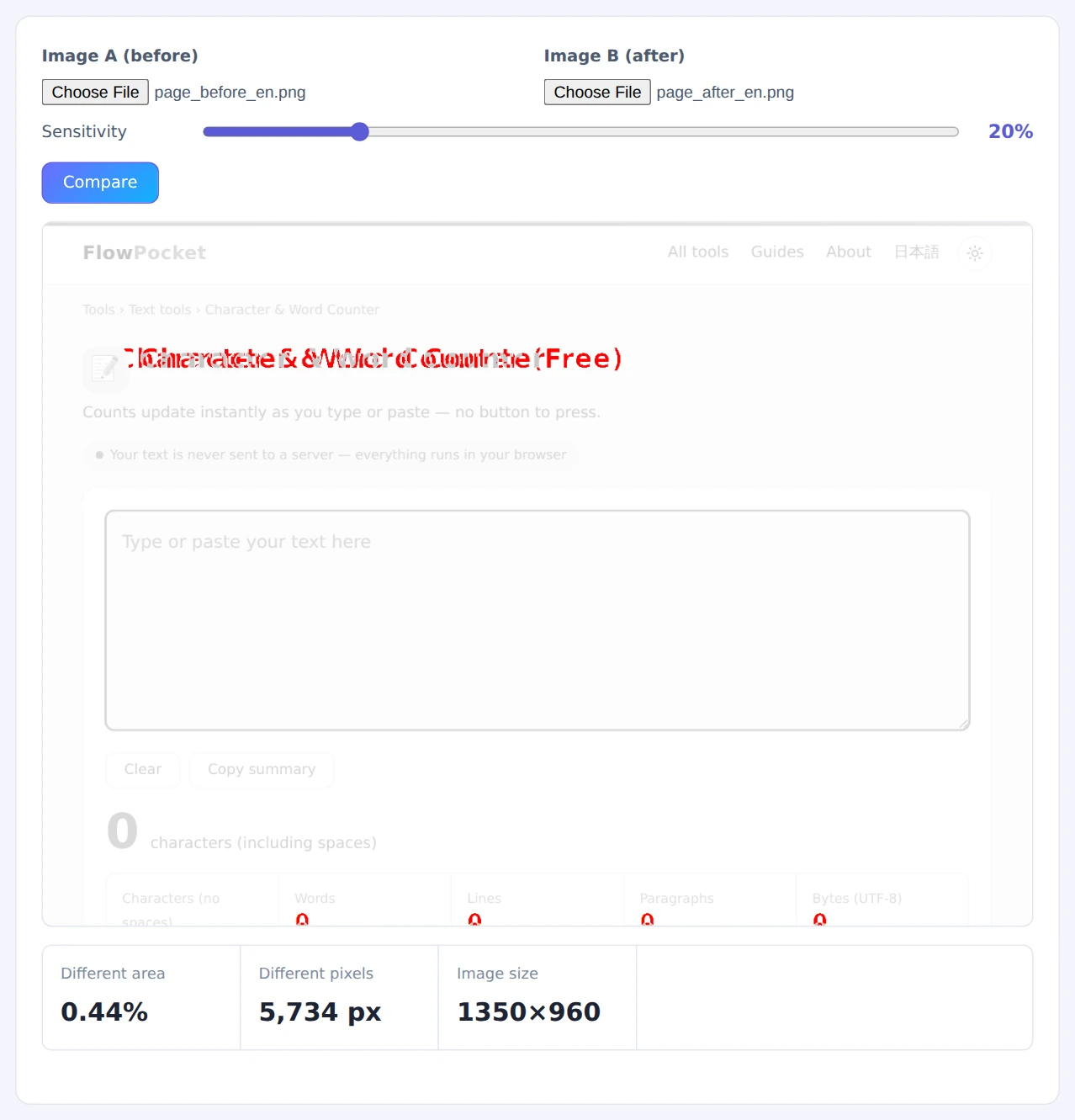
Unchanged areas are shown faded
STEP 4. Review the differences
Look at each red area and decide whether it’s an intended change or a side effect.
Take both screenshots in the same browser at the same window width. If the widths differ, the whole layout shifts and almost everything turns red.
When it comes in handy
- Design changes: see what changed after editing CSS or a template
- Catching side effects: make sure a fix didn’t change something elsewhere on the page
- Document revisions: spot the edits between two versions of a slide or page
- Checking image swaps: confirm whether two images that look identical really are
FAQ
Text moved slightly and a large area turned red. Why?
Because comparison happens pixel by pixel, anything that shifts even a few pixels makes the surrounding area count as different. This approach isn’t suited to ignoring layout shifts and comparing only content.
Why do unchanged areas show up red in JPEG images?
JPEG adds subtle compression noise each time it’s saved, so identical-looking areas can differ slightly in color. Lower the sensitivity, or save your screenshots as PNG.
Can I use it for visual regression testing?
It’s great for quick manual checks. For many pages, or automated comparisons on every change, a dedicated developer tool is a better fit.
Things to keep in mind
- Use images of the same size: if sizes differ, image B is stretched to match and the comparison may not be meaningful
- It doesn’t judge meaning: it shows that something changed, not whether the change is correct
- Different margins make comparison hard: if the images have different amounts of border, even them out first with the Auto-Trim Image Margins tool
Summary
Finding differences between two images is faster and more reliable when a machine does the comparing. Screenshot Comparison highlights them in red without uploading anything.
Try it with before and after screenshots the next time you change a design.