
You try to send a video from your iPhone and it’s too big to attach to an email. You drop it into Discord and it says the file is too large. The fix is to compress the video down to a target size, and then it goes through.
This guide shows how to shrink a video with the free Video Compressor. Your video is processed in your browser on iPhone, Android or a computer, and never uploaded.
There are plenty of video compressor sites, but I didn’t like uploading family videos or work screen recordings to them. So I built one that runs entirely on your device, phones included.
Why videos get so big
A video’s file size comes down to three things:
- Resolution: the number of pixels in each frame, such as 4K or 1080p (Full HD). More pixels, bigger file
- Frame rate: frames per second. 60fps is roughly twice the data of 30fps
- Bitrate: how much data is spent on each second. Higher means better quality and a bigger file
Phone cameras record at high quality, so depending on your settings a single minute can run to hundreds of megabytes. This tool works backward from your target size and sets the resolution, frame rate and bitrate for you.
What this tool does
- Compresses a video to fit a target size such as 10MB or 18MB
- Or compresses by quality: High, Standard or Smaller file
- Picks the resolution automatically (or choose 1080p, 720p or 480p)
- Reduces 60fps videos to 30fps for an even smaller file
- Shows the expected size and resolution before you start
- Lets you keep or remove the audio
- Processes everything in your browser without sending the video to a server
How to use it
STEP 1. Choose a video
Open the Video Compressor and pick a video with Choose File. On a computer you can also drag the file onto the dashed box. The video’s length, resolution, frame rate and size appear.
STEP 2. Pick a target size
Leave By file size selected and choose a target: 18MB (email) for an attachment or 10MB (Discord) for Discord. For anything else, type a number into Custom.
The expected result appears, for example “After compressing: about 16.9MB (720×1280, 30fps)”. Leave Resolution on Auto (recommended) and it’s adjusted so the picture doesn’t fall apart.
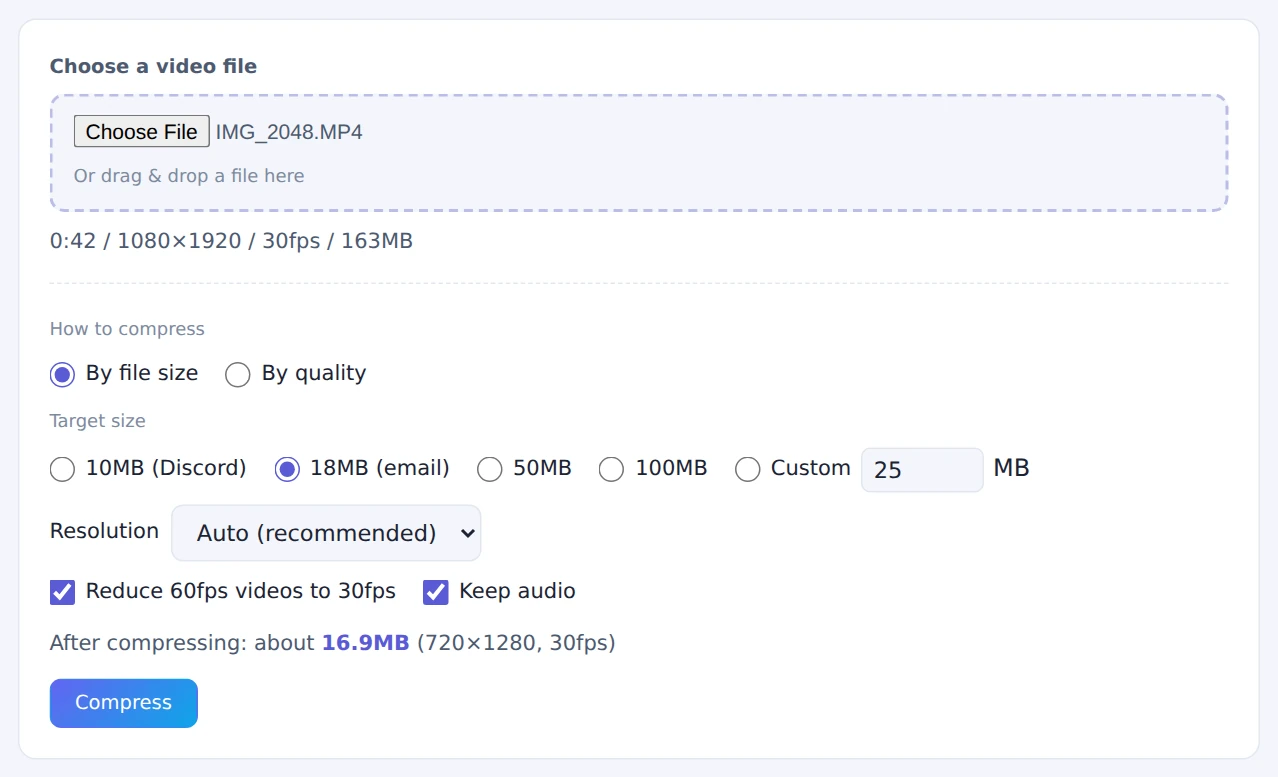
Leave Resolution on Auto and it is adjusted for you
STEP 3. Compress
Press Compress and the video is compressed on your device. A progress bar and time estimate appear; keep the page open until it finishes.
STEP 4. Check and save
When it’s done you’ll see a preview of the compressed video along with the original size, new size, reduction and resolution. Play it to check the quality, then press Save.
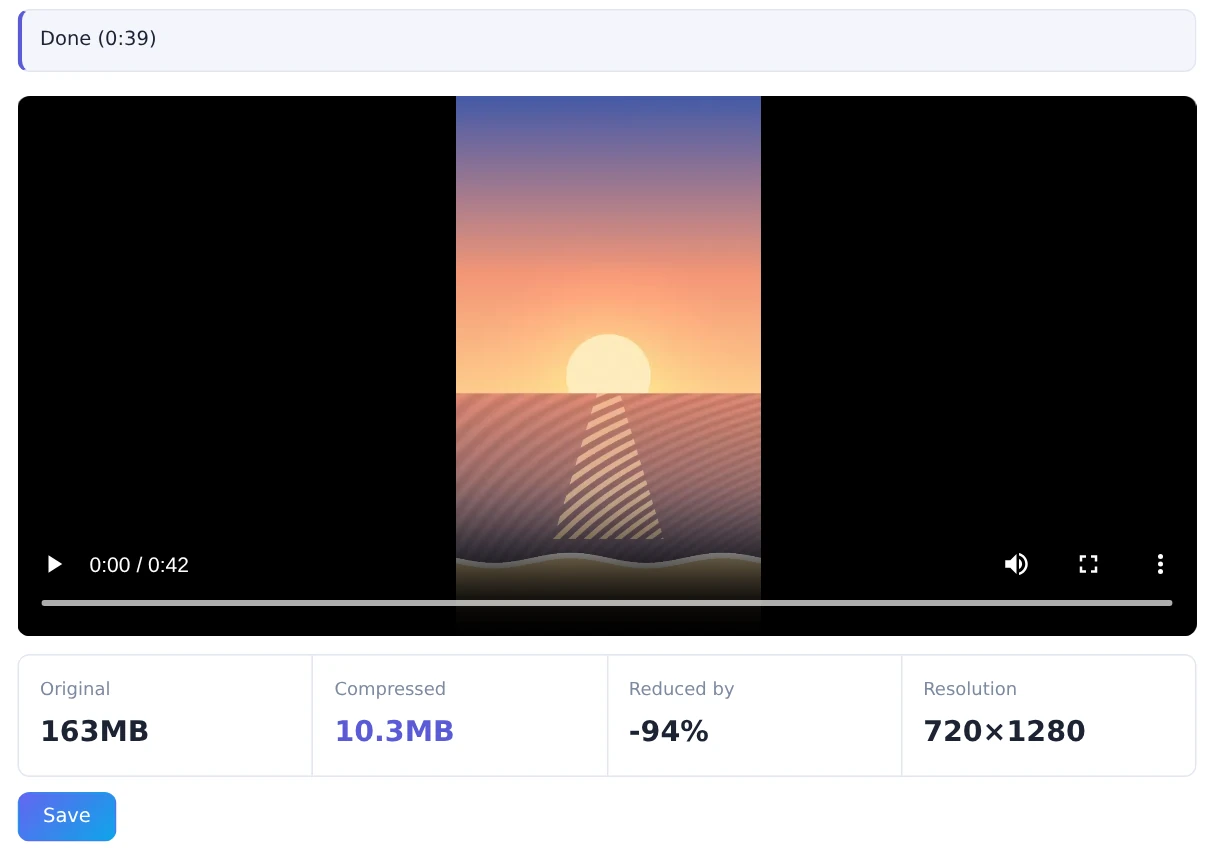
Videos with little motion often come out below the target
To save to Photos on an iPhone, press Share to save and choose Save Video in the share sheet.
If quality matters more than an exact size, choose By quality instead.
Choosing a target size
- 10MB: the upload limit on Discord’s free plan
- 18MB: email attachments such as Gmail. The limit is 25MB, but attachments grow by about a third when sent, so this leaves headroom
- 50MB / 100MB: save phone storage or sharing space while keeping quality high
At 18MB, a 30-second clip gets ten times more data per second than a five-minute video. The smaller you squeeze a long video, the more quality drops, so it often helps to trim it to the part you need first.
Tips for iPhone and other phones
- Stay on the page: switching apps or locking the phone can stop compression. The screen is kept awake while it runs
- How long it takes: in testing, a computer took about as long as the video itself, and an iPhone compressing a long 60fps video took about twice its length
- If picking from Photos takes a while: iOS may convert the video before handing it over. Wait for it, or pick a copy saved in the Files app
- Very large videos: videos over about 1GB can run out of memory on a phone. Lower the resolution or use a computer
FAQ
Is my video uploaded?
No. Loading, compressing and saving all happen inside your browser. It uses the browser’s built-in video encoding (WebCodecs), which on most devices runs on the same dedicated hardware used for recording video.
My computer shows a slightly smaller size than the tool.
This tool counts 1MB as 1,000,000 bytes. Windows and many Android phones count 1MB as 1,048,576 bytes, so the same file shows a number about 5% smaller. iPhone and Mac count the same way as the tool. Either way, the result stays under your target.
The result came out smaller than expected.
The target is treated as a ceiling, and videos with little motion, such as screen recordings, often come out smaller. If a result goes over the target, the tool adjusts and compresses again automatically.
My iPhone video won’t load on my PC.
iPhone videos are often saved in HEVC (H.265), which some Windows browsers can’t read. Try Edge, or open the tool on the iPhone itself and compress it there.
Will the saved video play everywhere?
Videos are saved as MP4 (H.264), which plays on almost any device. Only if your browser can’t encode H.264 is another format used, and the page tells you.
Things to keep in mind
- HDR videos can look faded: HDR videos from iPhones and other phones may look slightly washed out after compressing. The page shows a note when you pick one
- Older browsers aren’t supported: you need a recent version of Chrome, Edge, Safari (iOS 16.4 or later) or Firefox. If yours isn’t supported, the page says so
- There’s no trimming: to keep only part of a video, trim it first in your phone’s Photos app or a video editor
- Reviewing screen recordings: the Video Scene Log Generator lists where the scenes change
Summary
When a video won’t send, it’s almost always because it’s over the size limit. With the Video Compressor, you pick a target size and the resolution and quality are adjusted for you. Your video never leaves your device.
Got a video that wouldn’t send? Try it at 18MB.