

You shared your photos or artwork online and later found them reposted without credit. Or you want to stamp “CONFIDENTIAL” on images in a document before sending it outside your company. That’s what a watermark, text laid over an image, is for.
This guide shows how to add a text watermark to many images at once with the free Watermark Tool. Your images are processed in your browser and never uploaded.
I used to add my name to blog photos one by one. I built this so the same watermark goes onto any number of images in one go.
What is a watermark?
A watermark is a name, logo or label such as “SAMPLE” laid semi-transparently over an image. Because it’s baked into the image itself, it stays visible wherever the image ends up.
There are two common approaches:
- Small, in a corner: credits the source without getting in the way. Good for portfolios and blogs
- Large, in the center: makes the image hard to reuse. Good for preview samples and drafts
What this tool does
- Adds a text watermark to images (© and other symbols work too)
- Lets you choose the position (bottom right, bottom left, top right, top left, center), color (white or black), size and opacity
- Shows a live preview of the first image while you adjust
- Applies the same watermark to a whole batch and downloads it as a ZIP
- Processes images inside your browser and never sends them to a server
How to use it
STEP 1. Choose your images
Open the Watermark Tool and choose the images to watermark. You can select several at once. The first one appears as a preview.
STEP 2. Enter the watermark text
Type your text under Watermark text. The default is “© Sample”. A name and year, such as “© 2026 Jane Doe”, is the usual format.
STEP 3. Adjust position, color, size and opacity
Choose the position and color, then use the Size and Opacity sliders. Changes show instantly in the preview. Black reads well on bright photos, white on dark ones.
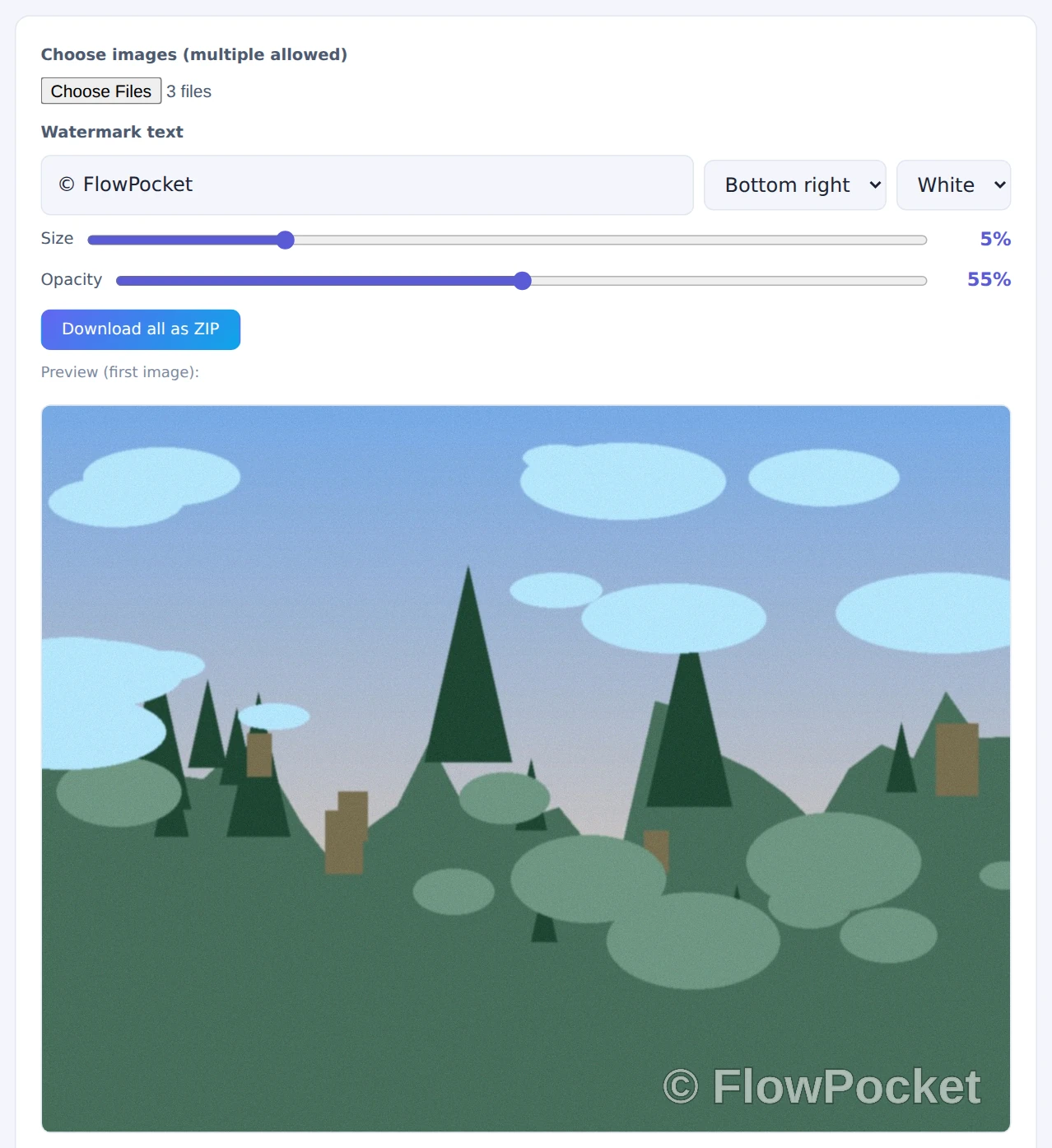
Size is set as a percentage of each image’s width
STEP 4. Save the results
Use each image’s Save button, or Download all as ZIP to watermark and save the whole batch.
The size is set as a percentage of each image’s width, so a mix of landscape, portrait, large and small images all get the same balance.
When it comes in handy
- Sharing photos and artwork: add your name or credit before posting
- Preview samples: stamp “SAMPLE” across stock photos or design drafts
- Internal documents: mark images “CONFIDENTIAL” or “DRAFT”
- Sending a copy of your ID: add who it’s for, so it’s harder to reuse elsewhere
FAQ
How strong should the watermark be?
For a credit in the corner, around 40–60% opacity is easy to read without distracting from the image. For samples you want to protect from reuse, a large centered watermark at around 30–50% keeps the content visible while making the image hard to use as-is.
Will a watermark stop people from reposting my images?
Not completely. A small corner watermark can be cropped off. Still, a visible source discourages casual reposting and makes it easier to show an image is yours. For stronger protection, place it large in the center.
Why watermark a copy of my ID?
When you send a photo of your ID for verification, adding something like “For ABC Bank verification, Oct 2026” makes it much harder to reuse if it ever leaks. Adjust the position and opacity so the text doesn’t cover the details they need to read.
Things to keep in mind
- The watermark can’t be removed later: keep your original images somewhere safe
- Text only: logo images aren’t supported, but you can type symbols like © and ™
- Photo metadata is removed: saved images don’t keep EXIF data such as the date taken or GPS location
- Hide private details first: if an image shows personal information, cover it with Pixelate / Blur Image before watermarking
Summary
Adding a watermark before you share photos or documents makes their source and status clear at a glance. The Watermark Tool lets you adjust on a live preview and apply the result to any number of images.
Start by adding your name to the next photos you post.