

There’s a QR code on your computer screen and pulling out your phone to scan it feels clumsy. Someone sent you a screenshot of a QR code. A QR code on a flyer looks a bit suspicious. In all of these cases, it helps to read the QR code from an image and check what’s inside first.
This guide shows how to decode a QR code from a screenshot or photo with the free QR Code Reader. Your image is decoded in your browser and never uploaded.
I got tired of pointing my phone at my own monitor to scan QR codes. Being able to see the URL before opening it turned out to be just as useful.
Why check a QR code before opening it?
You can’t tell where a QR code leads just by looking at it. Scammers have started sticking fake QR codes over real ones, or sending them by email and text to lure people to fake sites. This is known as “quishing” (QR phishing).
Seeing the URL first lets you check a few things:
- Does the domain (the example.com part) belong to the business it claims to be?
- Is it a link shortener or a long string of random characters?
- Does it start with “https”?
What this tool does
- Reads QR codes in screenshots and photos
- Shows the content as text and lets you copy it
- Shows an Open link button when the content is a URL
- Works from image files, with no camera needed
- On a computer, paste a screenshot straight in without saving it
- Decodes inside your browser without sending the image to a server
How to use it
STEP 1. Get an image of the QR code
Have a screenshot or photo of the QR code ready. For a code on your screen, just take a screenshot. These shortcuts copy the capture to your clipboard, so you can paste it without saving a file:
- Windows:
Windows+Shift+S, then select the area - Mac:
Command+Control+Shift+4, then select the area
STEP 2. Load the image
Open the QR Code Reader and load the image in any of three ways. Decoding starts automatically.
- Paste: with the page open, press
Ctrl+V(Command+Von a Mac) - Drag & drop: drop the image file onto the dashed box
- Choose file: pick a saved image (this is the way on a phone)
STEP 3. Check the content
The QR code’s content appears under Decoded content. If it’s a URL, check the domain before you open it.
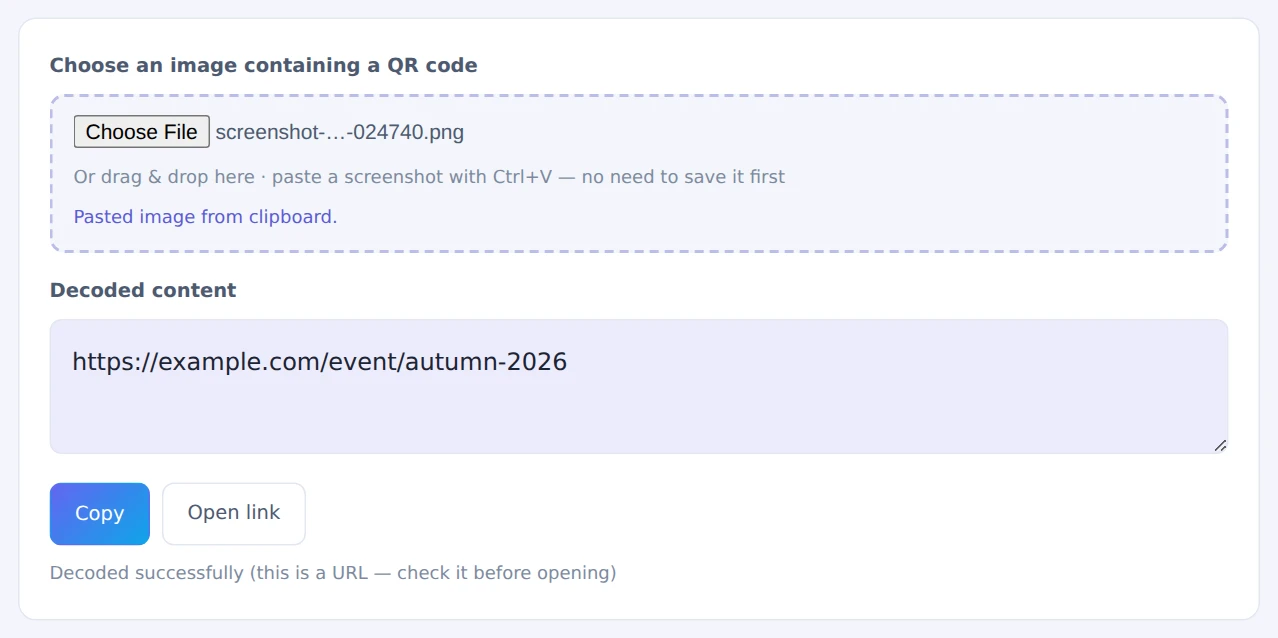
STEP 4. Copy it or open the link
Press Copy to copy the text. If it’s a URL you trust, press Open link.
If decoding fails, crop the image so the QR code fills most of it. The Image Cropper makes that quick.
When it comes in handy
- QR codes on your screen: read codes on web pages or documents without your phone
- Screenshots you’ve received: decode QR codes sent by chat or email
- Flyers and posters: take a photo and check the URL before visiting
- Checking your own QR codes: confirm the content before you print
FAQ
Can it scan with my camera?
This tool reads image files only. For live scanning, use your phone’s camera app: on both iPhone and Android, pointing the camera at a QR code is enough.
How do I read a QR code that’s on my phone’s own screen?
Your phone’s camera can’t scan its own screen. On iPhone, open the screenshot in Photos and long-press the QR code. On Android, Google Lens can often read it. You can also choose the screenshot in this tool.
Can I paste on my phone?
On phones, the paste and drag-and-drop hints aren’t shown. Screenshots go to your photo library, so use Choose file to pick one.
Can it read Wi-Fi QR codes?
Yes. They appear as text like “WIFI:S:NetworkName;T:WPA;P:password;;”, which is handy when you need to type the password on another device.
Things to keep in mind
- Some images can’t be read: small, tilted or blurry QR codes may fail
- Check before opening links: be wary of unfamiliar domains and pages asking for personal information
- One QR code per image: if there are several, crop and decode them one at a time
- Need to make a QR code? Use the QR Code Generator
Summary
You don’t need a phone to read a QR code in an image. The QR Code Reader shows you what’s inside so you can check a URL before opening it.
Try it the next time a QR code shows up on your computer screen.