
You play back a voice memo and it’s full of dead air: a long pause before you start talking, gaps while you think. You want to tighten up podcast or narration recordings before editing. Cutting out the silent parts in one go makes recordings easier to listen to and quicker to edit.
This guide shows how to find and remove silence automatically with the free Silence Trimmer. Your audio is processed in your browser and never uploaded.
Hunting down every silent gap in an editor and cutting them one by one took forever. I built this so you can cut them all at once while watching the waveform.
How silence removal works
This tool doesn’t use AI. It judges silence by volume alone: it splits the audio into 20-millisecond windows, measures each one, and cuts the parts that meet these conditions:
- Silence threshold: anything quieter than this counts as possible silence
- Min. silence length: possible silence is only cut if it lasts at least this long
- Padding: a little silence is kept before and after each cut
Because it doesn’t try to understand speech, it works the same for any language.
What this tool does
- Finds the silent sections of a recording automatically
- Shows the sections to be cut in red on the waveform
- Lets you adjust threshold, minimum length and padding while watching the waveform
- Shows the original length, the trimmed length and the reduction
- Saves the trimmed audio as MP3 (with three quality levels) or WAV
- Processes your audio inside your browser and never sends it to a server
How to use it
STEP 1. Choose an audio file
Open the Silence Trimmer and choose the recording to trim. The waveform appears, with the silent sections to be cut shown in red.
STEP 2. Adjust the settings
Move the Silence threshold, Min. silence length and Padding sliders, and the red sections update instantly. Start with the defaults (8%, 0.40s and 0.08s).
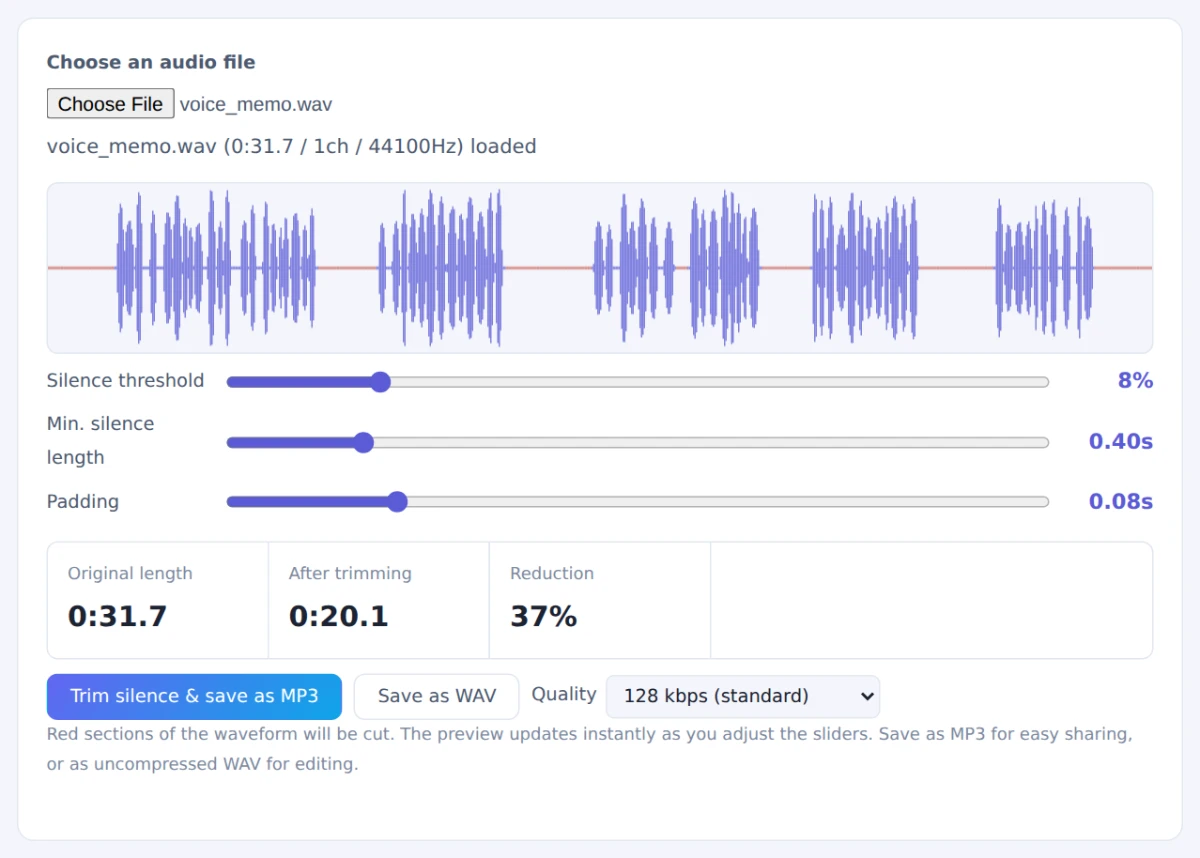
The defaults work well for most recordings
STEP 3. Check the new length
Below the waveform you’ll see the original length, the length after trimming and the reduction. If it cuts too much or too little, go back and adjust.
STEP 4. Save the result
Press Trim silence & save as MP3 to download the trimmed recording as an MP3. Choose the bitrate under Quality; for voice recordings the default of 128 kbps is plenty. If you’ll edit the result in a video or audio editor, use Save as WAV for uncompressed audio.
If speech sounds choppy between words, set the minimum silence length to 0.5s or more, or increase the padding.
When it comes in handy
- Voice memos: remove the lead-in silence and long pauses
- Podcasts and narration: trim dead air before you start editing
- Meeting recordings: shorten the time it takes to listen back
- Before transcription: less silence means faster transcription
FAQ
What threshold should I use?
For recordings made in a quiet room, the default of around 8% works well. With more background noise (air conditioning, traffic), the “silent” parts aren’t really silent, so raise the threshold a little. Raise it too far and quiet speech gets cut too, so watch the red sections as you adjust.
Does it work with background music?
Music counts as volume, so while it’s playing the tool won’t find silence. It works best on voice-only recordings with little background noise.
Should I save as MP3 or WAV?
MP3 is best for sharing, storing and playing on your phone. At 128 kbps it takes about 1 MB per minute, roughly a tenth of WAV (about 10 MB per minute in stereo). WAV is uncompressed with no quality loss, so it suits further editing. For other formats such as M4A or FLAC, use the Audio Format Converter.
Things to keep in mind
- MP3 may start with a tiny bit of silence: this comes from how the format works and isn’t noticeable in normal listening. For precise editing, save as WAV
- Don’t over-trim: a very short minimum length cuts breaths too and makes speech sound rushed
- Long recordings take time: files over an hour may load slowly, especially on a phone
- Need it as text? Run the trimmed audio through Audio Transcription
Summary
Much of what makes recordings hard to listen to is the time nobody is talking. The Silence Trimmer cuts it all out while you watch the waveform, and your audio never leaves your device.
Try it on a voice memo and see how much shorter it gets.