
You’re making a flyer and don’t know how many pixels your image needs. Your design app works in points, but the printer wants inches or millimeters. Print size math is simple once you see how units and resolution fit together.
This guide shows how to convert mm, cm, inches and points, and work out the pixels you need for print, with the free Length Unit & Paper Size Converter and DPI Calculator.
I kept reaching for a calculator to go between points and millimeters, or to size images for print. These two tools cover the conversions I use most.
The basics: inches, mm, points, DPI and pixels
- Inches and mm: the physical size of the page or print. 1 inch = 25.4 mm
- Points (pt): 1 pt = 1/72 inch (about 0.353 mm). Used for font sizes and in design apps
- DPI: dots (pixels) per inch, which describes how fine the print is
The formula that ties them together is pixels = inches × DPI (or mm ÷ 25.4 × DPI). A US Letter page is 8.5 inches wide, so at 300 DPI you need 8.5 × 300 = 2,550 pixels.
Length Unit & Paper Size Converter
The Length Unit & Paper Size Converter converts between mm, cm, inches and points.
- Enter a value
- Choose the units to convert from and to
- The result appears instantly
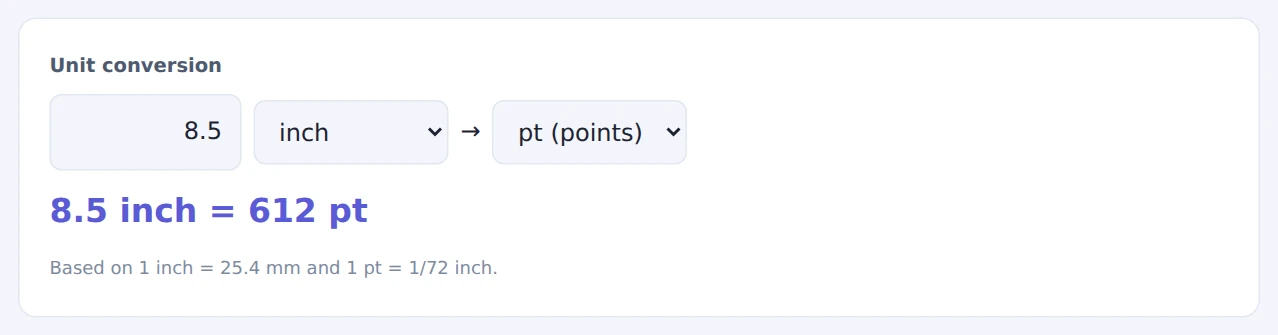
Below the converter you’ll find tables of A-series and US paper sizes. The most common ones:
- US Letter: 8.5 × 11 in (216 × 279 mm) Legal: 8.5 × 14 in Tabloid: 11 × 17 in
- A4: 210 × 297 mm (8.27 × 11.69 in) A3: 297 × 420 mm
DPI Calculator
The DPI Calculator converts between millimeters and pixels at the resolution you choose.
- Choose mm → pixels or pixels → mm
- Enter a value and set the Resolution (DPI); common values (72, 96, 150, 300, 600) are one click away
- The result appears instantly
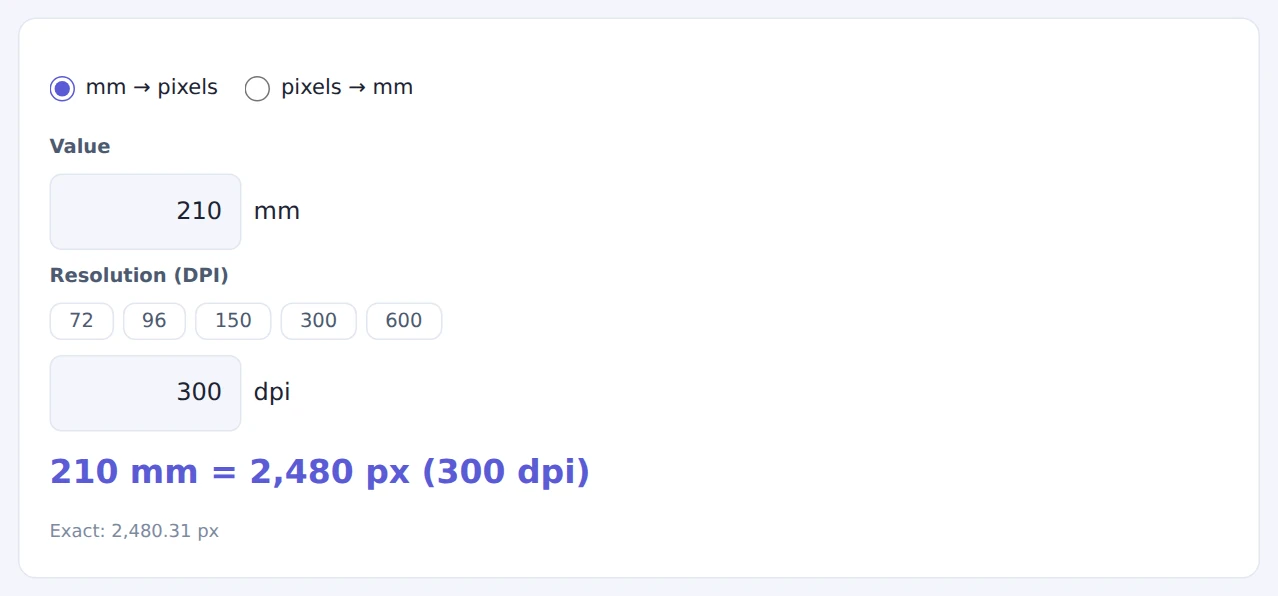
The width of A4 at 300 DPI
Working in inches? Multiply by 25.4 to get millimeters first, or use the unit converter above.
To find out how large a photo can print sharply, use pixels → mm with the image’s width in pixels and 300 DPI.
Typical DPI by use
- Screens (web, slides): print resolution doesn’t apply; think in pixels
- Home and office printers: 150–300 DPI
- Flyers, brochures and photo prints: 300 DPI
- Posters viewed from a distance: 150 DPI is often enough
When they come in handy
- Flyers and posters: check how many pixels your images need
- Printing photos: see how large a photo can print without looking soft
- Documents and forms: convert dimensions between apps that use points and mm
- Scanning: work out the real size of a scanned image from its pixels
FAQ
How many pixels do I need to print on US Letter or A4?
At 300 DPI, US Letter needs 2,550 × 3,300 pixels and A4 needs about 2,480 × 3,508 pixels. Smaller images stretched to fit will look soft.
If I change an image from 72 to 300 DPI, will it print sharper?
No. The number of pixels stays the same, so changing only the DPI value just makes the printed size smaller. To print large and sharp, you need an image with more pixels to begin with.
How big is a 12 pt font?
12 pt is 1/6 inch, about 4.2 mm. The visible height of letters varies a little from font to font.
Things to keep in mind
- Follow your printer’s specs: bleed and required resolution vary between print shops
- Letter and A4 are different: A4 is narrower and taller than US Letter, so check which one you’re designing for
- Need to resize an image? Use the Image Resizer & Compressor to hit the pixel size you need
Summary
Print sizing comes down to one formula: pixels = inches × DPI. The Length Unit & Paper Size Converter and the DPI Calculator do the conversions instantly.
Use them as a quick check before you send anything to print.