

You want to analyze a table from a web page in Excel. When you copy and paste it, the columns shift, or unwanted formatting comes along with it. In those cases, extracting the table from the page’s HTML as CSV is the reliable way.
This guide shows how to turn web page tables into CSV with the free HTML Table Extractor. What you paste is never sent to a server.
I needed to move a list from an internal web system into Excel, and the system had no export button. So I built this, and made sure merged cells don’t throw the columns off.
Why copied tables come out wrong
Tables on web pages are built with the HTML <table> tag. Copying them straight from the screen often causes problems:
- Merged cells: cells spanning several rows or columns (rowspan, colspan) shift the columns when pasted
- Extra formatting: colors, links and images come along too
- Hard to select: dragging to select a huge table is a chore
This tool reads the table structure from the HTML and fills each merged cell’s value into every cell it covered before building the CSV, so the columns line up in Excel.
What this tool does
- Finds tables in the HTML you paste
- Shows a preview of each table found
- Expands merged cells (rowspan, colspan) and converts to CSV
- Copies the CSV or downloads it as a file
- Picks out just the tables, even from a full page of HTML
- Processes everything inside your browser without sending it to a server
How to use it
STEP 1. Copy the page’s HTML
On the page with the table, right-click and choose “View Page Source”, then select all and copy. If you only want the table, right-click it, choose “Inspect”, and copy the <table> element.
STEP 2. Paste the HTML
Open the HTML Table Extractor and paste into Paste HTML source.
STEP 3. Extract the tables
Press Extract tables. Each table found appears as a preview. If there are several, they’re all listed.
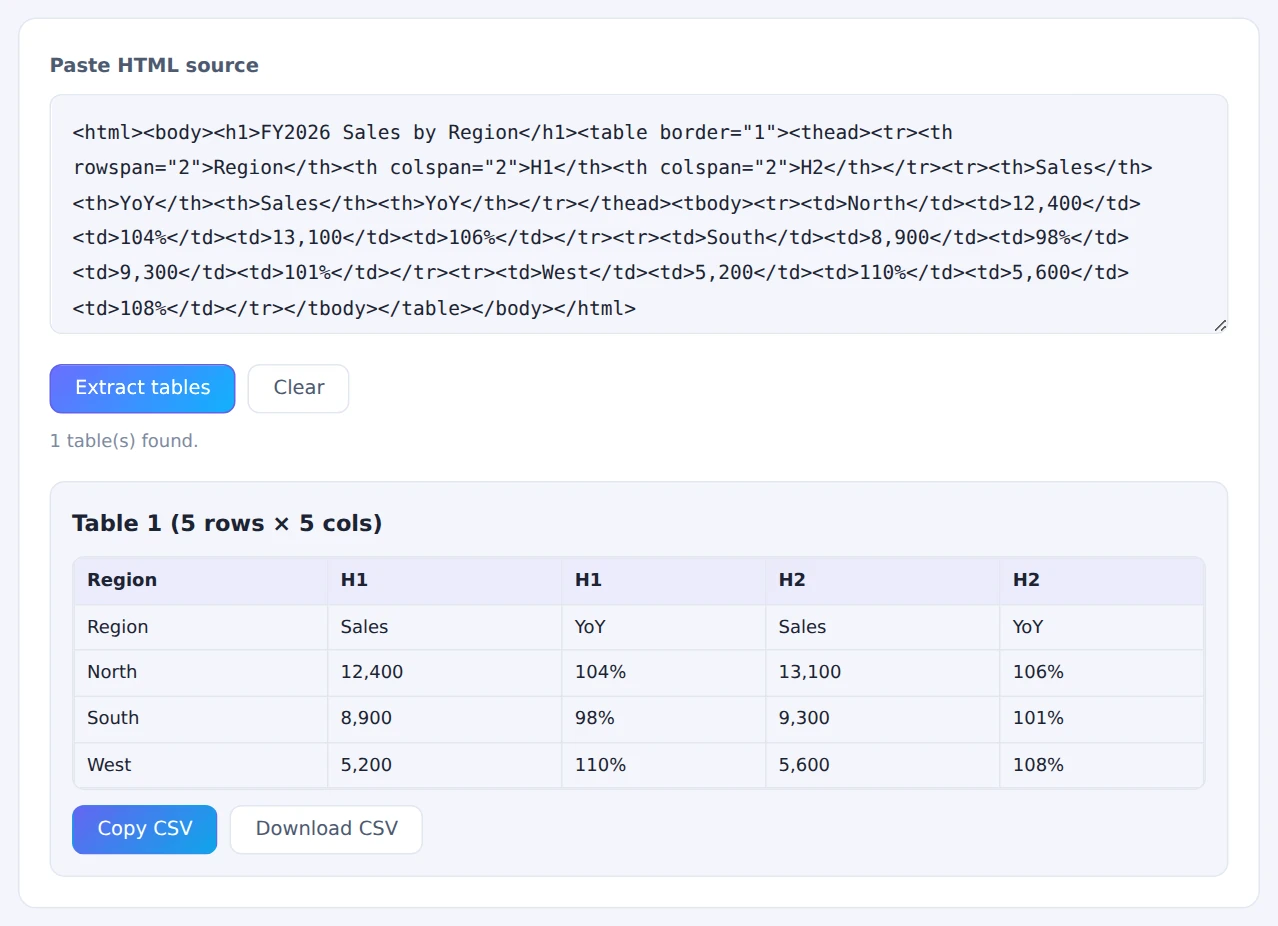
Merged header cells are expanded into each column
STEP 4. Get the CSV
Press Copy CSV to paste into Excel, or Download CSV to save it as a file.
Pasting the whole page’s HTML saves you hunting for the table. Pages sometimes contain layout tables too, so pick the one you want from the previews.
When it comes in handy
- Statistics and lists on web pages: bring public tables into Excel for analysis
- Internal systems: get data out of screens that have no export option
- Price and spec tables: collect tables from several product pages and compare them
- HTML emails: turn a table in an email into usable data
FAQ
Can’t I just enter a URL?
No. Browsers don’t let a page fetch another site’s content directly, so the tool works from HTML you paste. A bonus: tables behind a login work too, as long as you copy the HTML from the page you can see.
The CSV looks garbled in Excel. What do I do?
Excel may not detect the UTF-8 encoding. Use Data › From Text/CSV and choose UTF-8 as the file origin. Alternatively, use Copy CSV and paste directly into cells, which avoids the problem entirely.
How is this different from Excel’s “From Web” feature?
Excel can import tables from a URL, but it often can’t reach pages that require a login or tables built dynamically. For those, pasting the HTML here is more reliable.
Things to keep in mind
- Only <table> tables are supported: things that look like tables but are built with other tags (such as CSS grids) can’t be extracted
- Respect the source: if you publish or redistribute the data, check the site’s terms and copyright
- Need tab-separated values? Convert the CSV with the CSV ⇄ TSV Converter
Summary
Web page tables come out cleanly in Excel when you extract them from the HTML. The HTML Table Extractor turns pasted page source into CSV, merged cells and all.
If you’ve been retyping tables by hand, give it a try.