

An API response or a log line is one endless line of JSON, and you can’t make sense of it. You edited a config file and now something throws a syntax error. Formatting JSON makes it far easier to read and debug.
This guide shows how to pretty-print, minify and validate JSON with the free JSON Formatter, and how to fix the most common errors. Your data is never sent anywhere.
I never liked pasting JSON with API keys or customer data into random formatter sites, so I built one that runs entirely in the browser.
What is JSON?
JSON (JavaScript Object Notation) is a text format for exchanging data. You’ll find it in web APIs, app config files, logs and much more.
The basic shape is a set of name–value pairs inside curly braces, like {"name": "value"}. Values can be strings, numbers, true/false or null, and can nest arrays [ ] and other objects { }.
When machines exchange JSON, it’s usually squeezed onto one line without spaces to save bytes. For humans, pretty-printing (adding indentation and line breaks) makes the structure visible.
What this tool does
- Pretty-prints one-line JSON with indentation
- Minifies JSON back to a single line
- Lets you indent with 2 spaces, 4 spaces or tabs
- Sorts keys alphabetically
- Reports syntax errors with a hint about the position
- Processes your data inside your browser and never sends it to a server
How to use it
STEP 1. Paste your JSON
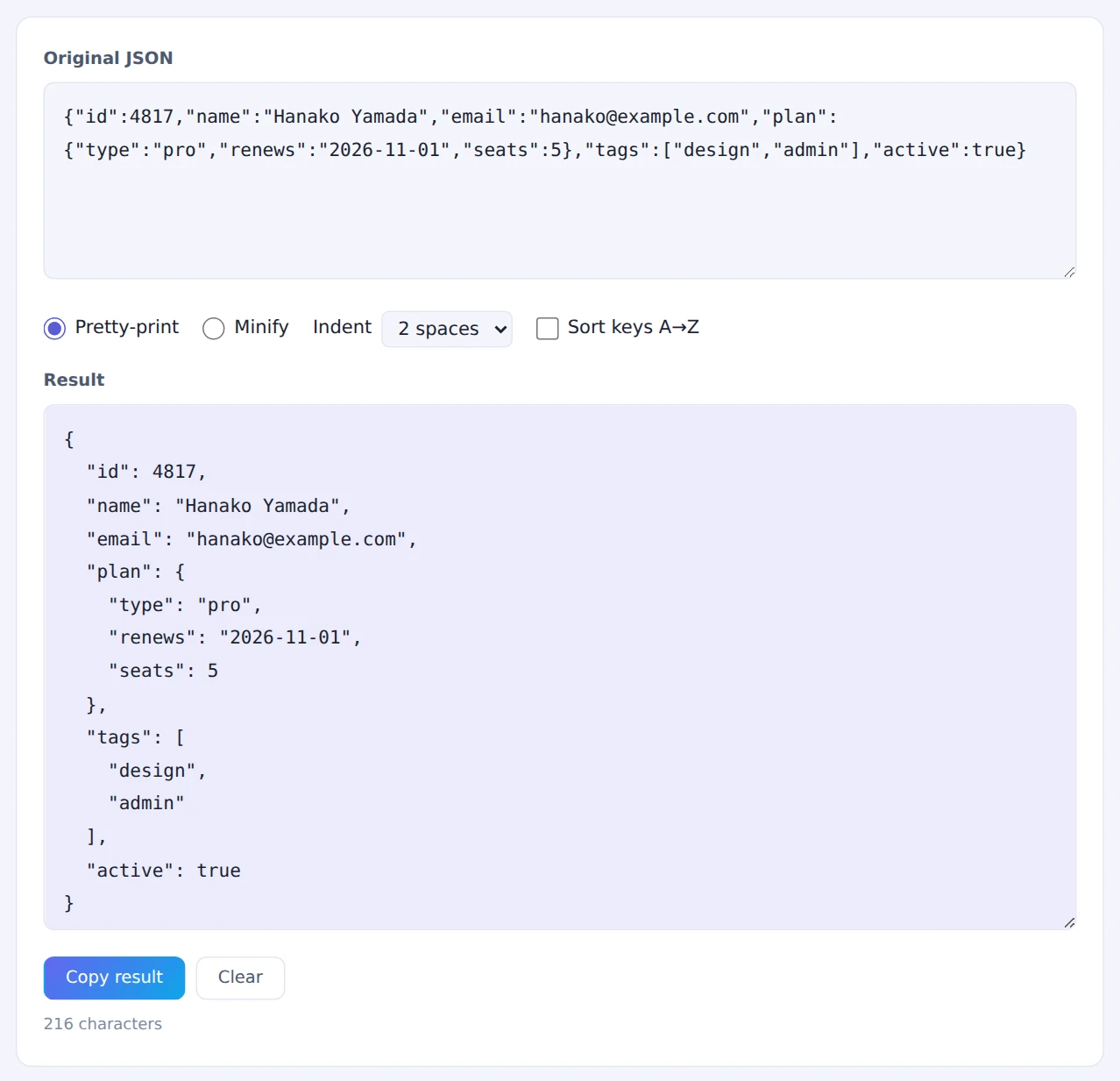
Open the JSON Formatter and paste your JSON into Original JSON.
STEP 2. Choose Pretty-print or Minify
Choose Pretty-print to make it readable, or Minify to collapse it to one line. The Result box updates instantly.
STEP 3. Adjust the options if needed
Pick the indentation: 2 spaces, 4 spaces or tabs. When comparing two JSON documents, tick Sort keys A→Z so differences in key order don’t get in the way.
STEP 4. Copy the result
Press Copy result to copy the formatted or minified JSON. If there’s a syntax error, the error message appears below the result instead.
Error messages usually include a position (which character the parser choked on). Start looking just before that point.
When it comes in handy
- Inspecting API responses: see the structure and find the field you need
- Reading logs: unpack JSON log lines into something readable
- Editing config files: check that your changes are still valid JSON
- Comparing data: sort keys, then compare two documents side by side
FAQ
What causes most JSON syntax errors?
These four account for most of them:
- A trailing comma after the last item (
{"a": 1,}) - Single quotes instead of double quotes
- Unquoted keys (
{name: "a"}) - Comments (
//or/* */), which JSON doesn’t allow
Is JSON the same as a JavaScript object?
They look alike, but JSON is stricter. JavaScript lets you leave keys unquoted or use single quotes; JSON doesn’t. This tool accepts strict JSON only.
Can very large numbers change when formatted?
Yes. Integers beyond about 16 digits, such as some IDs, exceed the precision of JavaScript numbers, and their last digits can change after parsing. That’s why many APIs return large IDs as strings.
Things to keep in mind
- Strict JSON only: JSON with comments (JSONC) and JavaScript object literals will show an error
- Huge files can be slow: tens of megabytes may make your browser sluggish
- Base64-encoded data? If the content is an unreadable encoded string, decode it first with the Base64 Encoder / Decoder
Summary
Even a wall of one-line JSON becomes easy to read once it’s pretty-printed. The JSON Formatter does it without sending your data anywhere, even when it contains API keys.
Try it the next time you’re staring at an API response.