
You pasted a CSV export into Excel and everything landed in one column. A script you wrote on Windows fails on a Linux server. You have a column of IDs in Excel and need them in a SQL query. Most data hand-off problems come down to small differences in format.
This guide covers three tools, the CSV ⇄ TSV Converter, Line Ending Converter and SQL IN-Clause Builder. Your data stays in your browser.
I used to fix these formats with find and replace in a text editor every time I investigated data. They’re small jobs, but mistakes are costly, so I made each one a paste-and-go tool.
Which tool do you need?
| Problem | Tool |
|---|---|
| CSV pastes into one Excel column, or you need tab-separated data as CSV | CSV ⇄ TSV Converter |
| You need to know or change whether a file uses Windows or Linux line endings | Line Ending Converter |
| You need a column of values as SQL: IN (‘A’,’B’,’C’) | SQL IN-Clause Builder |
CSV ⇄ TSV Converter
CSV separates values with commas; TSV uses tabs. When pasting into a spreadsheet, TSV splits into columns automatically.
- Paste CSV or TSV into Original data in the CSV ⇄ TSV Converter
- Choose CSV → TSV or TSV → CSV
- Press Copy result and paste into Excel or your system
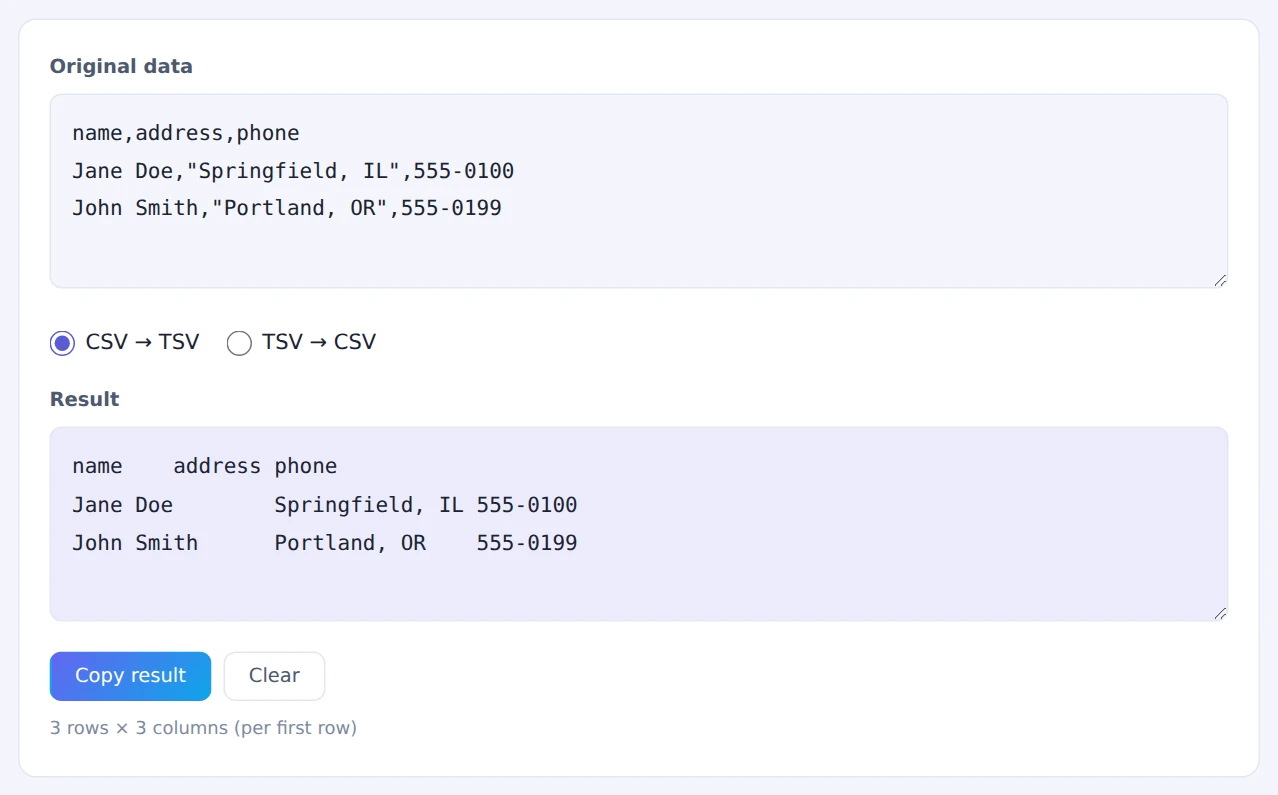
Commas inside quoted values, like “Springfield, IL”, stay part of the value. Simply replacing commas with tabs would break those rows; this tool parses quotes properly.
Line Ending Converter
Text files end lines with CRLF (Windows) or LF (Linux and Mac). A shell script saved with CRLF and run on Linux fails with errors about “\r” or “^M”, which is a classic problem.
- Choose a text file in the Line Ending Converter
- Its current line endings are detected and shown
- Choose what to convert to and press Convert & download
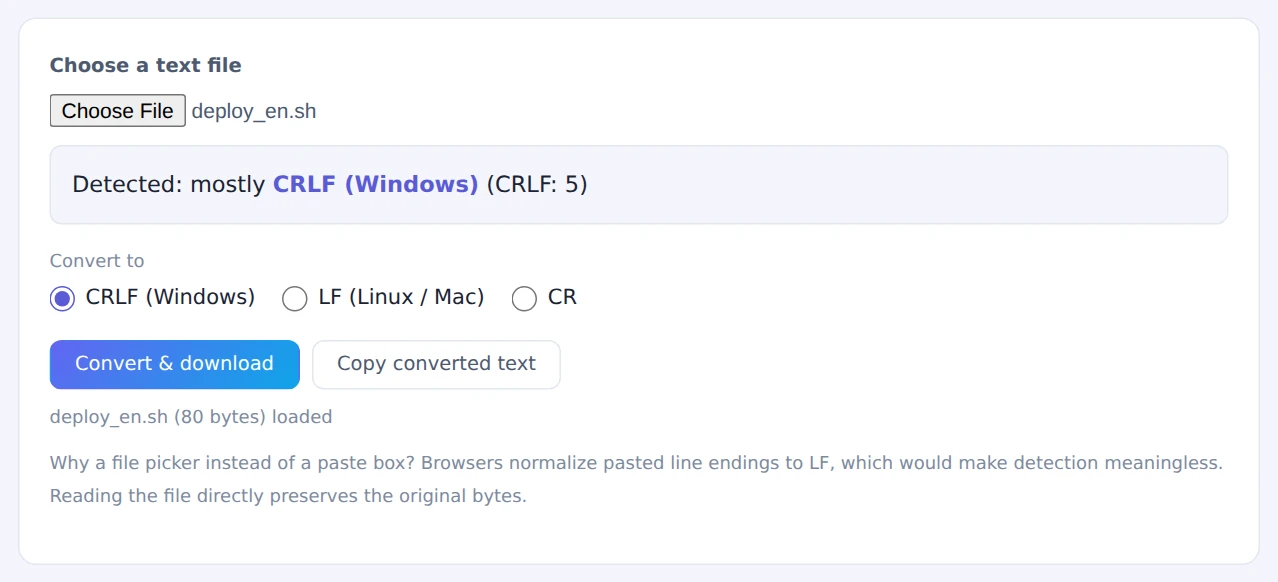
It works from files rather than pasted text because browsers convert pasted line endings to LF, which would make detection meaningless.
SQL IN-Clause Builder
Turning a column of IDs from a spreadsheet into WHERE id IN ('1001','1002',…) by hand invites missing quotes and commas.
- Copy the column from Excel and paste it into the SQL IN-Clause Builder
- Choose As strings (‘…’) or As numbers (no quotes)
- Tick Remove duplicates if needed, then press Copy result and paste into your query
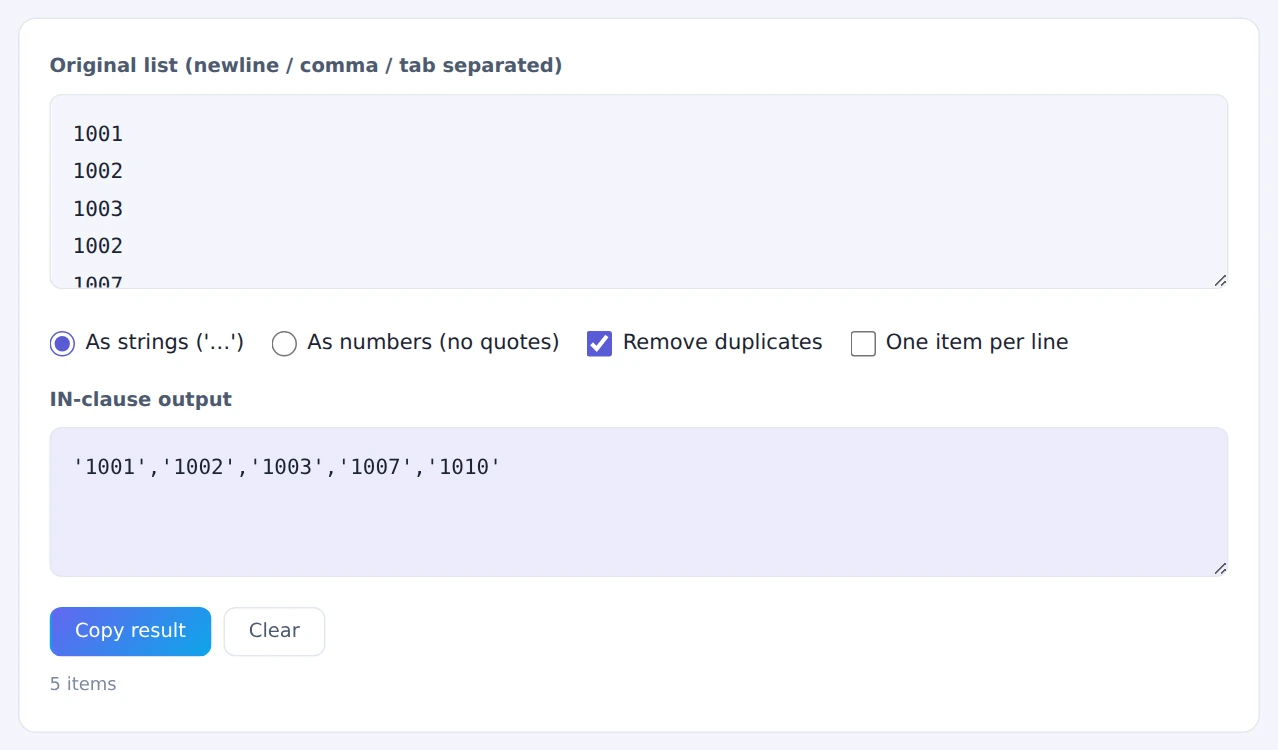
The duplicate 1002 appears only once
Values containing a single quote, such as “O’Brien”, are escaped the SQL way (”) automatically.
Some databases limit how many values one IN clause can hold (Oracle allows 1,000). The tool shows the count, so split large lists when you need to.
When they come in handy
- Checking exports: convert CSV to TSV to open it neatly in Excel
- Deploying to servers: make scripts and config files use LF
- Writing investigation queries: turn a requested list of IDs straight into a WHERE clause
- Moving data between systems: match the separator and line endings the other side expects
FAQ
Why does my CSV look garbled in Excel?
Excel may not detect the file’s UTF-8 encoding. Use Data › From Text/CSV and choose UTF-8 as the file origin. Copying TSV from this tool and pasting it into cells avoids the problem altogether.
How can I see which line endings a file uses?
Ordinary text editors don’t show them. Editors such as Visual Studio Code display “CRLF” or “LF” in the status bar. Otherwise, choose the file in this tool and it will tell you.
Is my data sent anywhere?
No. All three tools run entirely in your browser, so customer data and internal ID lists stay on your device.
Things to keep in mind
- The Line Ending Converter expects UTF-8 files: files in other encodings may come out garbled
- Review SQL before running it: check the values and count first
- Need a table from a web page? Use the HTML Table Extractor
- Need flexible pattern matching? Try patterns in the Regex Tester
Summary
Most data hand-off issues are solved by matching the separator, the line endings and the expected format. These three tools handle each one with a paste or a click, without sending your data anywhere.
If you’ve been fixing these by find and replace, give them a try.