

You scanned a document and the pages came out in the wrong order. You need to drop a blank page or two before submitting a file. Reordering and deleting PDF pages comes up all the time when putting documents together.
This guide shows how to rearrange and remove pages with the free PDF Page Reorder & Delete tool. Your PDF is processed in your browser and never uploaded.
I didn’t want to upload confidential documents to an online converter just to fix the page order, so I built a tool that does it on your own device.
What this tool does
- Shows every page of a PDF as a thumbnail
- Moves pages up or down with the ↑↓ buttons
- Removes pages with ✕ (press it again to restore a page)
- Saves the PDF with the page content intact
- Processes your PDF inside your browser and never sends it to a server
The saved PDF isn’t rebuilt from images. Each page’s original content is copied as-is, so if you could select and search text before, you still can afterwards.
How to use it
STEP 1. Choose a PDF
Open PDF Page Reorder & Delete and choose the PDF to edit. Thumbnails of every page appear.
STEP 2. Reorder the pages
Use each page’s ↑↓ buttons to move it earlier or later. Arrange them in the right order using the thumbnails.
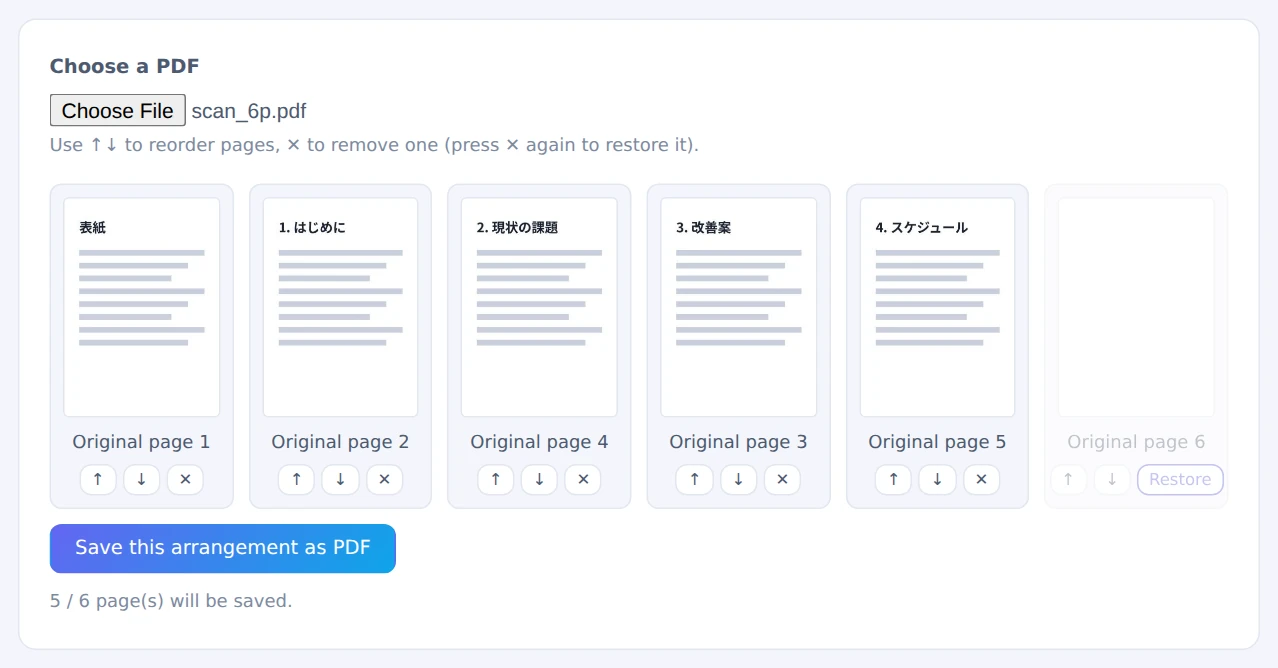
Press ✕ again to restore a page
STEP 3. Remove pages you don’t need
Press ✕ on a page to mark it for removal. Changed your mind? Press ✕ again to restore it.
STEP 4. Save
Press Save this arrangement as PDF to download the edited file.
Scroll through all the thumbnails once more before saving. Deleted pages can’t be recovered from the saved file.
When it comes in handy
- Scanned documents: fix pages that came out of order or a stack scanned in reverse
- Preparing a submission: drop blank pages, duplicate covers or internal notes
- Restructuring: move sections around so the document flows better
- Before sharing: take out pages that shouldn’t leave your team
FAQ
How do I reorder pages from several PDFs?
Combine them into one file with PDF Merge first, then reorder the pages here. To pull specific pages out into a separate file, use PDF Split.
Is a deleted page completely gone?
Yes. Deleted pages aren’t included in the saved PDF. If you only need to hide part of a page you’re keeping, like a name or account number, use the PDF Redaction Tool instead. Drawing a black box on top isn’t enough: the text underneath can often still be copied.
Can I rotate pages?
Not at the moment. The tool only reorders and removes pages.
Things to keep in mind
- Password-protected PDFs aren’t supported: you’ll see a message if a file can’t be loaded
- Won’t load on Windows? Files downloaded from the internet are sometimes blocked. Right-click the file, open Properties, tick “Unblock” and click OK
- Long documents take time: PDFs with dozens of pages may take a while to show thumbnails
- Saving is final: keep a copy of the original PDF
Summary
Fixing page order and removing unwanted pages is just rearranging thumbnails and saving. PDF Page Reorder & Delete keeps your text intact and never uploads your file.
Try it on your next batch of scanned documents.