
Every new account asks for a password, and coming up with one gets old fast. It’s tempting to reuse the same one, or to build one from a name and a birthday.
This guide shows how to create hard-to-guess passwords with the free Password Generator, and explains what makes a password strong today. The passwords it creates are never sent anywhere.
It always bothered me that password generator sites could, in theory, see the passwords they create. So this one does everything inside your browser.
What makes a password strong
Password advice has changed over the years:
- Length beats complexity: adding characters helps more than adding one symbol. Aim for 12+ characters, and 16+ for important accounts
- Never reuse passwords: when one service leaks, attackers try the same password everywhere else. Reuse is the biggest real-world risk
- Avoid guessable words: names, birthdays, dictionary words, “password” and “123456” are the first things attackers try
- No need for routine changes: current guidance (such as NIST’s) says not to force regular changes. Change a password when it may have leaked
What this tool does
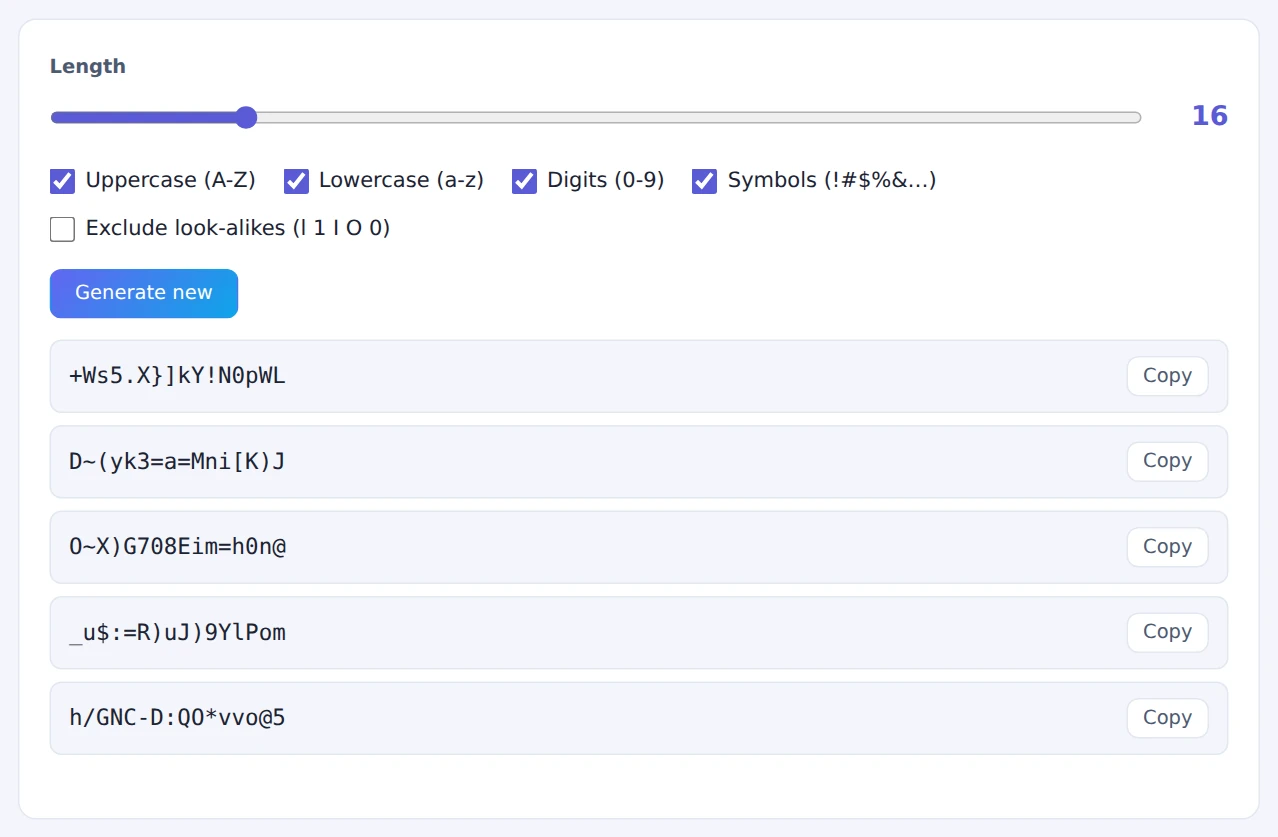
- Creates five random passwords at a time, 6 to 64 characters long
- Lets you choose uppercase, lowercase, digits and symbols
- Can exclude look-alike characters such as l and 1, O and 0
- Copies the one you like with a single click
- Generates passwords inside your browser without sending them to a server
How to use it
STEP 1. Open the tool
Open the Password Generator. Five 16-character passwords are ready as soon as the page loads.
STEP 2. Choose the length and character sets
Set Length with the slider and tick the character sets to use. The passwords refresh automatically when you change a setting.
STEP 3. Generate more if needed
If you don’t like any of them, press Generate new. If a service has rules like “no symbols” or a maximum length, adjust the settings to match.
STEP 4. Copy and save it
Press Copy next to the password you want and paste it into the sign-up form. Then save it in your password manager or your browser’s password storage.
If you’ll ever write the password down or type it by hand on a phone, tick Exclude look-alikes to avoid typos.
When it comes in handy
- Signing up for new services: use a different password for each one
- Fixing reused passwords: replace them one account at a time
- Wi-Fi passwords: replace your router’s default password with a strong one
- Shared files: create a one-off password for a ZIP file or shared link
FAQ
How am I supposed to remember passwords this long?
You don’t have to. Let a password manager, or the password storage built into your browser or phone, remember them. Only memorize a few, such as your password manager’s master password and your main email account.
Do I still need passwords if I use passkeys or two-factor authentication?
Where a service supports passkeys (signing in with your fingerprint, face or device PIN), use them: they’re safer and easier than passwords. Two-factor authentication protects you if a password leaks, but it’s not a reason to use a weak one. Combining both is best.
Are the passwords really random?
Yes. They come from your browser’s built-in cryptographic random number generator (crypto.getRandomValues). Each selected character set is also guaranteed to appear at least once, so the passwords meet rules like “must contain a number” as they are.
Things to keep in mind
- Passwords aren’t saved: they disappear when you close the page, so save the one you use first
- Some services don’t allow symbols: untick Symbols and make the password a little longer instead
- Copied text stays on your clipboard: on a shared computer, copy something else when you’re done
- Need a hash? To get the SHA-256 or MD5 hash of a piece of text, use the Hash Calculator
Summary
A strong password is long, random and unique to each service. The Password Generator creates passwords that fit those rules in a second, and they never leave your device.
Start by updating the password on your most important account.