

You need to send a quote, a purchase order and an invoice as a single file. Or your scanner saved every page as a separate PDF. Either way, you need to combine several PDFs into one.
This guide shows you how to merge PDFs in any order you like with the free PDF Merge tool — right in your browser, without uploading your files anywhere.
There are plenty of PDF merging services out there, but I never liked sending contracts and invoices to a server I knew nothing about. So I built one that does the whole job on your own device.
Common headaches when merging PDFs
There are a few ways to combine PDFs, and each comes with a catch:
- Paid software: the merge feature in many PDF editors is only available in the paid version
- Online services keep a copy: most free merging sites upload your files to their servers to process them
- “Print to PDF” loses text: combining files through the print dialog can strip out the original text, so you can no longer select or search it
FlowPocket’s PDF Merge is free and needs no upload. It copies each page as it is, so text you could select and search in the original stays that way.
What this tool does
- Combines multiple PDFs into a single file
- Lets you reorder files or remove ones you don’t need
- Lets you add more files later
- Keeps text selectable and searchable if it was in the originals
How to use it
Step 1. Choose your PDFs
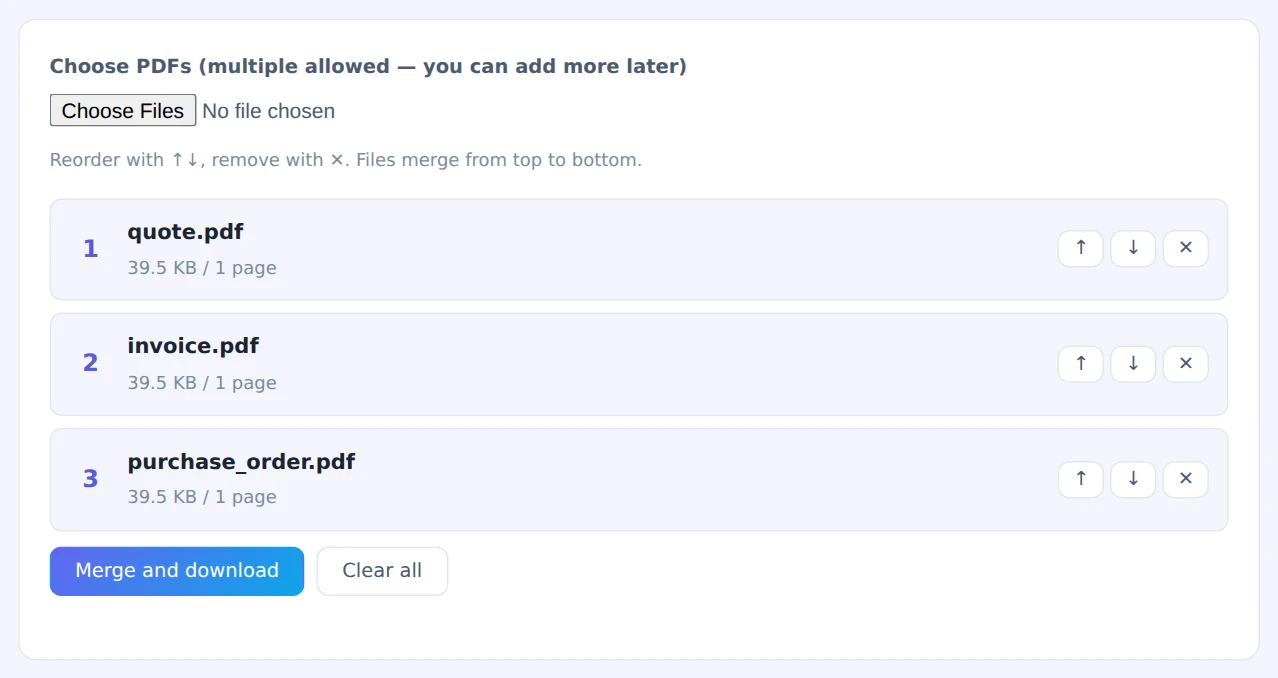
Open PDF Merge and choose the PDFs you want to combine. You can select several at once and add more later. The files you choose appear in a list.
Step 2. Put them in order
Files are combined from the top of the list down. Use the ↑ and ↓ buttons to change the order, and ✕ to remove a file you don’t want.
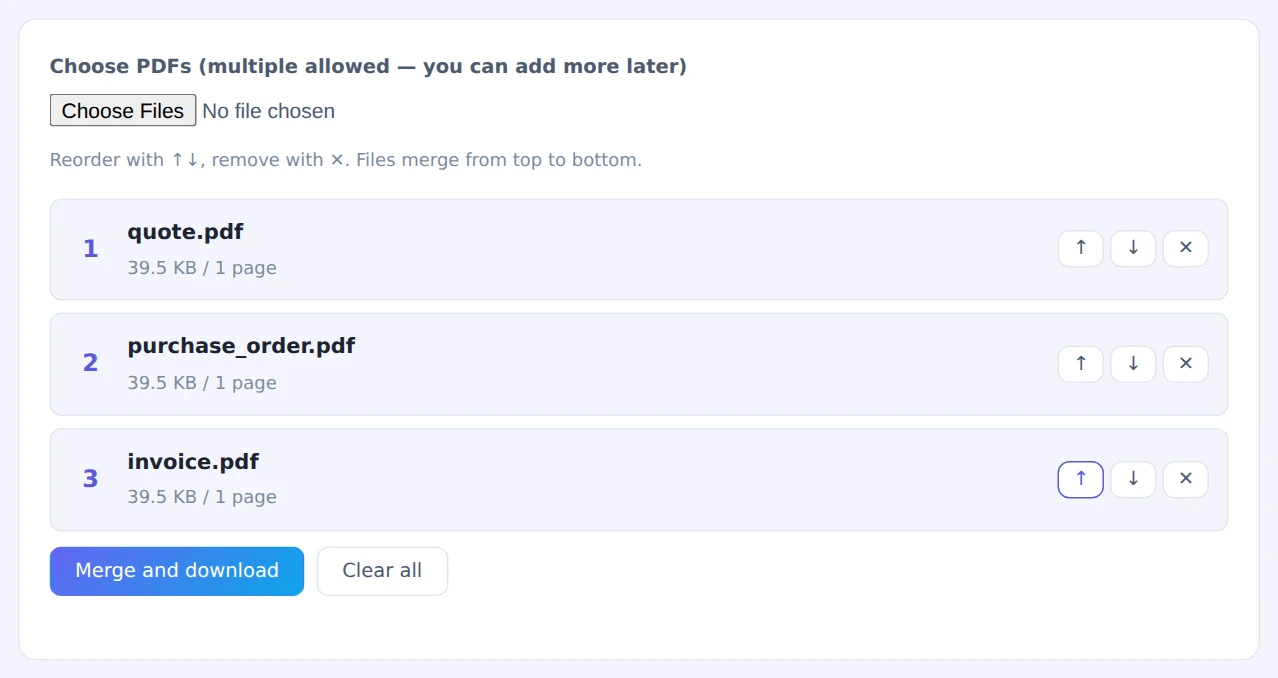
Files are merged from the top of the list down
Step 3. Merge and save
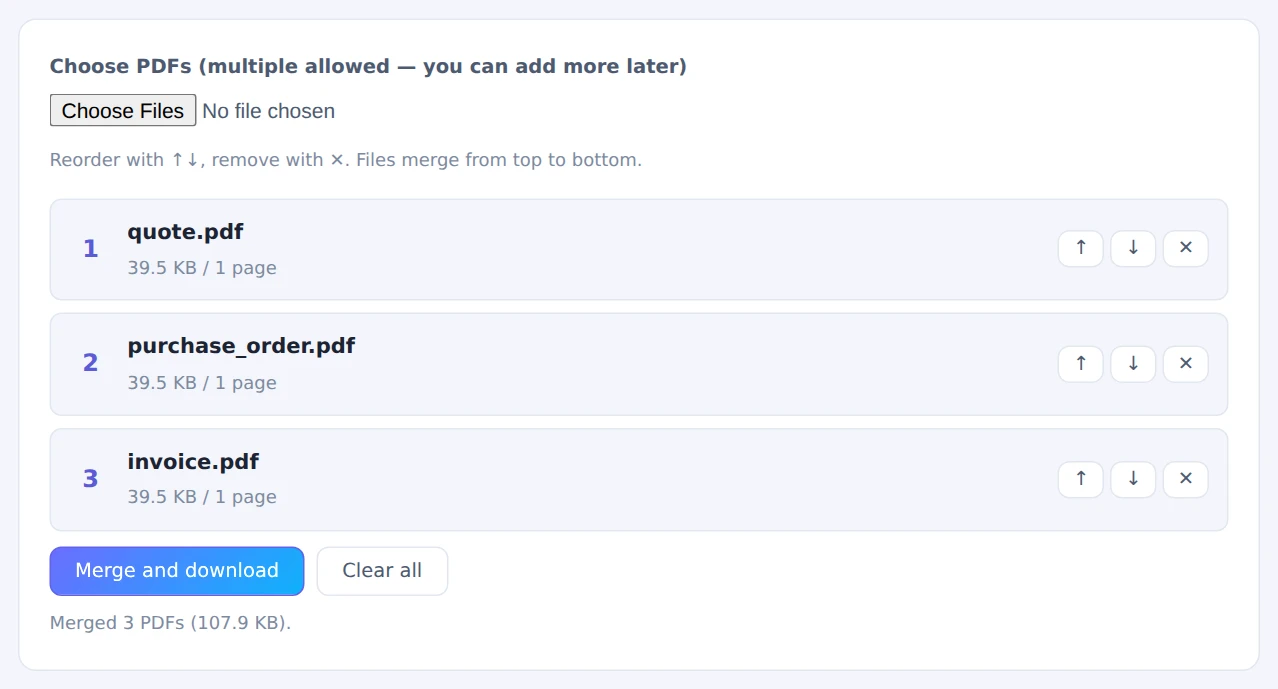
Click Merge and download. The combined PDF is saved to your device.
Step 4. Check the result
Open the saved PDF and check that the pages are in the right order and that none are missing. It’s worth a quick look before you send it.
Tip: add numbers to the start of your file names, like “1_” and “2_”, before you choose them. They’ll usually line up in that order, which saves you some reordering.
When this comes in handy
- Sending business documents together: combine a quote, purchase order, delivery note and invoice into one file
- Submitting applications: put an application form, ID copy and supporting documents in a single PDF
- Tidying up scans: turn page-by-page scans into one document
- Preparing handouts: combine several documents in the order you’ll present them
FAQ
Can I merge PDFs on my phone?
Yes. Open the tool in your phone’s browser and choose PDFs from your Files app. Large PDFs with many pages can take a while to process, so a computer is a better choice for big files.
Is there another way on a Mac?
Yes. The built-in Preview app can combine PDFs: open one PDF, show the thumbnail sidebar, and drag another PDF into it. On Windows or a phone — or when you just want it done without remembering the steps — this tool is quicker.
What if I need to rearrange individual pages after merging?
To reorder pages rather than whole files, use PDF Page Reorder & Delete. You can fine-tune the page order after merging.
Things to watch out for
- Password-protected PDFs can’t be opened: remove the password first
- File sizes add up: if the merged file is too large to email, split it with PDF Split
- Check for personal information before sending: hide anything the recipient doesn’t need to see with the PDF Redaction Tool
Summary
With FlowPocket’s PDF Merge, you can combine PDFs in any order without uploading them. Selectable, searchable text stays that way.
Give it a try the next time you need to send several documents as one file.

